> ## Documentation Index
> Fetch the complete documentation index at: https://sudomock.com/docs/llms.txt
> Use this file to discover all available pages before exploring further.
> ## Agent Instructions
> The base URL is https://api.sudomock.com.
> Authenticate every request with the x-api-key header. Keys begin with sm_.
> A render returns the finished image at data.print_files[0].export_path. A request sent with is_async true returns a job_id to poll at GET /api/v1/jobs/{job_id}.
> Prefer the official SDKs over hand-written HTTP calls: npm install sudomock for Node, pip install sudomock for Python.
# Serve mockups from your own domain
> Put rendered images on a domain you own.
A render comes back as a URL. By default that URL is ours. Add a domain you
own and the same image is served from your name instead, so the link a shopper
sees belongs to your brand rather than to your supplier.
## Custom domains
A custom domain is a subdomain of your own, such as `cdn.yourbrand.com`, that
serves the images the API returns. Nothing about the render changes: the same
call, the same artwork, the same file. Only the host on the returned URL is
yours.
Setting one up needs two things you already control, a domain name and access
to its DNS. Everything after that happens on this page.
Custom domains are a paid add-on on top of a plan, billed monthly. The
dashboard shows the price at checkout and the Owner of the organization is
the one who completes it. An account without a paid plan is sent to billing
instead of the setup form.
## Domain management
Domains live on the [Custom domains](https://sudomock.com/dashboard/domains)
page of the dashboard. The list carries every domain the organization has
added, the state each one is in and which one is the default. Opening a row
gives you its DNS records, its certificate state and the API keys bound to it.
Domains belong to the organization rather than to the member who added them,
so every member renders through the same domain. Owners and Editors add
domains, ask for checks, set the default and manage bindings; a Viewer reads
the list and the status without being able to change either. Payment is the
Owner's alone. [Members](/docs/dashboard/members) covers the roles.
## Add a domain
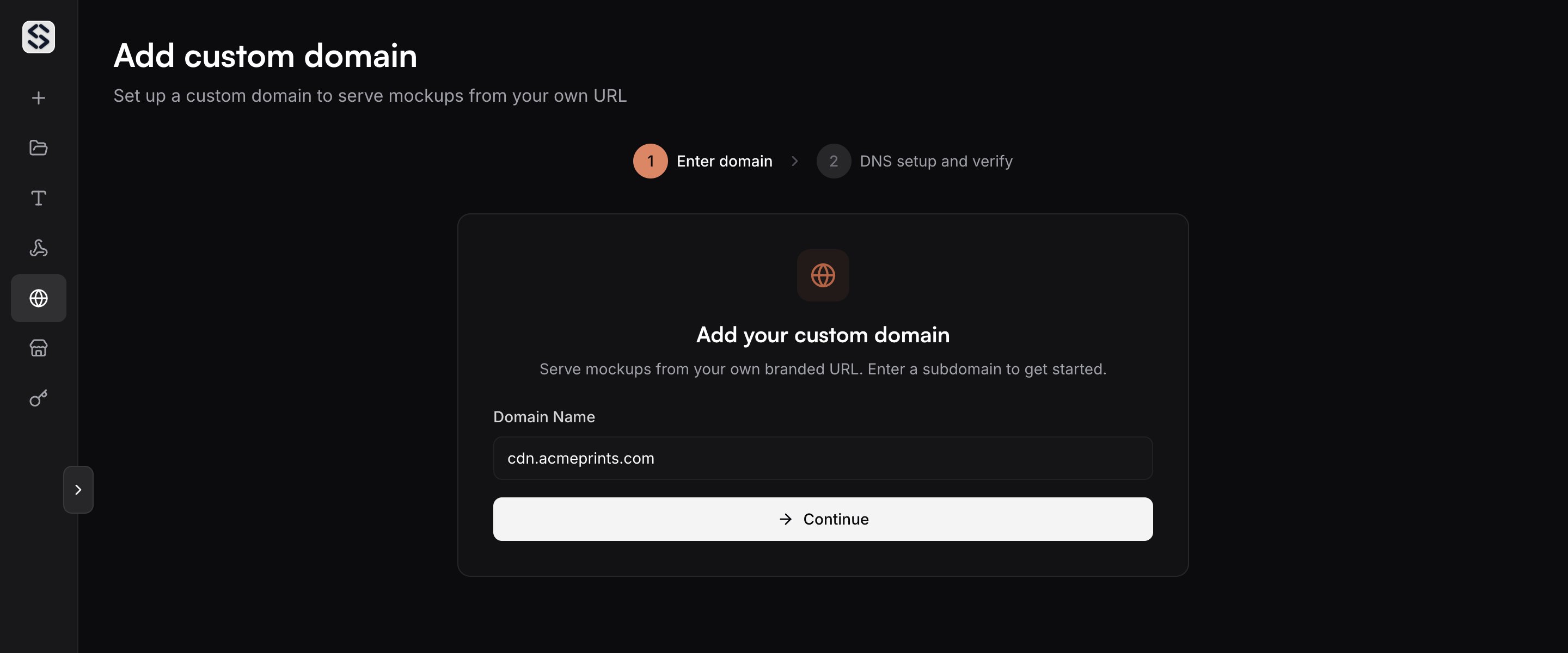
Use a host under a domain you own, such as `cdn.yourbrand.com`. A root
domain is not accepted, because the record that points a name at us cannot
sit at the root of a zone.
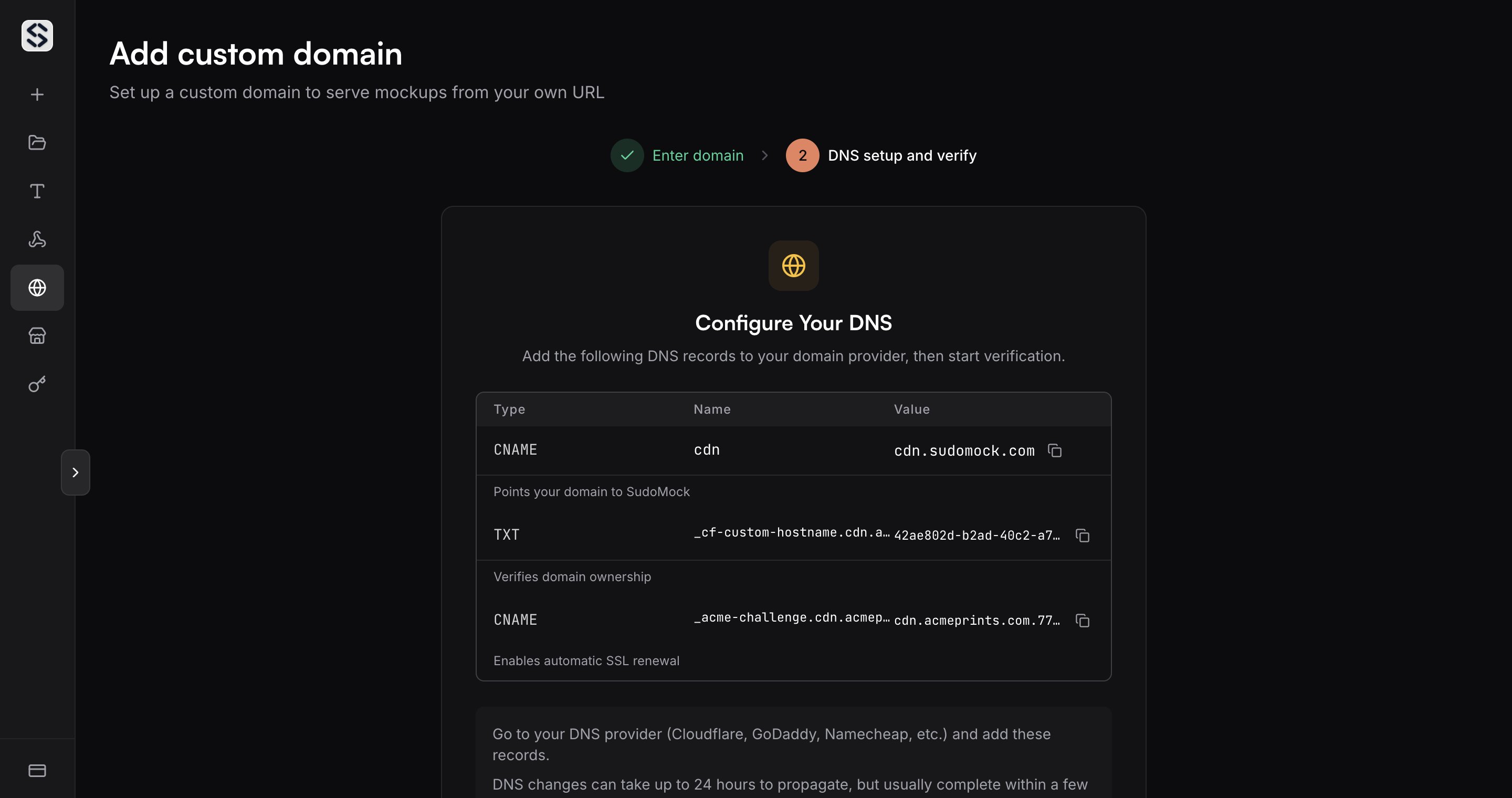
 The page hands you three records: a CNAME that points your subdomain at
us, a TXT record that proves you own the name, and a second CNAME that
keeps the certificate renewing. Copy each value and add all three at your
DNS provider.
The page hands you three records: a CNAME that points your subdomain at
us, a TXT record that proves you own the name, and a second CNAME that
keeps the certificate renewing. Copy each value and add all three at your
DNS provider.
 Press **Start Verification** once the records are live. Most providers
publish within a few minutes, though a change can take up to a day to
reach everyone.
## Understand a domain status
Press **Start Verification** once the records are live. Most providers
publish within a few minutes, though a change can take up to a day to
reach everyone.
## Understand a domain status
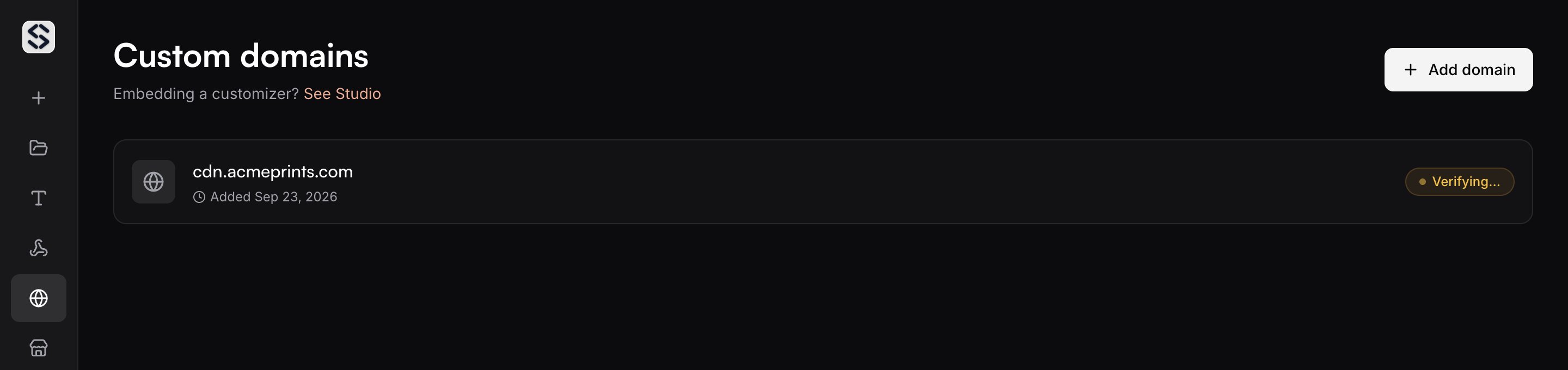 A domain carries one status at a time, and the badge on the list and on the
detail page names it:
* **Pending setup**: the domain is registered and its records are waiting for you.
* **Verifying**: the records you published are being read. A domain left in
this state for three days is removed, and a reminder reaches you before
that happens.
* **SSL provisioning**: ownership is proven and the certificate is being issued.
* **Awaiting payment**: setup is finished and the add-on has not been paid for.
* **Active**: the domain is serving renders.
* **Error**: a record is missing or wrong. The reason is printed above the
records, so you can compare them line by line.
* **Suspended**: the add-on lapsed. The domain stops serving, and it is deleted
for good if the countdown on the banner runs out.
## Ask for a fresh check
While a domain is verifying or provisioning, the page checks again on its own
every thirty seconds, so setup finishes without you reloading. **Check now**
asks immediately and says whether anything moved.
After an error, **Re-verify** starts the whole check over. That one is limited
to once an hour, so correct every record before pressing it rather than using
it to watch DNS propagate.
## Complete the payment
Verification and payment are separate steps. A domain that verifies moves to
Awaiting payment and shows how long is left before the attempt is dropped, so
an unfinished setup stays visible rather than going quiet. Only the Owner can
finish it; other members see the state and who to ask.
A suspended domain carries the same kind of countdown. Paying again before it
runs out brings the domain back rather than starting it from scratch.
## Choose a default domain
An account can hold several domains, and one of them is the default. Changing
it is a confirmed action, because every render URL that is not bound to a
specific key moves with it. URLs already handed to customers keep working; the
change applies to new renders.
An account with exactly one active domain has nothing to choose. That domain
acts as the default until a second one arrives.
## Bind a domain to a key
Open a domain and use **API key bindings** to attach one of your
[API keys](/docs/dashboard/api-keys). Every render made with that key then serves
from that domain, with nothing to pass per request. This is how one account
serves two brands: each key renders to its own domain, and neither integration
has to know the other exists.
A binding is only offered while the domain is active, and the control reads
your plan first. When the plan cannot be confirmed, the page says domain
actions are paused instead of writing a binding that would not hold.
## Understand which domain a render uses
The host on a returned URL is decided in this order:
1. The domain bound to the API key that made the call.
2. The default domain of the account.
3. The single active domain, when the account has exactly one.
4. Our own host, when none of the above applies.
A domain that is suspended or not yet active is skipped at every step, so a
lapsed add-on falls back to our host and the links keep resolving.
## Remove a domain
**Remove** is offered on a domain that is not serving: one still in setup, one
that failed its check, one whose add-on lapsed.
Removing a domain ends its billing and drops the setup behind it. Nothing is
served from that address afterwards, and bringing it back means publishing
the records and verifying again. This cannot be undone.
## API reference
Domains are set up here. What they change shows up in the contract next door.
* [Render a PSD mockup](/docs/api-reference/psd-mockups/render-a-psd-mockup) returns a URL whose host is resolved from the key that signed the call
* [Render a photo mockup](/docs/api-reference/photo-mockups/render-a-photo-mockup) resolves its host the same way
* [Retrieve the current account](/docs/api-reference/account/retrieve-the-current-account) reports which key signed the call, and that is the key whose binding applies
* [API keys](/docs/dashboard/api-keys) is where a key is issued before it is bound
A domain carries one status at a time, and the badge on the list and on the
detail page names it:
* **Pending setup**: the domain is registered and its records are waiting for you.
* **Verifying**: the records you published are being read. A domain left in
this state for three days is removed, and a reminder reaches you before
that happens.
* **SSL provisioning**: ownership is proven and the certificate is being issued.
* **Awaiting payment**: setup is finished and the add-on has not been paid for.
* **Active**: the domain is serving renders.
* **Error**: a record is missing or wrong. The reason is printed above the
records, so you can compare them line by line.
* **Suspended**: the add-on lapsed. The domain stops serving, and it is deleted
for good if the countdown on the banner runs out.
## Ask for a fresh check
While a domain is verifying or provisioning, the page checks again on its own
every thirty seconds, so setup finishes without you reloading. **Check now**
asks immediately and says whether anything moved.
After an error, **Re-verify** starts the whole check over. That one is limited
to once an hour, so correct every record before pressing it rather than using
it to watch DNS propagate.
## Complete the payment
Verification and payment are separate steps. A domain that verifies moves to
Awaiting payment and shows how long is left before the attempt is dropped, so
an unfinished setup stays visible rather than going quiet. Only the Owner can
finish it; other members see the state and who to ask.
A suspended domain carries the same kind of countdown. Paying again before it
runs out brings the domain back rather than starting it from scratch.
## Choose a default domain
An account can hold several domains, and one of them is the default. Changing
it is a confirmed action, because every render URL that is not bound to a
specific key moves with it. URLs already handed to customers keep working; the
change applies to new renders.
An account with exactly one active domain has nothing to choose. That domain
acts as the default until a second one arrives.
## Bind a domain to a key
Open a domain and use **API key bindings** to attach one of your
[API keys](/docs/dashboard/api-keys). Every render made with that key then serves
from that domain, with nothing to pass per request. This is how one account
serves two brands: each key renders to its own domain, and neither integration
has to know the other exists.
A binding is only offered while the domain is active, and the control reads
your plan first. When the plan cannot be confirmed, the page says domain
actions are paused instead of writing a binding that would not hold.
## Understand which domain a render uses
The host on a returned URL is decided in this order:
1. The domain bound to the API key that made the call.
2. The default domain of the account.
3. The single active domain, when the account has exactly one.
4. Our own host, when none of the above applies.
A domain that is suspended or not yet active is skipped at every step, so a
lapsed add-on falls back to our host and the links keep resolving.
## Remove a domain
**Remove** is offered on a domain that is not serving: one still in setup, one
that failed its check, one whose add-on lapsed.
Removing a domain ends its billing and drops the setup behind it. Nothing is
served from that address afterwards, and bringing it back means publishing
the records and verifying again. This cannot be undone.
## API reference
Domains are set up here. What they change shows up in the contract next door.
* [Render a PSD mockup](/docs/api-reference/psd-mockups/render-a-psd-mockup) returns a URL whose host is resolved from the key that signed the call
* [Render a photo mockup](/docs/api-reference/photo-mockups/render-a-photo-mockup) resolves its host the same way
* [Retrieve the current account](/docs/api-reference/account/retrieve-the-current-account) reports which key signed the call, and that is the key whose binding applies
* [API keys](/docs/dashboard/api-keys) is where a key is issued before it is bound