> ## Documentation Index
> Fetch the complete documentation index at: https://sudomock.com/docs/llms.txt
> Use this file to discover all available pages before exploring further.
> ## Agent Instructions
> The base URL is https://api.sudomock.com.
> Authenticate every request with the x-api-key header. Keys begin with sm_.
> A render returns the finished image at data.print_files[0].export_path. A request sent with is_async true returns a job_id to poll at GET /api/v1/jobs/{job_id}.
> Prefer the official SDKs over hand-written HTTP calls: npm install sudomock for Node, pip install sudomock for Python.
# Invite your shop and set their access
> Invite by email, pick a role, keep one balance.
Every SudoMock account is an organization, so the shop does not need a second
account to get a second person working. The Owner invites by email, picks what
that person may touch, and everyone renders from the same balance.
## Organization membership
The organization is what owns the work. Mockups, credits, the subscription,
API keys, webhooks and custom domains all belong to it rather than to the
person who created them, so a render started by any member draws on the same
balance, and a key issued by one Editor keeps working when another Editor
takes over the integration. Members are unlimited on every plan and there is
no seat fee, which is what makes the invitation cheap: the second person is
not a second account to fund, they are another pair of hands on the one you
already have.
The organization is also what an API key speaks for. A call to
[the current account](/docs/api-reference/account/retrieve-the-current-account)
answers with the organization behind the key you sent, along with the credit
balance and the billing period every member draws on. Membership itself is
settled here in the dashboard: people are invited, moved between roles and
removed on this screen, not over the API.
Only the Owner can invite, change a role or remove someone. Editors and
Viewers see the same list of people and cannot act on it.
## Invite someone
Go to **Settings**, then **Organization**. The **People** section holds the
members of the organization and the invitations that are still out.
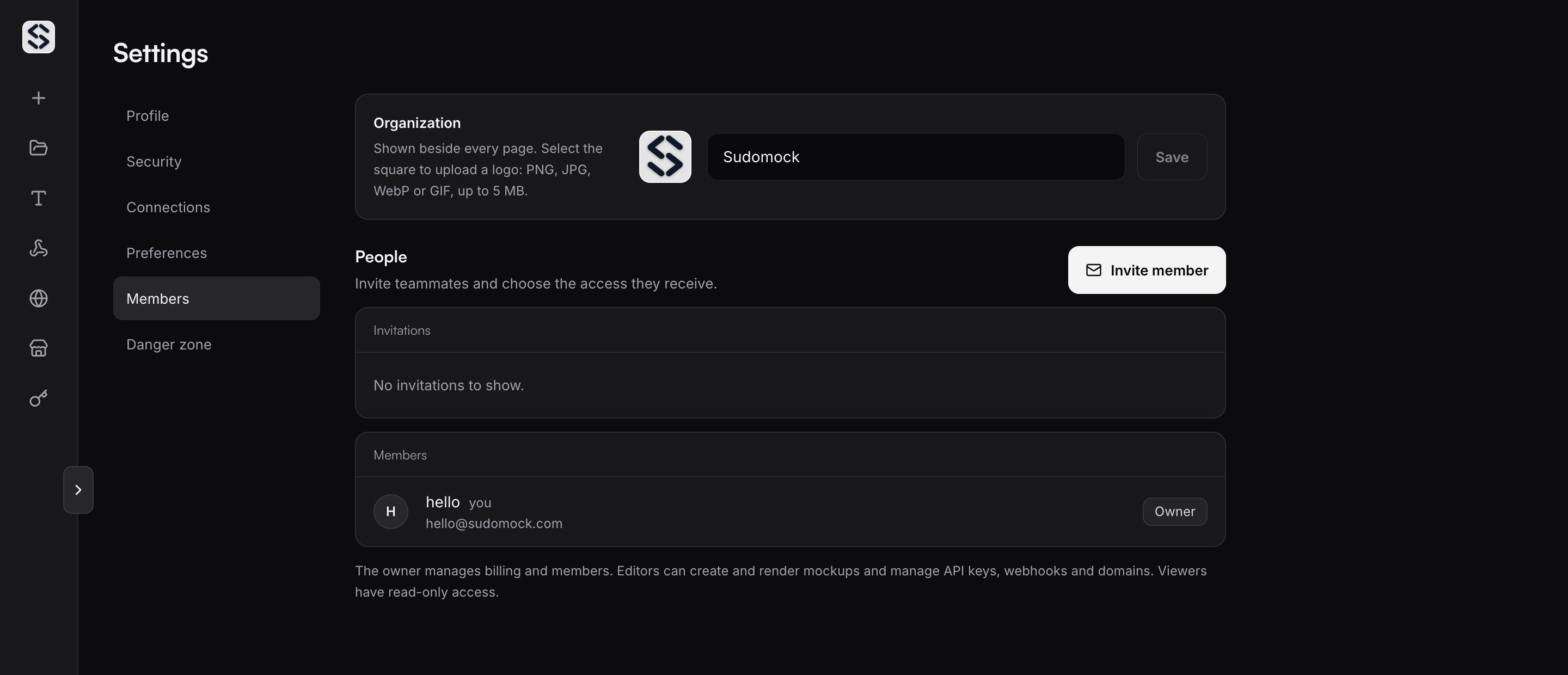 The control sits beside the **People** heading.
Type the email address, choose **Editor** or **Viewer**, and send it.
The control sits beside the **People** heading.
Type the email address, choose **Editor** or **Viewer**, and send it.
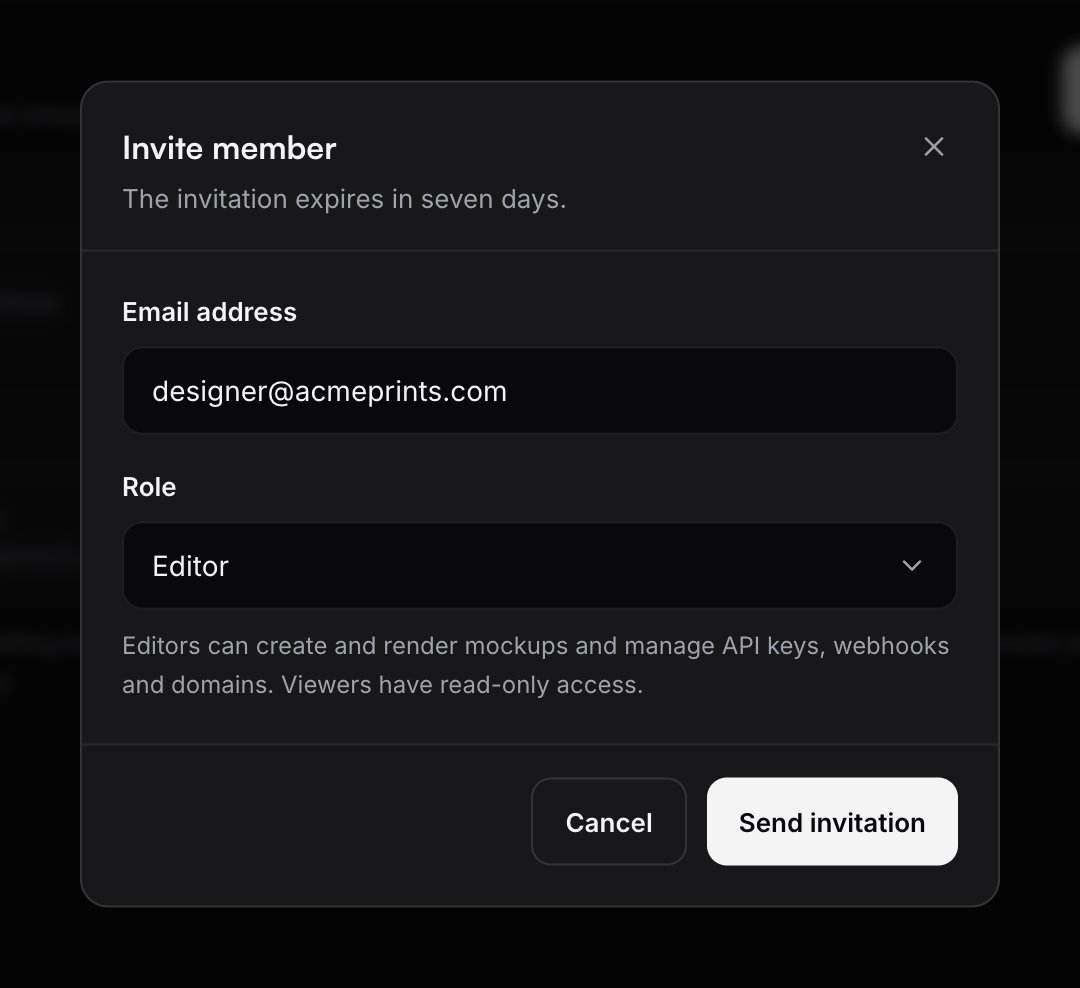 The invitation goes to that address and waits there until it is accepted. It
is valid for seven days, and the person must accept it while signed in with
the address it was sent to. Signing in with another address shows them whose
invitation it is and offers to sign them out.
One address can hold one open invitation at a time, and someone who is already
a member cannot be invited again. An organization that sends a great many
invitations in one day is asked to continue the next day.
## Understand an invitation status
Every row under **Invitations** carries the role it offers, where it stands and
who sent it. An invitation leaves that list only when it is accepted or
cancelled, so one that has run out still sits there rather than disappearing.
* **Pending.** Sent and waiting. The row counts down, saying **Expires today**
on the last day.
* **Expired.** Seven days passed without an answer. The link is refused until
the invitation is sent again, and **Resend** leads the row from that moment
on.
* **Cancelled.** The Owner took it back with **Cancel** before it was used.
The link is dead and the row is gone.
* **Accepted.** An invitation can be accepted once, and this one has been. The
person is now in the **Members** list and the organization is in their
organization menu.
## Pick a role
There are three roles, and the invitation offers two of them:
* **Owner.** Runs everything, including billing and who else is here. The
Owner is whoever created the organization, and it is not a role you can hand
out: an invitation offers Editor or Viewer.
* **Editor.** Works across the product: creates and renders mockups, manages
API keys, webhooks and [custom domains](/docs/dashboard/custom-domains), and
opens [Studio](/docs/dashboard/studio).
* **Viewer.** Reads. A Viewer cannot issue or read a key, add or change a
custom domain, upload a font or open Studio.
## Change a member's role
Find the person in the **Members** list and pick the other role from the
control on their row. The change takes effect at once and the dashboard says
which role they now hold. The Owner row and your own row show a plain label
instead of a control, because neither can be reassigned from here.
Moving someone from Editor to Viewer is the moment they stop being able to
read your key values, and it does not take back what they already read. When
that happens the dashboard offers to rotate the keys they could see. Take the
offer if the departure was not friendly.
## Remove a member
Select **Remove** on their row and confirm. They lose access to the
organization right away.
Their work stays. Mockups, renders and fonts belong to the organization, so
nothing they made leaves with them. Keys they created keep working until you
rotate them, and the dashboard lists those keys and offers the way to
[the API keys screen](/docs/dashboard/api-keys) so the rotation is one step rather
than a hunt.
## Leave an organization
Anyone other than the Owner can leave. Open **Settings**, then
**Organization**, and select **Leave organization**.
Leaving costs you access to the mockups, keys and settings of that
organization immediately, and every other tab you have open is returned to
your own. Nothing is deleted, and the Owner can invite you again.
## Switch between organizations
Accepting an invitation does not replace your own account. You keep the
organization you signed up with and gain the one you were invited to, and the
menu at the top of the sidebar lists both and names the role you hold in the
one you are in.
Selecting one reloads the dashboard into it, in every tab, so the mockups, the
keys and the balance you are looking at always belong to the organization the
menu names.
## API reference
For the organization behind a key, the plan it is on and the credits every
member shares, see
[the account API reference](/docs/api-reference/account/retrieve-the-current-account).
The invitation goes to that address and waits there until it is accepted. It
is valid for seven days, and the person must accept it while signed in with
the address it was sent to. Signing in with another address shows them whose
invitation it is and offers to sign them out.
One address can hold one open invitation at a time, and someone who is already
a member cannot be invited again. An organization that sends a great many
invitations in one day is asked to continue the next day.
## Understand an invitation status
Every row under **Invitations** carries the role it offers, where it stands and
who sent it. An invitation leaves that list only when it is accepted or
cancelled, so one that has run out still sits there rather than disappearing.
* **Pending.** Sent and waiting. The row counts down, saying **Expires today**
on the last day.
* **Expired.** Seven days passed without an answer. The link is refused until
the invitation is sent again, and **Resend** leads the row from that moment
on.
* **Cancelled.** The Owner took it back with **Cancel** before it was used.
The link is dead and the row is gone.
* **Accepted.** An invitation can be accepted once, and this one has been. The
person is now in the **Members** list and the organization is in their
organization menu.
## Pick a role
There are three roles, and the invitation offers two of them:
* **Owner.** Runs everything, including billing and who else is here. The
Owner is whoever created the organization, and it is not a role you can hand
out: an invitation offers Editor or Viewer.
* **Editor.** Works across the product: creates and renders mockups, manages
API keys, webhooks and [custom domains](/docs/dashboard/custom-domains), and
opens [Studio](/docs/dashboard/studio).
* **Viewer.** Reads. A Viewer cannot issue or read a key, add or change a
custom domain, upload a font or open Studio.
## Change a member's role
Find the person in the **Members** list and pick the other role from the
control on their row. The change takes effect at once and the dashboard says
which role they now hold. The Owner row and your own row show a plain label
instead of a control, because neither can be reassigned from here.
Moving someone from Editor to Viewer is the moment they stop being able to
read your key values, and it does not take back what they already read. When
that happens the dashboard offers to rotate the keys they could see. Take the
offer if the departure was not friendly.
## Remove a member
Select **Remove** on their row and confirm. They lose access to the
organization right away.
Their work stays. Mockups, renders and fonts belong to the organization, so
nothing they made leaves with them. Keys they created keep working until you
rotate them, and the dashboard lists those keys and offers the way to
[the API keys screen](/docs/dashboard/api-keys) so the rotation is one step rather
than a hunt.
## Leave an organization
Anyone other than the Owner can leave. Open **Settings**, then
**Organization**, and select **Leave organization**.
Leaving costs you access to the mockups, keys and settings of that
organization immediately, and every other tab you have open is returned to
your own. Nothing is deleted, and the Owner can invite you again.
## Switch between organizations
Accepting an invitation does not replace your own account. You keep the
organization you signed up with and gain the one you were invited to, and the
menu at the top of the sidebar lists both and names the role you hold in the
one you are in.
Selecting one reloads the dashboard into it, in every tab, so the mockups, the
keys and the balance you are looking at always belong to the organization the
menu names.
## API reference
For the organization behind a key, the plan it is on and the credits every
member shares, see
[the account API reference](/docs/api-reference/account/retrieve-the-current-account).