Sticker Mockups for Every Design: Die-Cut Stickers by API
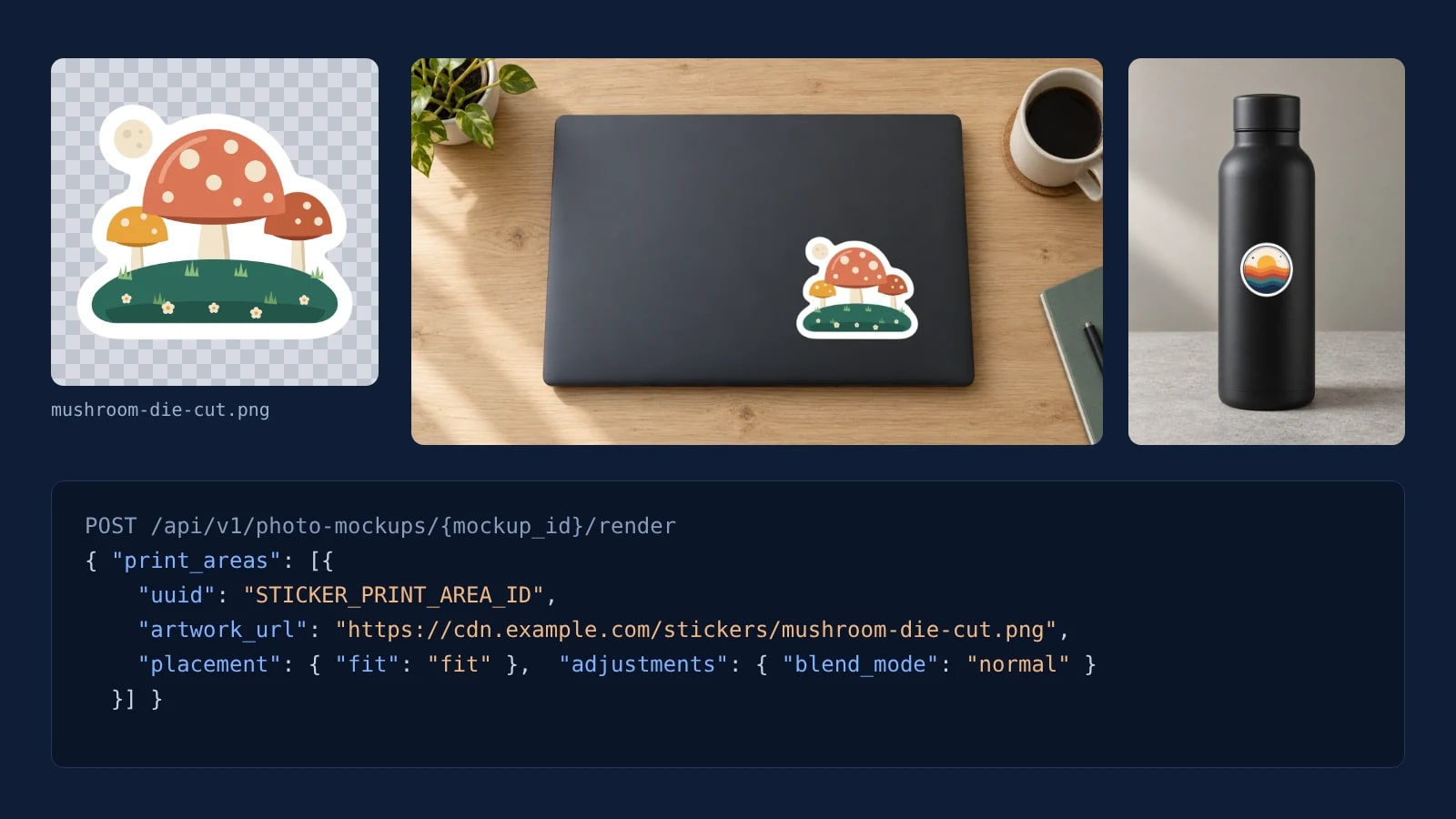
A sticker mockup keeps its die-cut shape when the design arrives as a transparent PNG with the white border drawn into the file. Save each product photo once as a photo mockup with a square sticker area, then send one render per design with fit and blend_mode normal, and a short script covers every design on every product.
Published 6 min readBeck
Key takeaways
- A JPG has no transparency, so its background shows up as a white square around the sticker.
- Draw the print area at the shape of the sticker file's canvas, so fit keeps the whole outline.
- A sticker PSD takes the same PNG, and its smart object keeps the blend set in the file.
What the sticker file needs
A die-cut sticker mockup takes the sticker itself as its file: the design, the white border around it, and transparent pixels everywhere outside that border. Exported as a JPG, it brings its background along as a square.
Draw the border into the file at the width the printed sticker will have, because the render places exactly what the file holds. Trim the canvas close to the border and keep it square, or at the sticker's own proportions for a wide bumper sticker, so the print area in the next step can take the same shape. Our test design is a 2,000 by 2,000 pixel PNG of three mushrooms on a hill, with a white border and nothing around it.
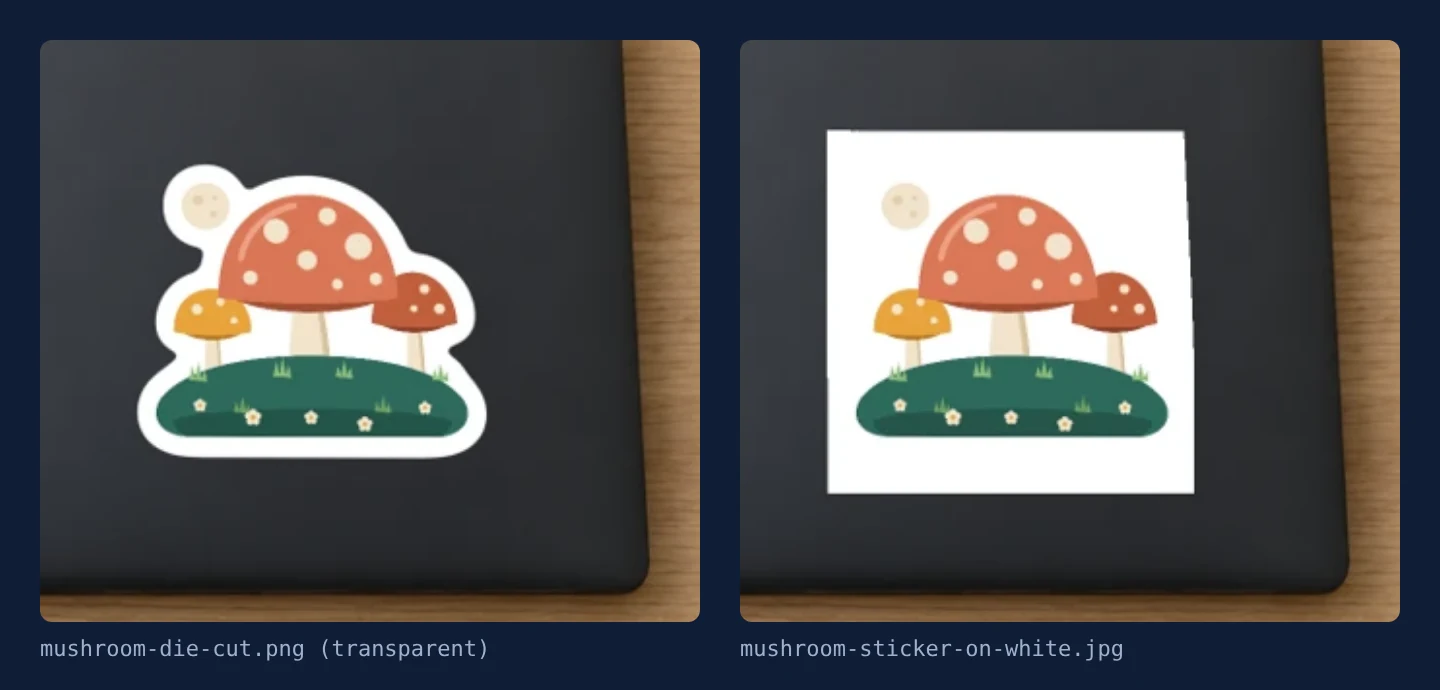 The same design on the same laptop photo mockup: the transparent PNG keeps its die-cut outline, the JPG brings its white background along as a square. SudoMock renders on a generated laptop photo, 11 November 2026.
When a design only exists on a white background, export it again from the design file with the background layer hidden.
Save the product photo with a sticker area
POST /api/v1/photo-mockups turns one product photo into a reusable mockup, and print_areas saves where the sticker sits, in the photo's own pixels, with the corners from the top left clockwise. Draw the area at the size the sticker has on that product and at the shape of the file's canvas: a square for a square PNG.
curl -X POST https://api.sudomock.com/api/v1/photo-mockups \-H "x-api-key: $SUDOMOCK_API_KEY" \-H "Content-Type: application/json" \-d '{"source_url": "https://cdn.example.com/photos/black-laptop-lid.png","name": "Black laptop, lid sticker","print_areas": [{ "points": [[600, 260], [800, 260], [800, 460], [600, 460]], "name": "Sticker" }]}'
const response = await fetch('https://api.sudomock.com/api/v1/photo-mockups', {method: 'POST',headers: {'x-api-key': process.env.SUDOMOCK_API_KEY,'Content-Type': 'application/json',},body: JSON.stringify({"source_url": "https://cdn.example.com/photos/black-laptop-lid.png","name": "Black laptop, lid sticker","print_areas": [{"points": [[600,260],[800,260],[800,460],[600,460]],"name": "Sticker"}]}),});const data = await response.json();console.log(data);
import osimport requestsresponse = requests.post("https://api.sudomock.com/api/v1/photo-mockups",headers={"x-api-key": os.environ["SUDOMOCK_API_KEY"],"Content-Type": "application/json",},json={"source_url": "https://cdn.example.com/photos/black-laptop-lid.png","name": "Black laptop, lid sticker","print_areas": [{"points": [[600,260,],[800,260,],[800,460,],[600,460,],],"name": "Sticker",},],},)print(response.json())
package mainimport ("bytes""fmt""io""net/http""os")func main() {payload := []byte(`{"source_url": "https://cdn.example.com/photos/black-laptop-lid.png","name": "Black laptop, lid sticker","print_areas": [{"points": [[600,260],[800,260],[800,460],[600,460]],"name": "Sticker"}]}`)req, err := http.NewRequest("POST", "https://api.sudomock.com/api/v1/photo-mockups", bytes.NewBuffer(payload))if err != nil {panic(err)}req.Header.Set("x-api-key", os.Getenv("SUDOMOCK_API_KEY"))req.Header.Set("Content-Type", "application/json")resp, err := http.DefaultClient.Do(req)if err != nil {panic(err)}defer resp.Body.Close()body, _ := io.ReadAll(resp.Body)fmt.Println(string(body))}
<?php$payload = <<<'JSON'{"source_url": "https://cdn.example.com/photos/black-laptop-lid.png","name": "Black laptop, lid sticker","print_areas": [{"points": [[600,260],[800,260],[800,460],[600,460]],"name": "Sticker"}]}JSON;$ch = curl_init('https://api.sudomock.com/api/v1/photo-mockups');curl_setopt_array($ch, [CURLOPT_CUSTOMREQUEST => 'POST',CURLOPT_RETURNTRANSFER => true,CURLOPT_HTTPHEADER => ['x-api-key: ' . getenv('SUDOMOCK_API_KEY'),'Content-Type: application/json',],CURLOPT_POSTFIELDS => $payload,]);$response = curl_exec($ch);curl_close($ch);echo $response;
The call answers with the finished mockup. Keep data.mockup_id and data.quads[0].print_area_id; the print areas guide explains both lists. On 11 November 2026 we sent a 1,088 by 608 pixel photo of a matte black laptop on a desk, with a 200 by 200 pixel area on the lower right of the lid, and a 768 by 1,024 pixel photo of a black water bottle, with a 150 by 150 pixel area in the middle of its body. Both came back ready, each area saved as Sticker, and each product's whole surface returned alongside it. The two product photos were generated for this test; without a photo of your own, the dashboard's Create page generates a product scene that takes a print area like any uploaded photo.
For sticker sheets and vinyl decals, the stickers and labels templates in the library are ready product photos: their Use This Mockup button opens the chosen view in Photo Mockups, where you draw the sticker areas before the first render.
Render each design with fit and normal
POST /api/v1/photo-mockups/{mockup_id}/render places one design in the saved area. Send fit so the whole sticker, border included, scales into the area without losing an edge, and set blend_mode to normal so the white border and the colours print exactly as they are in the file.
curl -X POST https://api.sudomock.com/api/v1/photo-mockups/MOCKUP_ID/render \-H "x-api-key: $SUDOMOCK_API_KEY" \-H "Content-Type: application/json" \-d '{"print_areas": [{"uuid": "STICKER_PRINT_AREA_ID","artwork_url": "https://cdn.example.com/stickers/mushroom-die-cut.png","placement": { "fit": "fit" },"adjustments": { "blend_mode": "normal" }}],"export_options": { "image_format": "webp", "image_size": 1024 }}'
const response = await fetch('https://api.sudomock.com/api/v1/photo-mockups/MOCKUP_ID/render', {method: 'POST',headers: {'x-api-key': process.env.SUDOMOCK_API_KEY,'Content-Type': 'application/json',},body: JSON.stringify({"print_areas": [{"uuid": "STICKER_PRINT_AREA_ID","artwork_url": "https://cdn.example.com/stickers/mushroom-die-cut.png","placement": {"fit": "fit"},"adjustments": {"blend_mode": "normal"}}],"export_options": {"image_format": "webp","image_size": 1024}}),});const data = await response.json();console.log(data);
import osimport requestsresponse = requests.post("https://api.sudomock.com/api/v1/photo-mockups/MOCKUP_ID/render",headers={"x-api-key": os.environ["SUDOMOCK_API_KEY"],"Content-Type": "application/json",},json={"print_areas": [{"uuid": "STICKER_PRINT_AREA_ID","artwork_url": "https://cdn.example.com/stickers/mushroom-die-cut.png","placement": {"fit": "fit",},"adjustments": {"blend_mode": "normal",},},],"export_options": {"image_format": "webp","image_size": 1024,},},)print(response.json())
package mainimport ("bytes""fmt""io""net/http""os")func main() {payload := []byte(`{"print_areas": [{"uuid": "STICKER_PRINT_AREA_ID","artwork_url": "https://cdn.example.com/stickers/mushroom-die-cut.png","placement": {"fit": "fit"},"adjustments": {"blend_mode": "normal"}}],"export_options": {"image_format": "webp","image_size": 1024}}`)req, err := http.NewRequest("POST", "https://api.sudomock.com/api/v1/photo-mockups/MOCKUP_ID/render", bytes.NewBuffer(payload))if err != nil {panic(err)}req.Header.Set("x-api-key", os.Getenv("SUDOMOCK_API_KEY"))req.Header.Set("Content-Type", "application/json")resp, err := http.DefaultClient.Do(req)if err != nil {panic(err)}defer resp.Body.Close()body, _ := io.ReadAll(resp.Body)fmt.Println(string(body))}
<?php$payload = <<<'JSON'{"print_areas": [{"uuid": "STICKER_PRINT_AREA_ID","artwork_url": "https://cdn.example.com/stickers/mushroom-die-cut.png","placement": {"fit": "fit"},"adjustments": {"blend_mode": "normal"}}],"export_options": {"image_format": "webp","image_size": 1024}}JSON;$ch = curl_init('https://api.sudomock.com/api/v1/photo-mockups/MOCKUP_ID/render');curl_setopt_array($ch, [CURLOPT_CUSTOMREQUEST => 'POST',CURLOPT_RETURNTRANSFER => true,CURLOPT_HTTPHEADER => ['x-api-key: ' . getenv('SUDOMOCK_API_KEY'),'Content-Type: application/json',],CURLOPT_POSTFIELDS => $payload,]);$response = curl_exec($ch);curl_close($ch);echo $response;
The finished image is at data.print_files[0].export_path, and the average SudoMock render finishes in under a second.
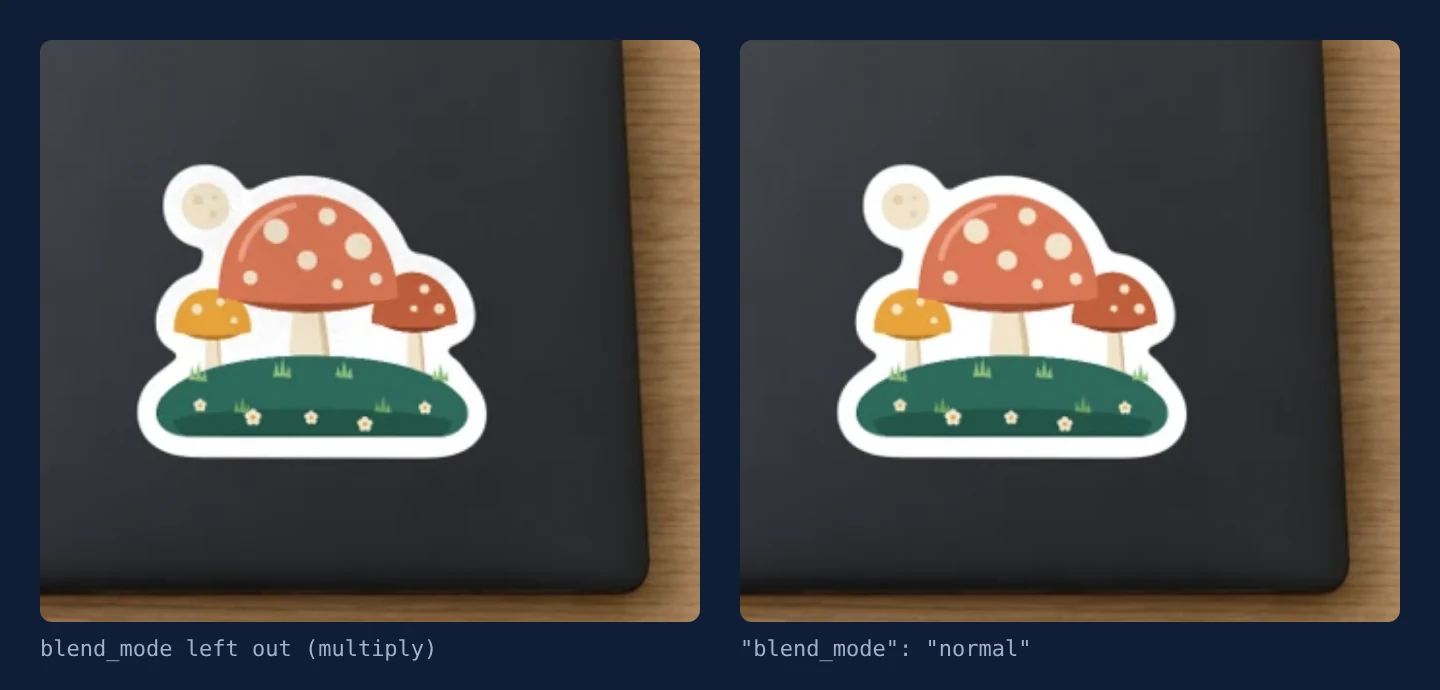 Left: blend_mode left out (multiply). Right: blend_mode normal. On the black lid both keep the white border, and normal keeps the file's white and colours exactly. SudoMock renders on a generated laptop photo, 11 November 2026.
The default, multiply, behaves like ink printed into the material, and it already adapts to a dark product: on the black lid the border stayed white, with a trace of the lid's texture in it. A vinyl sticker covers the surface it sits on, and that is what normal shows. The fit and blend modes guide describes all seven modes.
Render every design on every product
A sticker catalog is a grid: every design on every product photo you show it on. Save each product once, keep its two ids, and send one render per design and product, so 40 designs on a laptop, a bottle and a notebook are 120 requests against three mockups.
The script reads a CSV of designs, renders each design on each product in parallel and saves every image under its design and product name.
sku,png_urlSTK-MUSH-01,https://cdn.example.com/stickers/mushroom-die-cut.pngSTK-SUN-02,https://cdn.example.com/stickers/sunset-die-cut.png
Fill in the ids from the create responses, set SUDOMOCK_API_KEY, install requests and run python stickers.py designs.csv.
import csv, os, sys, timefrom concurrent.futures import ThreadPoolExecutorimport requestsSCENES = {"laptop": ("LAPTOP_MOCKUP_ID", "LAPTOP_STICKER_AREA_ID"),"bottle": ("BOTTLE_MOCKUP_ID", "BOTTLE_STICKER_AREA_ID"),}HEADERS = {"x-api-key": os.environ["SUDOMOCK_API_KEY"]}def render(row, scene):mockup_id, area_id = SCENES[scene]body = {"print_areas": [{"uuid": area_id,"artwork_url": row["png_url"],"placement": {"fit": "fit"},"adjustments": {"blend_mode": "normal"},}],"export_options": {"image_format": "jpg", "image_size": 1024},}url = f"https://api.sudomock.com/api/v1/photo-mockups/{mockup_id}/render"res = requests.post(url, json=body, headers=HEADERS, timeout=120)if res.status_code == 429:time.sleep(int(res.headers.get("Retry-After", 5)))res = requests.post(url, json=body, headers=HEADERS, timeout=120)if not res.ok:return f"{row['sku']} {scene} failed {res.status_code} {res.text}"image = requests.get(res.json()["data"]["print_files"][0]["export_path"], timeout=60)with open(f"{row['sku']}-{scene}.jpg", "wb") as f:f.write(image.content)return f"{row['sku']} {scene} saved"with open(sys.argv[1], newline="") as f:rows = list(csv.DictReader(f))jobs = [(row, scene) for row in rows for scene in SCENES]with ThreadPoolExecutor(max_workers=8) as pool:for line in pool.map(lambda job: render(*job), jobs):print(line)
The script retries a 429 once after its Retry-After and prints a failed pair's status and error body while the other pairs carry on. Each design lands as one JPG per product, such as STK-MUSH-01-laptop.jpg: the script saves JPGs, the format the render guide recommends for marketplace uploads. Past a few hundred pairs, queue each render with "is_async": true and read the finished image from its job.
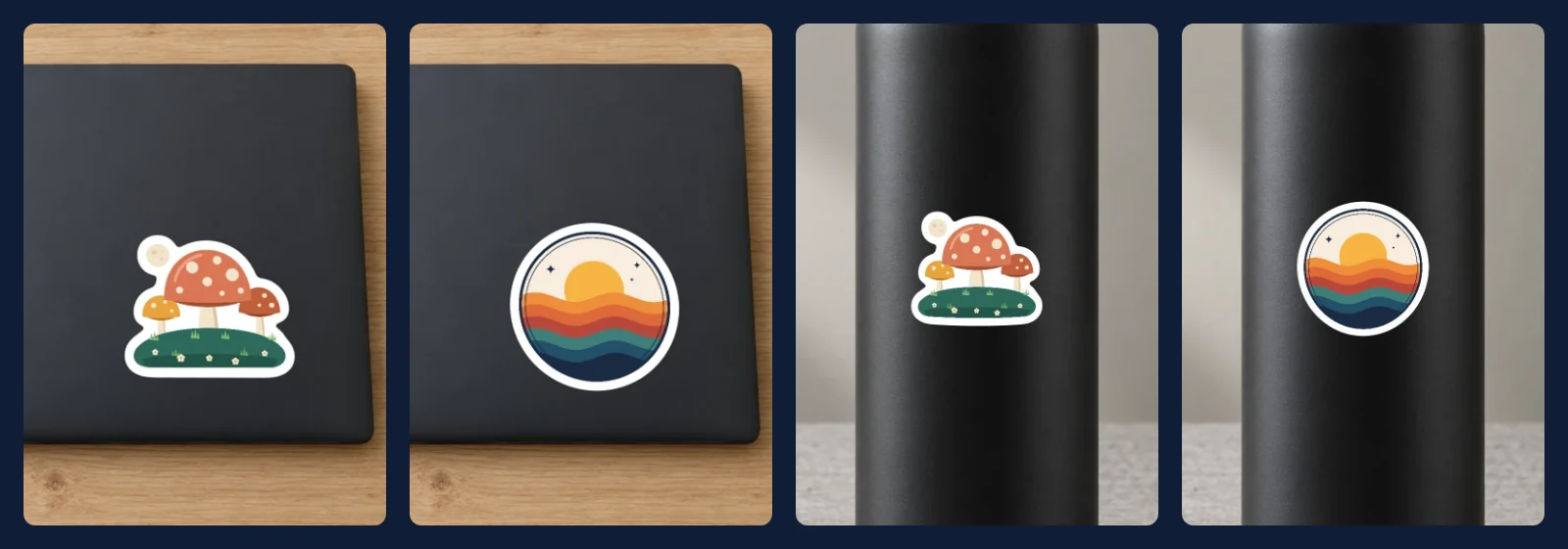 Two designs on two product photo mockups: the laptop and the bottle, four renders with fit and blend mode normal. SudoMock renders on generated product photos, 11 November 2026.
Without code, the n8n node has a Photo Mockup: Render step and Make has a Render a photo mockup module, so a spreadsheet row per design can drive the same grid.
A sticker PSD of your own
A sticker template you already own as a PSD takes the same transparent PNG in its smart object. Upload the file once with POST /api/v1/psd/upload (upload a PSD), keep the mockup's uuid and the smart object's uuid, and send each design to POST /api/v1/renders with fit set to fit.
curl -X POST https://api.sudomock.com/api/v1/renders \-H "x-api-key: $SUDOMOCK_API_KEY" \-H "Content-Type: application/json" \-d '{"mockup_uuid": "MOCKUP_UUID","smart_objects": [{"uuid": "SMART_OBJECT_UUID","asset": { "url": "https://cdn.example.com/stickers/mushroom-die-cut.png", "fit": "fit" }}],"export_options": { "image_format": "jpg", "image_size": 1024 }}'
const response = await fetch('https://api.sudomock.com/api/v1/renders', {method: 'POST',headers: {'x-api-key': process.env.SUDOMOCK_API_KEY,'Content-Type': 'application/json',},body: JSON.stringify({"mockup_uuid": "MOCKUP_UUID","smart_objects": [{"uuid": "SMART_OBJECT_UUID","asset": {"url": "https://cdn.example.com/stickers/mushroom-die-cut.png","fit": "fit"}}],"export_options": {"image_format": "jpg","image_size": 1024}}),});const data = await response.json();console.log(data);
import osimport requestsresponse = requests.post("https://api.sudomock.com/api/v1/renders",headers={"x-api-key": os.environ["SUDOMOCK_API_KEY"],"Content-Type": "application/json",},json={"mockup_uuid": "MOCKUP_UUID","smart_objects": [{"uuid": "SMART_OBJECT_UUID","asset": {"url": "https://cdn.example.com/stickers/mushroom-die-cut.png","fit": "fit",},},],"export_options": {"image_format": "jpg","image_size": 1024,},},)print(response.json())
package mainimport ("bytes""fmt""io""net/http""os")func main() {payload := []byte(`{"mockup_uuid": "MOCKUP_UUID","smart_objects": [{"uuid": "SMART_OBJECT_UUID","asset": {"url": "https://cdn.example.com/stickers/mushroom-die-cut.png","fit": "fit"}}],"export_options": {"image_format": "jpg","image_size": 1024}}`)req, err := http.NewRequest("POST", "https://api.sudomock.com/api/v1/renders", bytes.NewBuffer(payload))if err != nil {panic(err)}req.Header.Set("x-api-key", os.Getenv("SUDOMOCK_API_KEY"))req.Header.Set("Content-Type", "application/json")resp, err := http.DefaultClient.Do(req)if err != nil {panic(err)}defer resp.Body.Close()body, _ := io.ReadAll(resp.Body)fmt.Println(string(body))}
<?php$payload = <<<'JSON'{"mockup_uuid": "MOCKUP_UUID","smart_objects": [{"uuid": "SMART_OBJECT_UUID","asset": {"url": "https://cdn.example.com/stickers/mushroom-die-cut.png","fit": "fit"}}],"export_options": {"image_format": "jpg","image_size": 1024}}JSON;$ch = curl_init('https://api.sudomock.com/api/v1/renders');curl_setopt_array($ch, [CURLOPT_CUSTOMREQUEST => 'POST',CURLOPT_RETURNTRANSFER => true,CURLOPT_HTTPHEADER => ['x-api-key: ' . getenv('SUDOMOCK_API_KEY'),'Content-Type: application/json',],CURLOPT_POSTFIELDS => $payload,]);$response = curl_exec($ch);curl_close($ch);echo $response;
On this route the smart object blends the way the layer is set in the PSD; retrieve a single PSD mockup reports it as data.smart_objects[].blend_mode. In the dashboard, PSD uploads are capped at 300 MB. API uploads support files up to Adobe's official PSD file size limit.
Next step
Save one product photo with a sticker area, render two of your designs on it with fit and normal, and set them next to your current listing photos; then run the script over the whole collection. The render reference lists every placement and blend field, and the stickers and labels templates hold sticker sheets and vinyl to start from. Designs that are only words have their own page, text mockups for stickers, and packaging mockups for every SKU runs the same one-request-per-file pattern on product labels.
Frequently asked questions
What file do I need for a die-cut sticker mockup?
A PNG with a transparent background and the white border drawn into the file around the design. The render places exactly what the file holds, so the border shows at the width you drew it and the product shows everywhere outside it. Trim the canvas close to the border so the print area can take the same shape.
Why does my sticker mockup show a white box around the design?
The file has an opaque background, which is always the case with a JPG. Every pixel outside the sticker is rendered as part of the design, so the background appears as a square on the product. Export the design again as a PNG with the background layer hidden.
Should a sticker mockup use multiply or normal blend mode?
Use normal for vinyl stickers. Multiply, the default on photo mockups, reads like ink printed into the material, so the product's texture shows through the sticker's white. Normal prints the border and the colours exactly as they are in the file, which is how a sticker sits on a laptop or a bottle.
Can I make sticker mockups on my own product photos?
Yes. Save the photo once as a photo mockup with a print area where the sticker sits, at the sticker's size on that product. Every design then renders into that area with one request, and the photo's light and surface stay as they are.
How do I make sticker mockups for a whole collection?
Send one render per design and product against the saved photo mockups, in parallel, and save each image under the design's SKU. Forty designs on three products are 120 renders, and the average SudoMock render finishes in under a second. For very large batches, queue the renders and collect the results from their jobs.
Sources
- Create a mockup from a product photo (opens in new tab), SudoMock docs
- Print areas and surfaces (opens in new tab), SudoMock docs
- Render a photo mockup (opens in new tab), SudoMock docs
- Render artwork onto a photo mockup (opens in new tab), SudoMock docs
- Fit and blend modes (opens in new tab), SudoMock docs
- Render a PSD mockup (opens in new tab), SudoMock docs
- Retrieve a single PSD mockup (opens in new tab), SudoMock docs
- Render mockups with n8n and SudoMock (opens in new tab), SudoMock docs
- Render mockups with Make and SudoMock (opens in new tab), SudoMock docs
Beck
CTO
Related articles
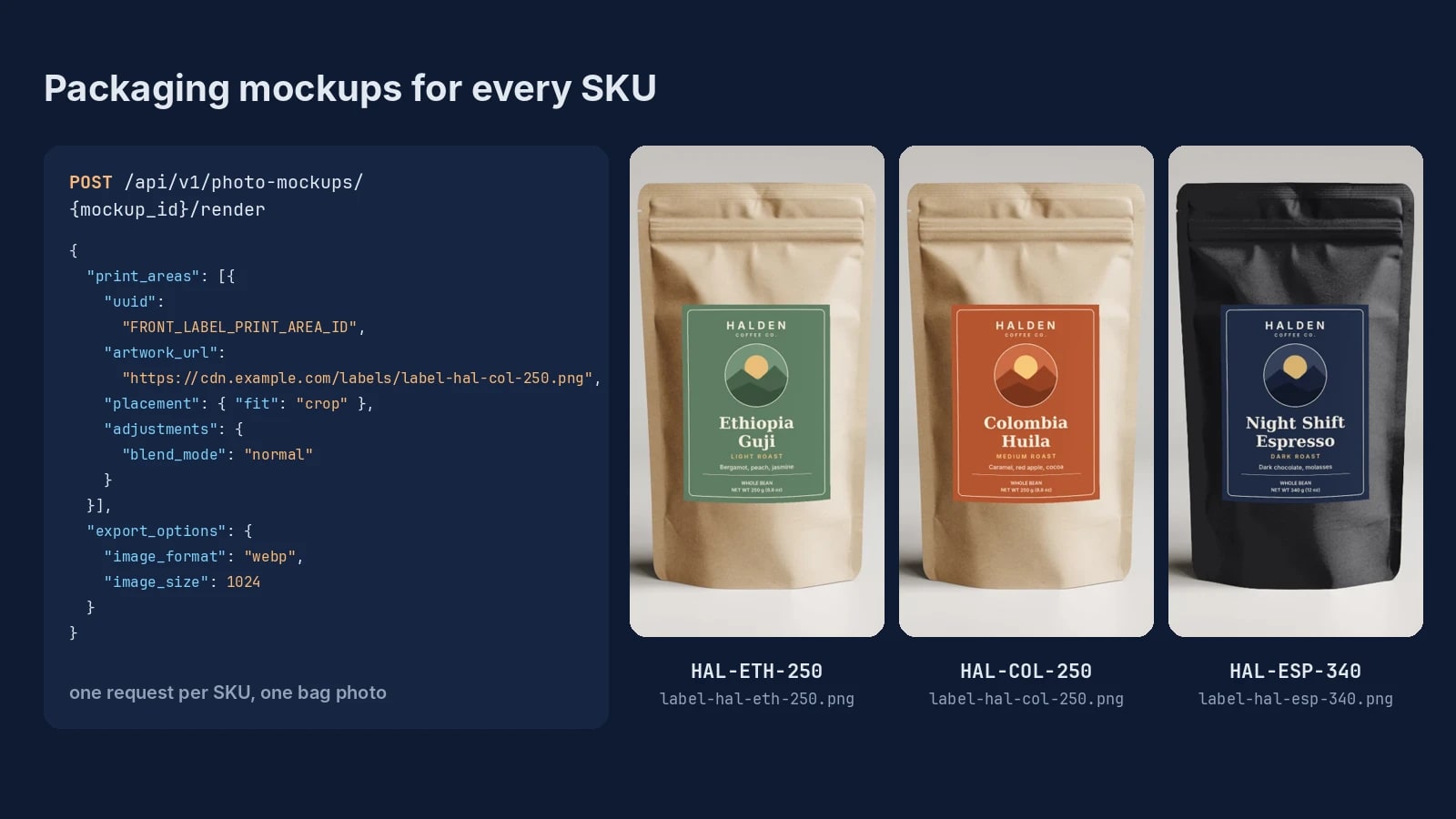
Packaging Mockups for Every SKU: One Bag Photo, One Label per Flavor
One bag photo, one label file per SKU and one render request each: packaging mockups for a whole flavor line, with real renders.
6 min read
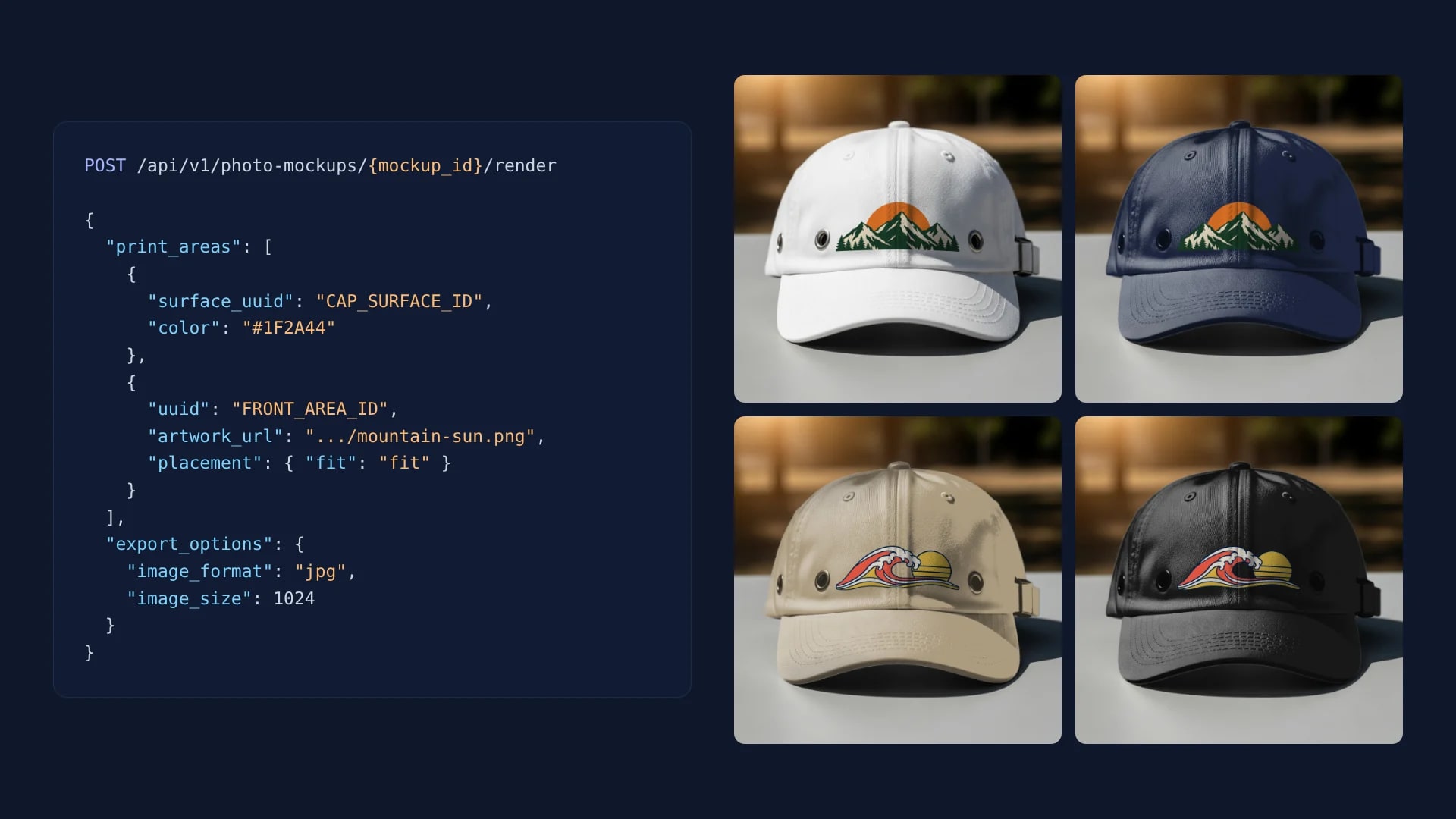
Hat Mockups for Every Design and Cap Color by API
Save one cap photo with a front print area, recolor the cap in each request, and render every design on every color by API.
7 min read
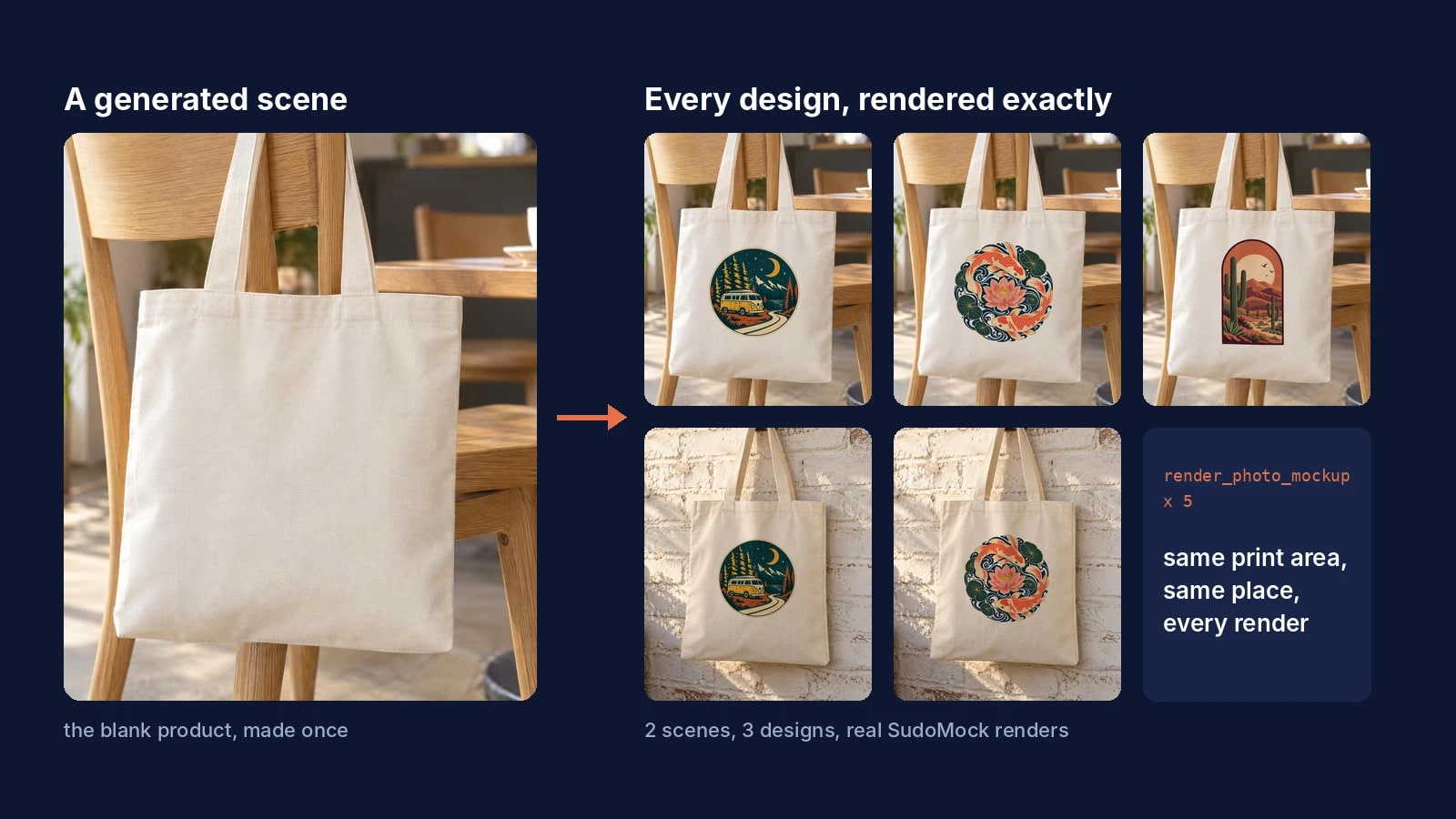
AI Product Photography for Print on Demand: Generate the Scene Once, Render Every Design Exactly
Generate the product scene once, make it a reusable mockup, and render every design on it exactly from ChatGPT, Claude or the API.
7 min read
Explore by use case
See SudoMock in action for your specific product category
Your own PSD, rendered via API
Render your own PSD through the API. Start with 500 one-time credits, no card.