PSD Mockup Template Guide: Best Practices for Automation
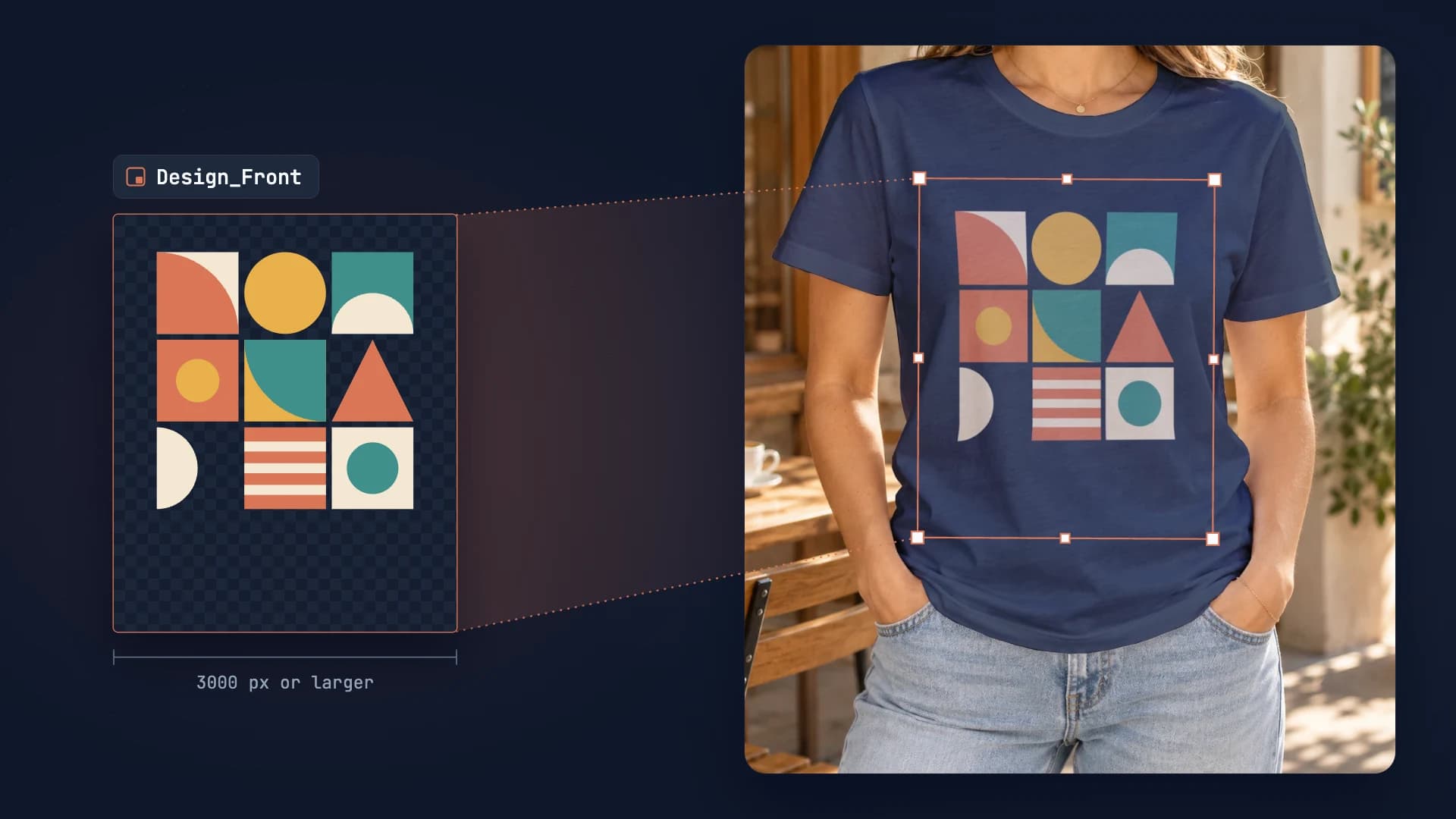
To make a PSD mockup template ready for automation, convert each design area to a smart object authored at 3000 px or larger. Set its blend mode to suit the material: Multiply for fabrics, Normal for hard surfaces. SudoMock handles high-resolution professional files with unlimited layers.
Published Updated 7 min readBeck
Key takeaways
- Masks, warps, perspective, layer effects and all 27 Photoshop blend modes render as authored
- Layer names come back in the API response; renders target the uuid
- Outputs up to 10,000 px wide; no file size limit over the API, dashboard uploads capped at 300 MB
A PSD mockup template is a Photoshop file with a smart object where the design goes. You build it once, upload it once, and every render after that swaps new artwork into the smart object without opening Photoshop.
What Makes a Good Mockup Template?
What a good template carries:
- High-resolution smart objects: Author the smart object contents at 3000 px or larger for print-ready output
- Descriptive layer names: Names come back in the upload response: "Design_Front" beats "Layer 1"
- 27 supported blend modes: From Multiply to Color Burn, all standard Photoshop blends render as authored
- Live effects and transforms: Warps, perspective, masks, Drop Shadow, Stroke, Glow, Bevel and Blend If render as authored
- Unlimited layers: Complex multi-layer mockups with no artificial constraints
What the Smart Object Does
In Photoshop, a smart object is a layer that acts as a container. Whatever image you place inside it appears with the same perspective, warp, blend mode and effects as the container. That is how a mockup works: your design goes into the smart object, and it looks printed on the product.
A mockup API reads the smart objects in your PSD and lets you swap their contents with a request. One PSD template renders unlimited mockup variations, one for every design you send it.
Supported Blend Modes
SudoMock supports all 27 standard Photoshop blend modes, and each one renders pixel-perfectly, exactly as authored in your PSD:
All Photoshop blend modes implemented
Masks and Clipping Masks
Masks render as authored. A layer mask on the smart object layer, a mask on a group that contains it, and a clipping mask all shape the design you send the same way they shape it in Photoshop.
| Mask Type | Where to Apply | What the Render Does |
|---|---|---|
| Layer Mask on SO | Smart Object layer | Shapes every design you send into that layer |
| Clipping Mask | Smart object clipped to a shape layer | Shows the design only inside that shape |
| Layer Mask on Group | Group containing SO | Shapes the whole group, design included |
| Mask inside PSB | Inside Smart Object | Replaced along with the content you send |
Nested Smart Objects
SudoMock fully supports nested smart objects, with no limit on nesting depth. You can have smart objects inside smart objects, with all transforms and blend modes preserved at each level.
📁 Main PSD├── Background├── 📦 T-Shirt_Group│ ├── Shirt_Base│ └── 📦 Design_Smart_Object ← API targets this│ └── 📦 Nested_Effect_SO ← Also supported│ └── Your_Design└── Shadow_Layer
- Deep nesting supported: No artificial limits on smart object hierarchy depth
- All transforms preserved: Warp, perspective, and distort work at every level
- Blend modes per level: Each nested smart object can have its own blend mode
Layer Effects on Smart Objects
SudoMock renders the layer effects (layer styles) applied to smart object layers:
| Effect Type | What Renders |
|---|---|
| Drop Shadow | Distance, spread, size, angle, opacity |
| Stroke | Inside, outside, and center positions |
| Inner and Outer Glow | As authored |
| Bevel and Emboss | Inner, outer, emboss, and pillow emboss styles |
| Blend If | This Layer and Underlying Layer sliders |
Step-by-Step: Creating Your Template
1 Set Up Your Canvas
Start with your product photo as the base. SudoMock accepts PSDs with these specifications:
- Format: .psd or .psb, saved from Photoshop CC 2015 or newer
- Max dimensions: 10,000×10,000px
- File size: API uploads support files up to Adobe's official PSD file size limit. Dashboard uploads are capped at 300 MB.
- Color mode: RGB, 8-bit or 16-bit. Other color modes are converted on upload.
2 Create the Smart Object
The smart object is where designs will be placed. This is the most critical step:
- Create a new layer or shape where the design should appear
- Right-click → Convert to Smart Object (or Layer → Smart Objects → Convert to Smart Object)
- Double-click it to open the embedded .psb file
- Set the PSB canvas to your design resolution, 3000 px or larger for print
- Save and close the .psb
3 Apply Transforms
Make the design fit your product naturally using Photoshop's transform tools:
- Edit → Transform → Distort for perspective
- Edit → Transform → Warp for curved surfaces (mugs, fabric folds)
- Edit → Transform → Perspective for angled views
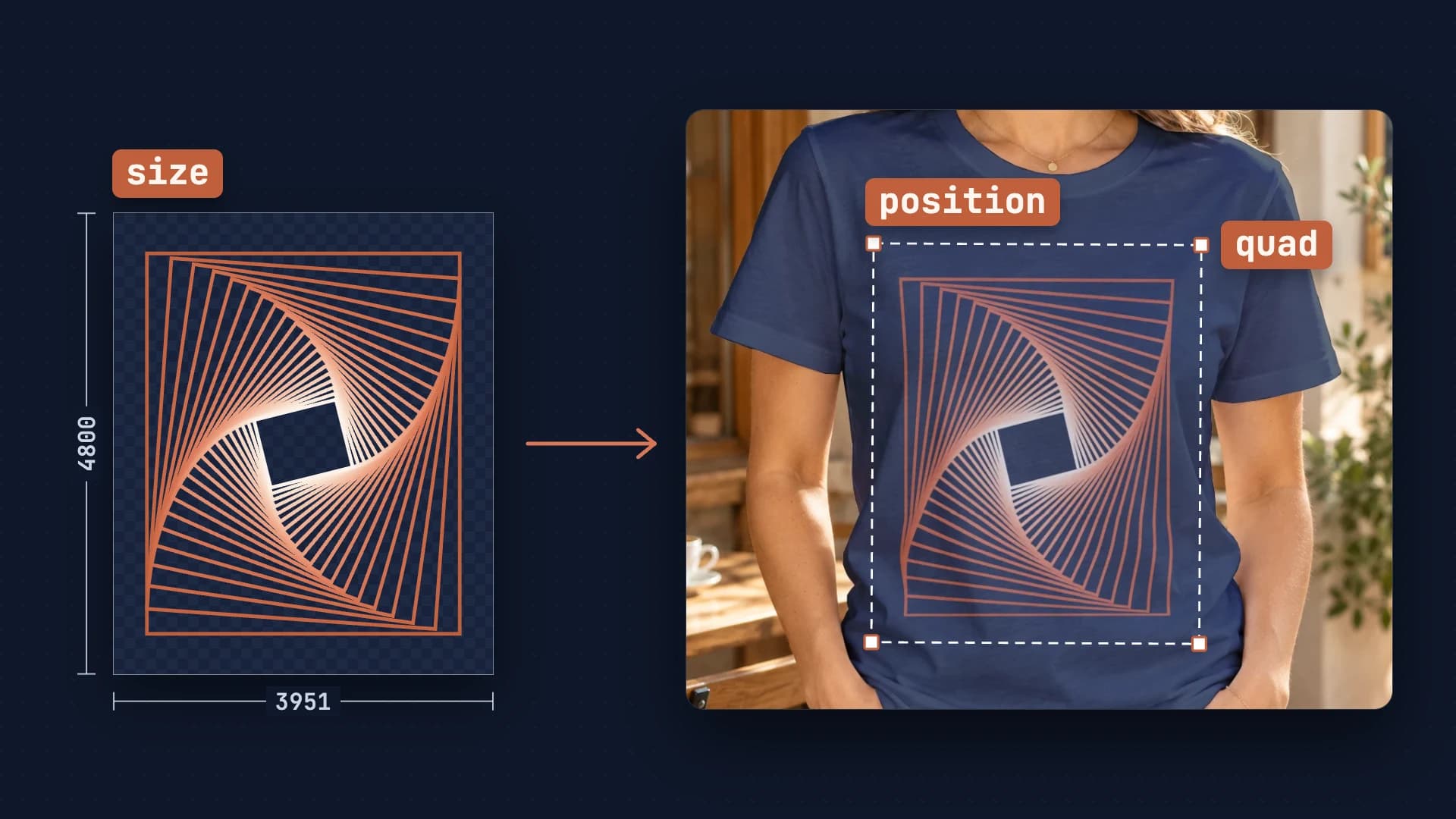
All transforms are preserved. A Perspective Warp applied as a smart filter stays live too, so leave it in place instead of baking it into pixels. On Scale plans, the API also returns quad coordinates: the four corner points of the transformed smart object.
4 Set Blend Mode
Choose from 27 supported blend modes. The most commonly used for mockups:
| Blend Mode | Best For | Effect |
|---|---|---|
| multiply | Fabrics, paper, wood | Design darkens, texture shows through |
| normal | Hard surfaces, screens | Solid design, no texture bleed |
| soft light | Subtle textures | Gentle integration, preserves highlights |
| overlay | Metallic, glossy | High contrast, vibrant colors |
| screen | Dark backgrounds | Lightens, good for glow effects |
| color burn | Vintage look | Intense darks, saturated colors |
5 Name Your Layers
Layer names appear in API responses. Use clear, descriptive names:
✅ Good Names:├── Design_Front├── Design_Back├── Logo_Chest├── Label_Neck└── Color_Overlay❌ Bad Names:├── Layer 1├── Layer 1 copy├── Smart Object 1└── Group 1
Use the same names across all your templates, so one integration can fill any of them. A render targets each slot by its uuid, so keep a lookup from layer name to uuid rather than relying on the order of the list.
6 Optimize File Size
Smaller files upload faster, and nothing about the render changes:
- Delete Cropped Pixels: Image → Crop with "Delete Cropped Pixels" enabled removes hidden content outside the canvas
- Flatten the layers you never address, such as the background and scenery
- Delete hidden layers you're not using
- Rasterize text layers that won't change
- Merge visible layers for non-essential decorative elements
Common Mistakes That Cost a Re-Upload
Recommended PSD Structure
Here's the recommended layer organization for a mockup template:
Test the Smart Object Before You Upload
A two-minute check in Photoshop catches most template problems before the first render:
1. Double-click the Smart Object layer thumbnail2. A new tab opens with the Smart Object contents3. Paste in a test design4. Save and close the tab5. Check that the design appears correctly on the product6. Verify perspective, blend mode, and effects look right
After you upload, render the template once at full size before it goes into production.
Upload the Template and Read Its Slots
Upload the PSD once. The response lists every smart object, text layer, and group layer it found, under the names you gave them, each with the uuid you send back at render time.
Upload Template
curl -X POST https://api.sudomock.com/api/v1/psd/upload \-H "x-api-key: sm_your_api_key" \-H "Content-Type: application/json" \-d '{"psd_file_url": "https://example.com/tshirt-mockup.psd","psd_name": "T-shirt front"}'
const response = await fetch('https://api.sudomock.com/api/v1/psd/upload', {method: 'POST',headers: {'x-api-key': 'sm_your_api_key','Content-Type': 'application/json',},body: JSON.stringify({"psd_file_url": "https://example.com/tshirt-mockup.psd","psd_name": "T-shirt front"}),});const data = await response.json();console.log(data);
import requestsresponse = requests.post("https://api.sudomock.com/api/v1/psd/upload",headers={"x-api-key": "sm_your_api_key","Content-Type": "application/json",},json={"psd_file_url": "https://example.com/tshirt-mockup.psd","psd_name": "T-shirt front",},)print(response.json())
package mainimport ("bytes""fmt""io""net/http")func main() {payload := []byte(`{"psd_file_url": "https://example.com/tshirt-mockup.psd","psd_name": "T-shirt front"}`)req, err := http.NewRequest("POST", "https://api.sudomock.com/api/v1/psd/upload", bytes.NewBuffer(payload))if err != nil {panic(err)}req.Header.Set("x-api-key", "sm_your_api_key")req.Header.Set("Content-Type", "application/json")resp, err := http.DefaultClient.Do(req)if err != nil {panic(err)}defer resp.Body.Close()body, _ := io.ReadAll(resp.Body)fmt.Println(string(body))}
<?php$payload = <<<'JSON'{"psd_file_url": "https://example.com/tshirt-mockup.psd","psd_name": "T-shirt front"}JSON;$ch = curl_init('https://api.sudomock.com/api/v1/psd/upload');curl_setopt_array($ch, [CURLOPT_CUSTOMREQUEST => 'POST',CURLOPT_RETURNTRANSFER => true,CURLOPT_HTTPHEADER => ['x-api-key: sm_your_api_key','Content-Type: application/json',],CURLOPT_POSTFIELDS => $payload,]);$response = curl_exec($ch);curl_close($ch);echo $response;
The file is fetched from that URL, so it has to download without a sign-in. A signed URL works.
What you get after uploading a PSD
{"success": true,"data": {"uuid": "550e8400-e29b-41d4-a716-446655440000","name": "T-shirt front","smart_objects": [{"uuid": "7c3e8f2a-1b4d-4e5f-8a9c-0d1e2f3a4b5c","name": "Design_Front","size": {"width": 3500,"height": 4000},"position": {"x": 450,"y": 380,"width": 1200,"height": 1400},"quad": [[450, 380], [1650, 420], [1600, 1780], [420, 1720]],"blend_mode": "multiply"}]}}
Export Options
When rendering mockups, you have full control over the output format and quality:
const response = await fetch('https://api.sudomock.com/api/v1/renders', {method: 'POST',headers: {'x-api-key': 'sm_your_api_key','Content-Type': 'application/json'},body: JSON.stringify({mockup_uuid: '550e8400-e29b-41d4-a716-446655440000',smart_objects: [{uuid: '7c3e8f2a-1b4d-4e5f-8a9c-0d1e2f3a4b5c',asset: { url: 'https://your-storage.com/design.png' }}],export_options: {image_format: 'webp', // png, jpg, or webp (default)image_size: 1024, // 100-10000px wide (default 2048)quality: 90 // 1-100 (default 90)}})});const { data } = await response.json();console.log(data.print_files[0].export_path); // the finished image
The same two requests are walked through step by step in the quickstart.
Quick Reference Checklist
Before Upload
- .psd or .psb file, saved in RGB
- Dimensions up to 10,000×10,000px
- API uploads up to Adobe's official PSD file size limit; dashboard uploads up to 300 MB
- Design areas are smart objects, not rasterized, and visible
- Descriptive layer names, the same across templates
Smart Object Settings
- Blend mode set (multiply for fabrics)
- Transforms applied (warp, perspective)
- Contents at 3000 px or larger
- Positioned correctly on canvas
- Effects on the smart object layer, not inside it
Related Resources
File requirements and the full build checklist
Which Photoshop features render, row by row
Complete documentation for the upload endpoint
All render options and parameters
Understanding API response structures
Alternatives for template creation
Frequently asked questions
Which blend modes does SudoMock support?
All 27 standard Photoshop blend modes: normal, dissolve, darken, multiply, color burn, linear burn, darker color, lighten, screen, color dodge, linear dodge, lighter color, overlay, soft light, hard light, vivid light, linear light, pin light, hard mix, difference, exclusion, subtract, divide, hue, saturation, color, and luminosity.
How do I create a Smart Object in Photoshop?
Select the layer or layers that will carry the design, right-click, and choose Convert to Smart Object, or use Layer > Smart Objects > Convert to Smart Object. Double-click the new layer to open its contents and set that canvas to the resolution you will send designs at, 3000 px or larger for print.
Can I use PSD mockup templates without Photoshop?
Yes, for rendering. You need Photoshop, or a ready-made PSD, only to author the template. Once it is uploaded to a mockup API like SudoMock, every render swaps in your design and returns the finished image without Photoshop.
What's the maximum file size for PSD templates?
API uploads support files up to Adobe's official PSD file size limit. Dashboard uploads are capped at 300 MB. Smaller files upload faster and render the same.
Do layer effects (shadows, strokes) work with Smart Objects?
Yes. Drop Shadow, Stroke, Inner and Outer Glow, Bevel and Emboss, and Blend If on the smart object layer render as authored and stay in place when you replace the content. Effects inside the smart object are part of its content, so a new design replaces them. Keep effects that should apply to every design on the layer itself.
Sources
- Preparing a PSD (opens in new tab), SudoMock Docs
- PSD compatibility (opens in new tab), SudoMock Docs
- Create a mockup from a PSD (opens in new tab), SudoMock API reference
- Render a PSD mockup (opens in new tab), SudoMock API reference
Beck
CTO
Related articles
Understanding Mockup API Data Models: A Technical Guide
Deep dive into mockup API response structures. Learn how smart object data is organized, what each field means, and how to build robust integrations.
4 min read
Every T-Shirt Color Variant Mockup from One PSD by API
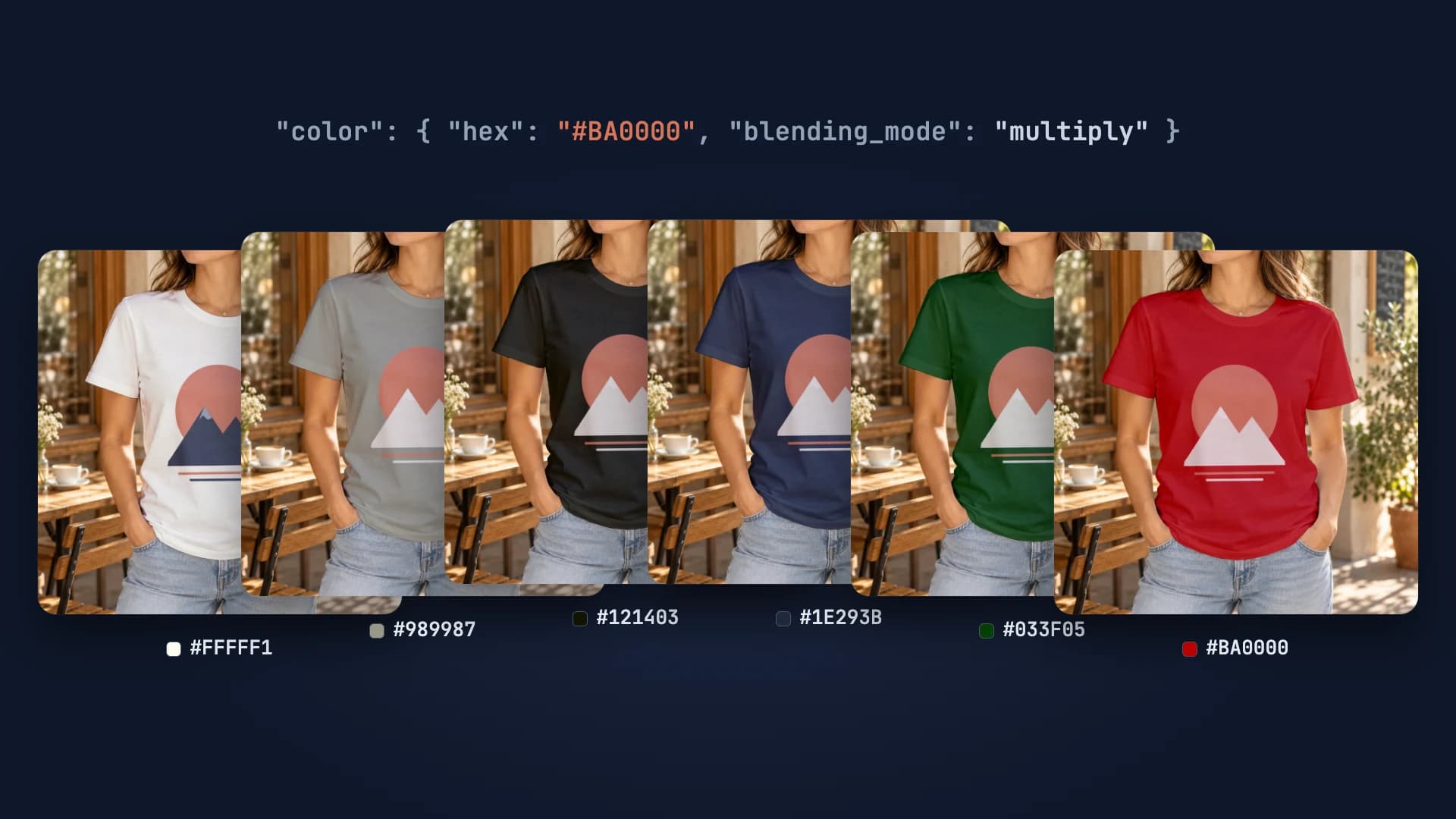
One PSD with a color smart object renders every t-shirt colorway: one request per color, shown with six real renders.
4 min read
How to Create Mockups Without Photoshop
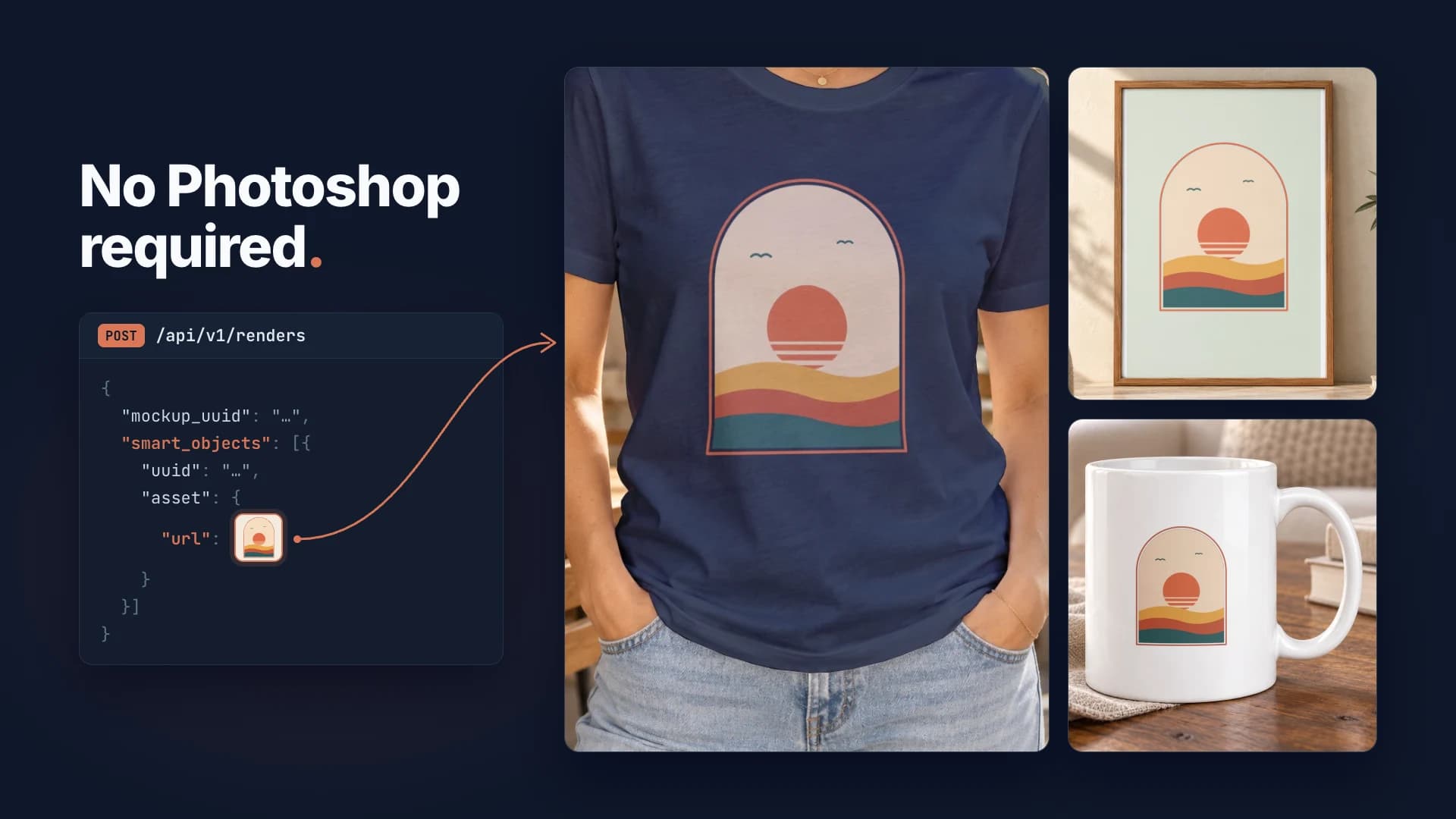
Create professional product mockups without Photoshop using SudoMock API. Automate t-shirt, mug, and poster mockups from $0.002 per render. No design skills needed.
2 min read
Explore by use case
See SudoMock in action for your specific product category
Your own PSD, rendered via API
Render your own PSD through the API. Start with 500 one-time credits, no card.