Understanding Mockup API Data Models: A Technical Guide
Deep dive into mockup API response structures. Learn how smart object data is organized, what each field means, and how to build robust integrations.
TL;DR
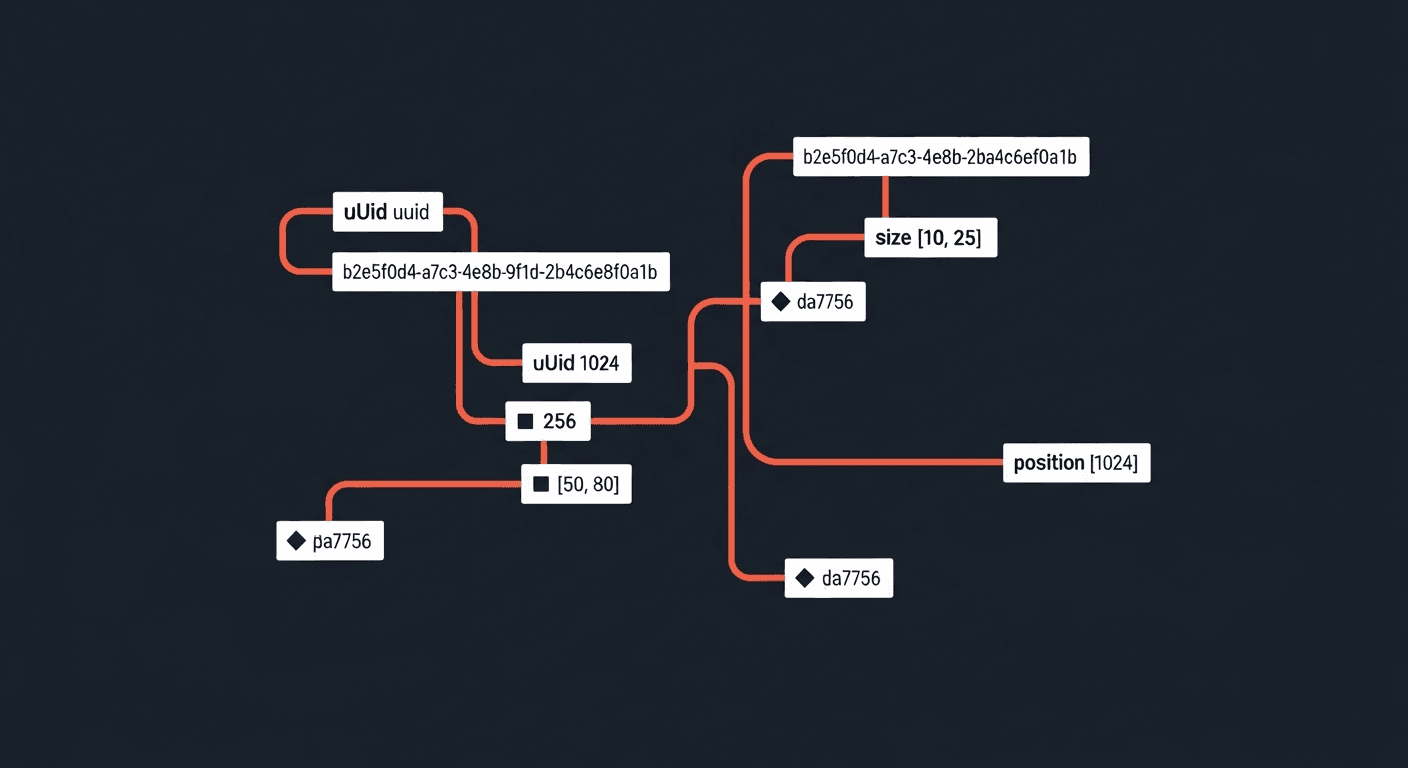
Understand the API response structure: uuid for identification, size for design resolution, position for canvas placement, and quad for transformed corners. Build robust integrations by understanding these data models.
Key Takeaways:
- •size = embedded Smart Object dimensions (design at this resolution)
- •position = where it renders on the mockup canvas
- •quad = corner coordinates for warped/transformed objects
- •uuid = unique identifier for API calls
Understanding how mockup APIs structure their data is crucial for building robust integrations. This guide covers the de-facto standard data model used across the industry, what each field means, and how to use them effectively in your code.
The De-Facto Standard: Rect + Transform
Every major design tool and mockup API uses the same fundamental data model: a rectangle with position coordinates and optional transforms. This pattern comes from decades of graphics programming, from Photoshop to Canvas2D to WebGL.
This model is universal because it's deterministic, minimal, and fast. Whether you're working with Photoshop layers, Figma frames, or mockup APIs, the core concept remains the same: define a bounding box and optionally transform it.
Anatomy of a Smart Object Response
When you upload a PSD to SudoMock, each smart object layer returns detailed metadata. Let's break down what each field means and how to use it:
1{2 "uuid": "73957ff7-82c4-4c14-947a-a6f841944d1c",3 "name": "print_area",4 "size": {5 "width": 3951,6 "height": 48007 },8 "position": {9 "x": 771,10 "y": 886,11 "width": 507,12 "height": 62013 },14 "quad": [15 [771, 886],16 [1278, 886],17 [1278, 1506],18 [771, 1506]19 ],20 "blend_mode": "BlendMode.NORMAL",21 "layer_name": "print_area"22}
Understanding Each Field
size vs position: The Key Distinction
The most important concept to understand is the difference between size and position.
They represent two different things:
| Field | Represents | Use Case |
|---|---|---|
| size.width | Embedded content width (3951px) | Render API coordinates, design canvas |
| size.height | Embedded content height (4800px) | Render API coordinates, design canvas |
| position.x | Left edge on mockup (771px) | Client-side canvas preview |
| position.y | Top edge on mockup (886px) | Client-side canvas preview |
| position.width | Display width (507px) | Thumbnail overlay drawing |
| position.height | Display height (620px) | Thumbnail overlay drawing |
Think of it this way
size = "Upload your design at this resolution, send coordinates in render API"
position = "Use this for drawing previews on thumbnail images in browser"
In the example above, a 3951x4800 design gets scaled down to 507x620 when rendered on the mockup canvas. The scale factor is approximately 0.128x (507/3951).
Working with Quad Coordinates
The quad array contains four [x, y] coordinate pairs representing the corners
of the smart object's bounding box. This is especially useful for:
1// Draw smart object bounds on canvas2function drawSmartObjectBounds(ctx, smartObject) {3 const [topLeft, topRight, bottomRight, bottomLeft] = smartObject.quad;45 ctx.beginPath();6 ctx.moveTo(topLeft[0], topLeft[1]);7 ctx.lineTo(topRight[0], topRight[1]);8 ctx.lineTo(bottomRight[0], bottomRight[1]);9 ctx.lineTo(bottomLeft[0], bottomLeft[1]);10 ctx.closePath();11 ctx.strokeStyle = '#00ff00';12 ctx.stroke();13}1415// Check if a point is inside the smart object16function isPointInQuad(point, quad) {17 const [tl, tr, br, bl] = quad;18 // Simple bounding box check (for rectangular quads)19 return point.x >= tl[0] && point.x <= tr[0] &&20 point.y >= tl[1] && point.y <= bl[1];21}
Integration Patterns
Pattern 1: Basic Render Request
The most common pattern is uploading a PSD, storing the smart object metadata, then using it to render variations:
1// Step 1: Upload PSD and store metadata2const uploadResponse = await fetch('https://api.sudomock.com/api/v1/psd/upload', {3 method: 'POST',4 headers: {5 'X-API-KEY': API_KEY,6 'Content-Type': 'application/json'7 },8 body: JSON.stringify({9 psd_file_url: 'https://storage.example.com/tshirt-mockup.psd',10 psd_name: 'T-Shirt Front'11 })12});1314const { data: mockup } = await uploadResponse.json();1516// Store the mockup metadata for later use17const mockupId = mockup.uuid;18const smartObjects = mockup.smart_objects;1920// Find the main design area21const designArea = smartObjects.find(so => so.name === 'print_area');22console.log('Design canvas size:', designArea.size); // { width: 3951, height: 4800 }23console.log('Rendered position:', designArea.position); // { x: 771, y: 886, width: 507, height: 620 }2425// Step 2: Render with a design26const renderResponse = await fetch('https://api.sudomock.com/api/v1/renders', {27 method: 'POST',28 headers: {29 'X-API-KEY': API_KEY,30 'Content-Type': 'application/json'31 },32 body: JSON.stringify({33 mockup_uuid: mockupId,34 smart_objects: [{35 uuid: designArea.uuid,36 asset: {37 url: 'https://storage.example.com/my-design.png',38 fit: 'cover' // cover, contain, or fill39 }40 }],41 export_options: {42 image_format: 'webp',43 image_size: 1920,44 quality: 9545 }46 })47});4849const { data: render } = await renderResponse.json();50console.log('Rendered mockup:', render.print_files[0].export_path);
Pattern 2: Using Position Data for Custom Rendering
If you're building a custom preview or need to render locally, the position data tells you exactly where to place the design:
1async function createPreview(mockupImage, designImage, smartObject) {2 const canvas = document.createElement('canvas');3 const ctx = canvas.getContext('2d');45 // Set canvas to mockup dimensions6 canvas.width = mockupImage.width;7 canvas.height = mockupImage.height;89 // Draw the mockup background10 ctx.drawImage(mockupImage, 0, 0);1112 // Get position data from API response13 const { x, y, width, height } = smartObject.position;1415 // Draw the design at the correct position and size16 ctx.drawImage(designImage, x, y, width, height);1718 return canvas.toDataURL('image/png');19}2021// Usage22const preview = await createPreview(23 await loadImage(mockupThumbnail),24 await loadImage(myDesign),25 designArea26);
Design Resolution
For best quality, prepare your design at the size dimensions (e.g., 3951x4800),
not the position dimensions. The API handles scaling automatically.
Working with Blend Modes
The blend_mode field indicates how the smart object layer blends with
layers below it in the PSD. Common modes include:
| Blend Mode | Effect | Common Use |
|---|---|---|
| NORMAL | Standard opacity blending | Regular design placement |
| MULTIPLY | Darkens, whites become transparent | Color overlays, fabric textures |
| SCREEN | Lightens, blacks become transparent | Light effects, glows |
| OVERLAY | Combines multiply and screen | Contrast enhancement |
For color smart objects (used to change product colors), MULTIPLY is
typically used so the design texture shows through the color overlay — common in drinkware mockups and apparel templates.
Next.js Integration Examples
Here are practical examples for integrating SudoMock into your Next.js application. You can use any template from SudoMock's mockup library as a starting point. These examples show how to use the smart object metadata in real frontend code.
SudoMock Client Utility
First, create a reusable client for making API calls to SudoMock:
1// SudoMock API Client for Next.js2// Store your API key in .env.local as SUDOMOCK_API_KEY34const API_KEY = process.env.SUDOMOCK_API_KEY!5const BASE_URL = 'https://api.sudomock.com/api/v1'67export interface SmartObject {8 uuid: string9 name: string10 size: { width: number; height: number }11 position: { x: number; y: number; width: number; height: number }12 quad: [number, number][]13 blend_mode: string14}1516export interface MockupData {17 uuid: string18 name: string19 thumbnail: string20 width?: number // Original PSD width21 height?: number // Original PSD height22 smart_objects: SmartObject[]23}2425// Upload a PSD and get smart object metadata26export async function uploadPsd(psdUrl: string, name: string): Promise<MockupData> {27 const response = await fetch(`\${BASE_URL}/psd/upload`, {28 method: 'POST',29 headers: {30 'X-API-KEY': API_KEY,31 'Content-Type': 'application/json',32 },33 body: JSON.stringify({34 psd_file_url: psdUrl,35 psd_name: name,36 }),37 })3839 const data = await response.json()40 if (!data.success) throw new Error(data.detail)41 return data.data42}4344// Render a mockup with a design45export async function renderMockup(46 mockupId: string,47 smartObjectId: string,48 designUrl: string49): Promise<string> {50 const response = await fetch(`\${BASE_URL}/renders`, {51 method: 'POST',52 headers: {53 'X-API-KEY': API_KEY,54 'Content-Type': 'application/json',55 },56 body: JSON.stringify({57 mockup_uuid: mockupId,58 smart_objects: [{59 uuid: smartObjectId,60 asset: { url: designUrl, fit: 'cover' }61 }],62 export_options: {63 image_format: 'webp',64 image_size: 1920,65 quality: 9566 }67 }),68 })6970 const data = await response.json()71 if (!data.success) throw new Error(data.detail)72 return data.data.print_files[0].export_path73}
React Hook for Managing Mockups
A custom hook that manages mockup state and provides useful computed values from the smart object metadata:
1export function useMockupEditor(initialMockup?: MockupData) {2 const [mockup, setMockup] = useState<MockupData | null>(initialMockup ?? null)3 const [selectedDesign, setSelectedDesign] = useState<string | null>(null)45 // Find the main print area smart object6 const printArea = useMemo(() => {7 return mockup?.smart_objects.find(8 so => so.name.toLowerCase().includes('print') ||9 so.name.toLowerCase().includes('design')10 )11 }, [mockup])1213 // Calculate design requirements from size field14 const designRequirements = useMemo(() => {15 if (!printArea) return null1617 const { width, height } = printArea.size18 return {19 width,20 height,21 aspectRatio: width / height,22 megapixels: (width * height) / 1000000,23 recommendation: width >= 300024 ? 'High resolution - perfect for print'25 : 'Medium resolution - good for web'26 }27 }, [printArea])2829 // Get render position info from position field30 const renderPosition = useMemo(() => {31 if (!printArea) return null3233 const { x, y, width, height } = printArea.position34 const originalSize = printArea.size3536 return {37 x,38 y,39 width,40 height,41 scaleFactor: width / originalSize.width,42 // Useful for canvas preview43 bounds: { left: x, top: y, right: x + width, bottom: y + height }44 }45 }, [printArea])4647 return {48 mockup,49 setMockup,50 printArea,51 designRequirements,52 renderPosition,53 selectedDesign,54 setSelectedDesign,55 }56}
Live Preview with Canvas
Use the position data to create a real-time preview before rendering:
1interface PreviewProps {2 mockupThumbnailUrl: string3 designImageUrl: string | null4 // From smart_object.position in API response5 position: { x: number; y: number; width: number; height: number }6}78export function MockupPreview({ mockupThumbnailUrl, designImageUrl, position }: PreviewProps) {9 const canvasRef = useRef<HTMLCanvasElement>(null)10 const [previewDataUrl, setPreviewDataUrl] = useState<string | null>(null)1112 useEffect(() => {13 if (!designImageUrl || !canvasRef.current) return1415 const canvas = canvasRef.current16 const ctx = canvas.getContext('2d')17 if (!ctx) return1819 // Load both images20 const mockupImg = new Image()21 const designImg = new Image()22 mockupImg.crossOrigin = 'anonymous'23 designImg.crossOrigin = 'anonymous'2425 Promise.all([26 new Promise<void>(resolve => { mockupImg.onload = () => resolve(); mockupImg.src = mockupThumbnailUrl }),27 new Promise<void>(resolve => { designImg.onload = () => resolve(); designImg.src = designImageUrl }),28 ]).then(() => {29 // Set canvas to mockup size30 canvas.width = mockupImg.width31 canvas.height = mockupImg.height3233 // Draw mockup background34 ctx.drawImage(mockupImg, 0, 0)3536 // Draw design at the exact position from API37 // The position object tells us exactly where to place it!38 ctx.drawImage(39 designImg,40 position.x, // x coordinate from API41 position.y, // y coordinate from API42 position.width, // rendered width from API43 position.height // rendered height from API44 )4546 setPreviewDataUrl(canvas.toDataURL('image/png'))47 })48 }, [mockupThumbnailUrl, designImageUrl, position])4950 return (51 <div className="relative aspect-square bg-slate-800 rounded-lg overflow-hidden">52 <canvas ref={canvasRef} className="hidden" />53 {previewDataUrl && (54 <img src={previewDataUrl} alt="Preview" className="w-full h-full object-contain" />55 )}56 </div>57 )58}
Server Action for Batch Rendering
Process multiple designs in parallel using Next.js Server Actions:
1'use server'23interface BatchResult {4 designUrl: string5 renderUrl: string | null6 success: boolean7 error?: string8}910export async function batchRenderMockups(11 mockupId: string,12 smartObjectId: string,13 designUrls: string[]14): Promise<BatchResult[]> {15 // Process 5 at a time to respect rate limits16 const CONCURRENCY = 517 const results: BatchResult[] = []1819 for (let i = 0; i < designUrls.length; i += CONCURRENCY) {20 const batch = designUrls.slice(i, i + CONCURRENCY)2122 const batchResults = await Promise.all(23 batch.map(async (designUrl): Promise<BatchResult> => {24 try {25 const renderUrl = await renderMockup(mockupId, smartObjectId, designUrl)26 return { designUrl, renderUrl, success: true }27 } catch (error) {28 return {29 designUrl,30 renderUrl: null,31 success: false,32 error: error instanceof Error ? error.message : 'Unknown error'33 }34 }35 })36 )3738 results.push(...batchResults)39 }4041 return results42}
Environment Variables
Store your SudoMock API key in .env.local as SUDOMOCK_API_KEY.
Never expose it in client-side code - always call SudoMock from Server Components,
Server Actions, or API routes.
Key Takeaways
Related Resources
Frequently Asked Questions

Related Articles

SudoMock Now Works with Claude, Cursor, ChatGPT, and Any MCP-Compatible AI Tool
Render product mockups directly from any AI assistant that supports MCP. Claude, Cursor, VS Code, ChatGPT, Windsurf, and more.
API Integration Best Practices
Build robust API integrations. Implement parallel processing, retry logic, and error handling.
Explore by Use Case
See SudoMock in action for your specific product category
Your own PSD, rendered via API
Render your own PSD through the API. Start with 500 one-time credits, no card.