Product Mockups With ChatGPT or Claude From One Product Photo
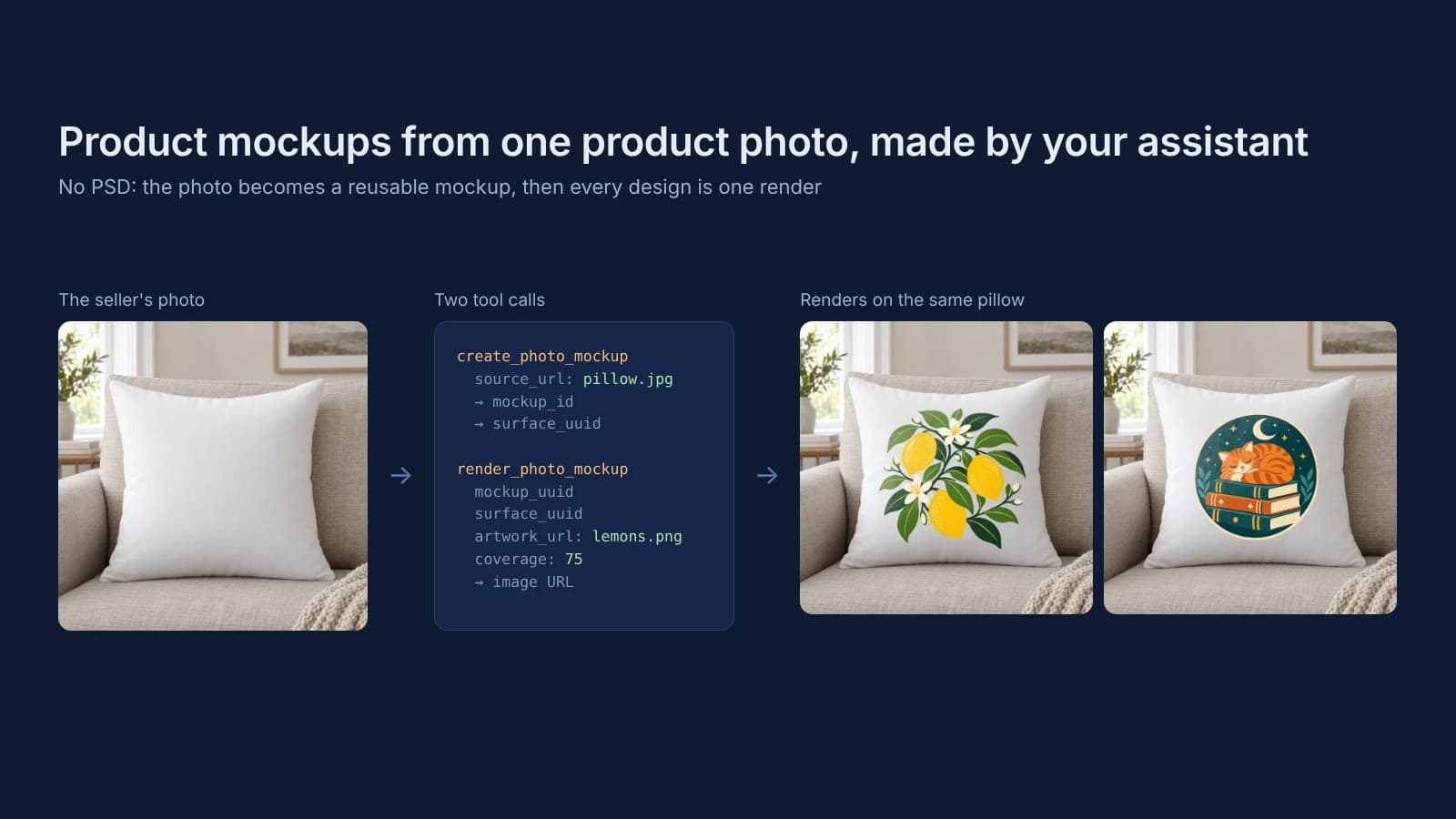
ChatGPT and Claude make mockups of your own product once SudoMock is connected. Give the assistant one straight-on photo of the blank product: it becomes a reusable mockup, and each design is one render that places your file as it is. With a PSD template, the assistant renders on that instead.
Published 7 min readBeck
Key takeaways
- The assistant asks once what the seller has, then picks render_psd_mockup or render_photo_mockup.
- A photo mockup made once in the dashboard is found by the assistant with list_photo_mockups.
- Check the found print area against your provider's placement before the first render.
What the assistant needs from the seller
An assistant needs two files to make a mockup: one photo of the blank product and the design. It needs no PSD, no Photoshop and no template library, because SudoMock turns the photo itself into the mockup.
- The product photo. The blank product with its printable face straight on to the camera, in even light, with nothing printed on it. A photo of your own sample works, and so does the plain product image already in your store. How to make your own mockup shows what makes a photo work.
- The design. The print file you send to your print provider, ideally a transparent PNG.
- A link to each file. The hosted connector reads files by HTTPS link, such as the image URL in your store. A photo that sits only on your computer can become a photo mockup once in the SudoMock dashboard, and the assistant finds it there with
list_photo_mockups. Each design needs a link too, such as its file URL in your store or at your print provider. A coding agent such as Claude Code, Cursor or Codex CLI gets one for a file on your disk withcreate_upload_url.
Connect SudoMock to ChatGPT or Claude
Both assistants add SudoMock's hosted MCP server, https://mcp.sudomock.com, as a custom connector. Access is approved in a SudoMock sign-in window, never with a key pasted into the chat.
- ChatGPT. OpenAI's steps for a custom MCP server, read on 7 October 2026: open ChatGPT Plugins, select the plus button, then Add custom MCP server, enter the server URL, set up the sign in and select Create as a plugin, then install the plugin and pick it with @ in a new chat. OpenAI notes that "Account and workspace policies apply to adding and using custom MCP servers."
- Claude. Open Customize, then Connectors, choose Add custom connector and enter the same URL (if the dialog asks how Claude registers, choose Register automatically), then turn SudoMock on in a chat from + and Connectors. Claude's guide to custom connectors, read on 7 October 2026, lists adding a connector by URL on the Free, Pro, Max, Team and Enterprise plans, with one custom connector on Free, and on Team and Enterprise an Owner adds it for the organization.
- Claude Code, Cursor and Codex CLI. A command or a click each, listed on Connect an agent.
Then ask the assistant to run get_account. It reads your account and creates nothing, and an answer means the tools are live.
Turn the photo into a mockup
The assistant sends the photo's link to create_photo_mockup. SudoMock finds the product's printable surface and returns a reusable mockup that stays in your account for every later design.
We ran it on 7 October 2026 with the photo below, a white square pillow on a sofa.
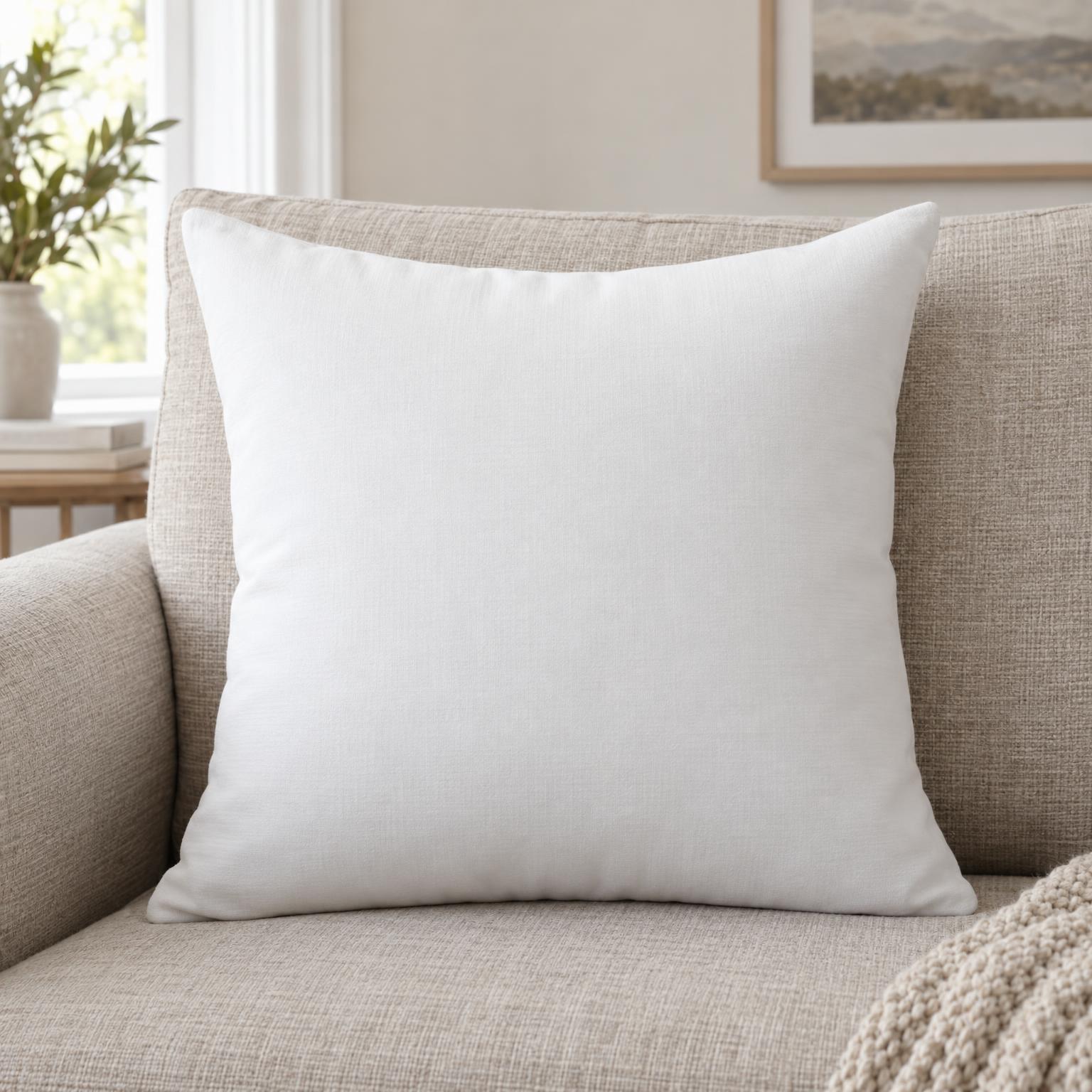 The input: a 1536 px photo of a blank pillow, made with an AI image model for this example.
The connector makes the same request as the Photo Mockups API. This is the answer we got, trimmed to the fields the next step uses:
{"data": {"mockup_id": "1b30241b-f94a-4b7c-8c6b-7068f47560a9","status": "ready","source_width": 1536,"source_height": 1536,"quads": [],"surfaces": [{"surface_uuid": "f554662e-43eb-40bb-9ecc-c5b7d5d76a8f","bbox": { "x": 205.0, "y": 283.0, "width": 1170.0, "height": 1015.0 }}]},"success": true}
surfaces holds the whole front of the pillow, addressed by surface_uuid. quads would hold bounded print areas such as a chest panel, and here it is empty, so the design goes on the surface. Print areas and surfaces explains both lists.
Check where the print goes
Before the first render, the assistant compares the printable area with where the print provider prints that product. A mockup should show the print where the finished product carries it.
On the pillow the surface covers the front face from seam to seam, 1170 x 1015 px of the 1536 px photo, which is the face a pillow is printed on, so it needed no change. For a tee, a tote or a hoodie, read the placement in your provider's catalog (front, back, sleeve). When your provider prints elsewhere on the product, the assistant draws a print area with update_photo_mockup_print_areas (it replaces the whole list of print areas, up to eight convex areas of four corner points each, in the photo's own pixels, from the top left corner clockwise) and renders on the print_area_id it returns.
Render every design
Each design is one render_photo_mockup call naming the mockup, the surface and the design's link. The mockup does not change between calls, so the hundredth design lands exactly like the first.
These are the arguments for the lemon design, as a 1024 px JPG:
{"mockup_uuid": "1b30241b-f94a-4b7c-8c6b-7068f47560a9","surface_uuid": "f554662e-43eb-40bb-9ecc-c5b7d5d76a8f","artwork_url": "https://example.com/designs/lemon-branch.png","coverage": 75,"image_format": "jpg","image_size": 1024}
coverage sets how much of the surface the design spans, from 10 to 100, centered unless a position says otherwise. The tool answers with the finished image's URL. A script makes the same render with one request, and the image is at data.print_files[0].export_path:
curl -X POST https://api.sudomock.com/api/v1/photo-mockups/1b30241b-f94a-4b7c-8c6b-7068f47560a9/render \-H "x-api-key: $SUDOMOCK_API_KEY" \-H "Content-Type: application/json" \-d '{"print_areas": [{"surface_uuid": "f554662e-43eb-40bb-9ecc-c5b7d5d76a8f","artwork_url": "https://example.com/designs/lemon-branch.png","placement": { "coverage": 75 }}],"export_options": { "image_format": "jpg", "image_size": 1024 }}'
const response = await fetch('https://api.sudomock.com/api/v1/photo-mockups/1b30241b-f94a-4b7c-8c6b-7068f47560a9/render', {method: 'POST',headers: {'x-api-key': process.env.SUDOMOCK_API_KEY,'Content-Type': 'application/json',},body: JSON.stringify({"print_areas": [{"surface_uuid": "f554662e-43eb-40bb-9ecc-c5b7d5d76a8f","artwork_url": "https://example.com/designs/lemon-branch.png","placement": {"coverage": 75}}],"export_options": {"image_format": "jpg","image_size": 1024}}),});const data = await response.json();console.log(data);
import osimport requestsresponse = requests.post("https://api.sudomock.com/api/v1/photo-mockups/1b30241b-f94a-4b7c-8c6b-7068f47560a9/render",headers={"x-api-key": os.environ["SUDOMOCK_API_KEY"],"Content-Type": "application/json",},json={"print_areas": [{"surface_uuid": "f554662e-43eb-40bb-9ecc-c5b7d5d76a8f","artwork_url": "https://example.com/designs/lemon-branch.png","placement": {"coverage": 75,},},],"export_options": {"image_format": "jpg","image_size": 1024,},},)print(response.json())
package mainimport ("bytes""fmt""io""net/http""os")func main() {payload := []byte(`{"print_areas": [{"surface_uuid": "f554662e-43eb-40bb-9ecc-c5b7d5d76a8f","artwork_url": "https://example.com/designs/lemon-branch.png","placement": {"coverage": 75}}],"export_options": {"image_format": "jpg","image_size": 1024}}`)req, err := http.NewRequest("POST", "https://api.sudomock.com/api/v1/photo-mockups/1b30241b-f94a-4b7c-8c6b-7068f47560a9/render", bytes.NewBuffer(payload))if err != nil {panic(err)}req.Header.Set("x-api-key", os.Getenv("SUDOMOCK_API_KEY"))req.Header.Set("Content-Type", "application/json")resp, err := http.DefaultClient.Do(req)if err != nil {panic(err)}defer resp.Body.Close()body, _ := io.ReadAll(resp.Body)fmt.Println(string(body))}
<?php$payload = <<<'JSON'{"print_areas": [{"surface_uuid": "f554662e-43eb-40bb-9ecc-c5b7d5d76a8f","artwork_url": "https://example.com/designs/lemon-branch.png","placement": {"coverage": 75}}],"export_options": {"image_format": "jpg","image_size": 1024}}JSON;$ch = curl_init('https://api.sudomock.com/api/v1/photo-mockups/1b30241b-f94a-4b7c-8c6b-7068f47560a9/render');curl_setopt_array($ch, [CURLOPT_CUSTOMREQUEST => 'POST',CURLOPT_RETURNTRANSFER => true,CURLOPT_HTTPHEADER => ['x-api-key: ' . getenv('SUDOMOCK_API_KEY'),'Content-Type: application/json',],CURLOPT_POSTFIELDS => $payload,]);$response = curl_exec($ch);curl_close($ch);echo $response;
Two designs on the same pillow, rendered on 7 October 2026. Both designs were made with an AI image model for this example.
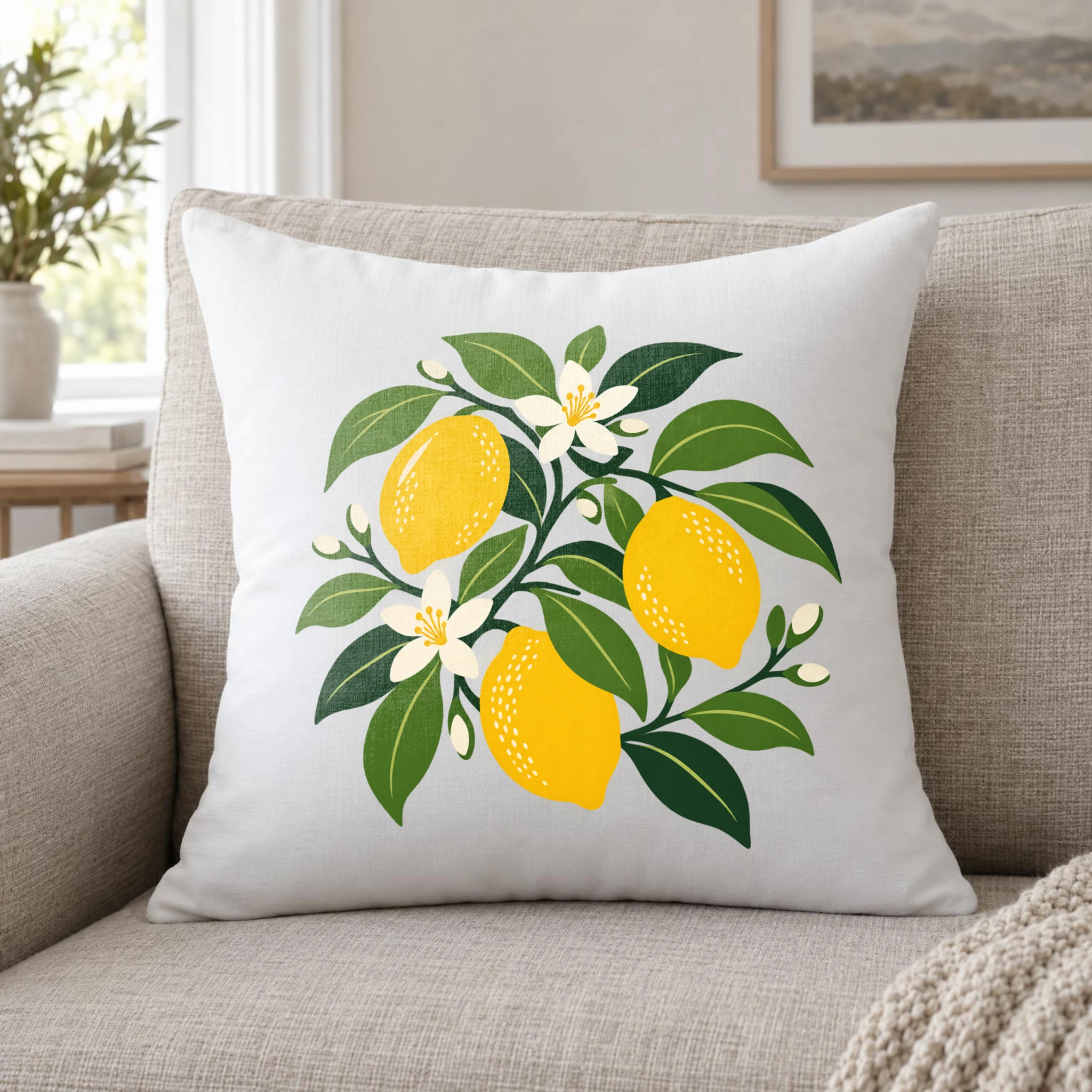 Lemon branch design rendered on the pillow photo at coverage 75, 2048 px, 7 October 2026.
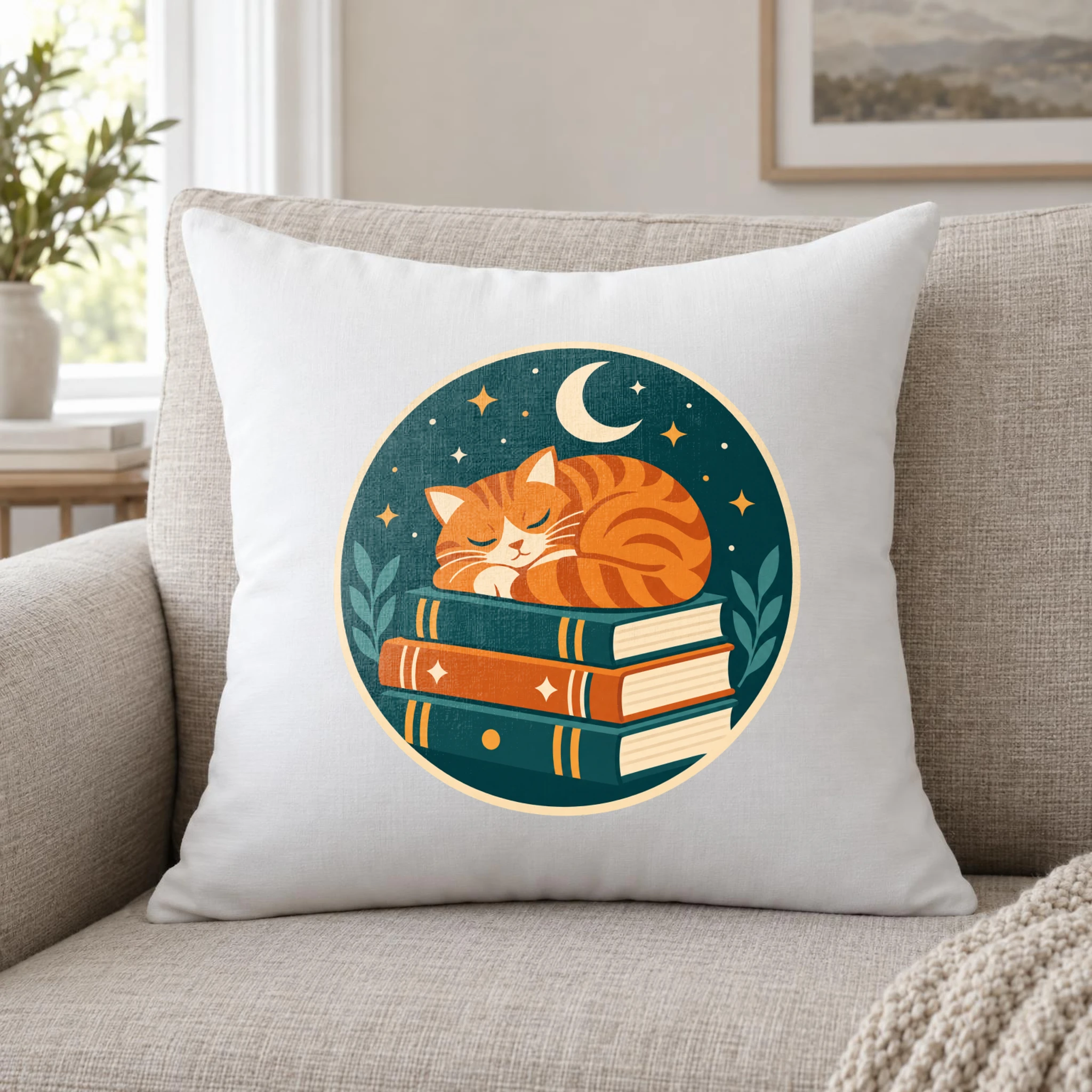 Sleeping cat badge on the same photo mockup at coverage 70, same day.
Only artwork_url and coverage changed between the two calls. The average SudoMock render finishes in under a second, and for files you upload to a marketplace, SudoMock's render guide recommends JPG.
When the seller has a PSD
When the seller owns a layered mockup template, the assistant renders on it instead. The PSD carries the designer's warp, shadows and masks, so render_psd_mockup only places the design in the template's smart object.
The assistant finds the template with list_psd_mockups, or adds a new one with upload_psd from a link, which has no file size limit over the API. The dashboard takes PSD files up to 300 MB. SudoMock's guide to choosing a mockup type puts the rule in one line: "Let the files you already own pick the mockup type." For a color range from one template, see T-shirt color variant mockups.
Instructions to give your assistant
Paste the rules below into your assistant's instructions: a ChatGPT or Claude project, or the AGENTS.md of a coding agent. They make it ask one question, pick the right tool and hand back finished images, and they name the tools exactly as the server publishes them.
You make product mockups for my shop with the SudoMock tools.1. For each product, ask me once what I have: a PSD mockuptemplate, a photo of the blank product, or neither.Never render to find out.2. PSD template: find it with list_psd_mockups and render eachdesign with render_psd_mockup.3. Product photo: look for its mockup with list_photo_mockupsand read its surface_uuid with get_photo_mockup.If there is none, run create_photo_mockup with the photo'sHTTPS link and keep the mockup_id and the surface_uuid.4. Before the first render, compare the printable area withwhere my print provider prints this product. If it is off,draw a print area with update_photo_mockup_print_areas andkeep its print_area_id.5. Render each design with render_photo_mockup: on the surface,coverage 60 to 80 for a centered design, on a print area,fit. Use jpg for marketplace uploads, at image_size 1024unless I ask for a larger width.6. Use my design file as it is. Never redraw the design or theproduct with an image model.7. Neither a PSD nor a photo: ask me for one photo of the blankproduct, or point me to the templates at sudomock.com/mockups.8. Reply with each image URL, the design and the product itshows, and the products that still need a photo.
A coding agent that is not connected to the server gets the same choice and the request shapes from SudoMock's skill, installed with npx skills add https://sudomock.com/docs.
Next step
Connect the server with the steps on Connect an agent, then give the assistant one product photo and one design. The Photo Mockups overview covers the create and render calls step by step, and agents can read every docs page as Markdown from the docs index. To have Claude write whole Etsy listings from the renders, see Etsy listing generator with Claude and SudoMock. With no product photo yet, start from the mockup template library.
Frequently asked questions
Can ChatGPT make product mockups of my own product?
Yes, once SudoMock is connected as a custom MCP server. ChatGPT then turns a photo of your blank product into a reusable mockup and renders each design on it, placing your design file as it is. Without a connected tool, its image generator creates a new image from your prompt.
Do I need a PSD or Photoshop to make mockups with an AI assistant?
No. One straight-on photo of the blank product is enough, because SudoMock turns the photo itself into the mockup. When you already own a PSD mockup template, the assistant renders on that instead.
Which AI assistants can use SudoMock?
Any client that connects to a remote MCP server over HTTP with OAuth, including ChatGPT, Claude, Claude Code, Cursor and Codex CLI. Access is approved once in a SudoMock sign-in window, and the same tools then work in every client you connect.
Does the assistant change my design?
No. The render places your design file on the product photo, and the fabric and light of the photo show through the print. For a brand color that has to match exactly, the render can use normal blending in place of the default multiply.
Does SudoMock cost more through ChatGPT or Claude?
No. The connector uses the same account as the API, and a render through it is billed exactly like an API render. Plans start at $25/month. Subscriptions from $0.002 per render.
Sources
- Add a connector that isn't in the directory (opens in new tab), Claude Docs
- Connect and test your plugin (opens in new tab), OpenAI Developers
- Connect an agent (opens in new tab)
- Which mockup type to use, a PSD template or a product photo (opens in new tab)
- Print areas and surfaces (opens in new tab)
- Render artwork onto a photo mockup (opens in new tab)
- Create a mockup from a product photo (opens in new tab)
Beck
CTO
Related articles
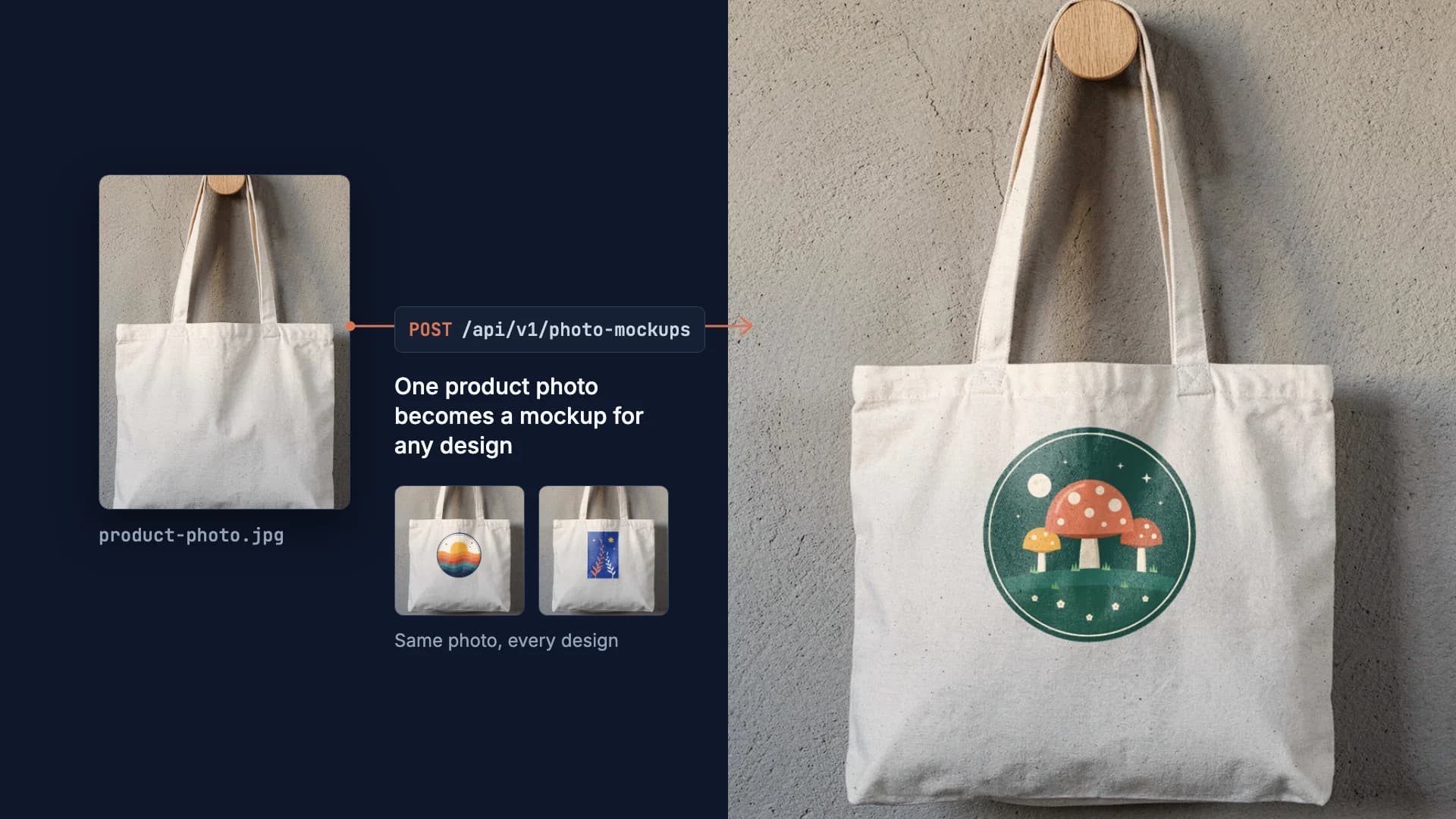
How to Make Your Own Mockup from Any Product Photo
One photo of your own product becomes a reusable mockup: the create call, the render call and real renders of four designs on a canvas tote.
7 min read
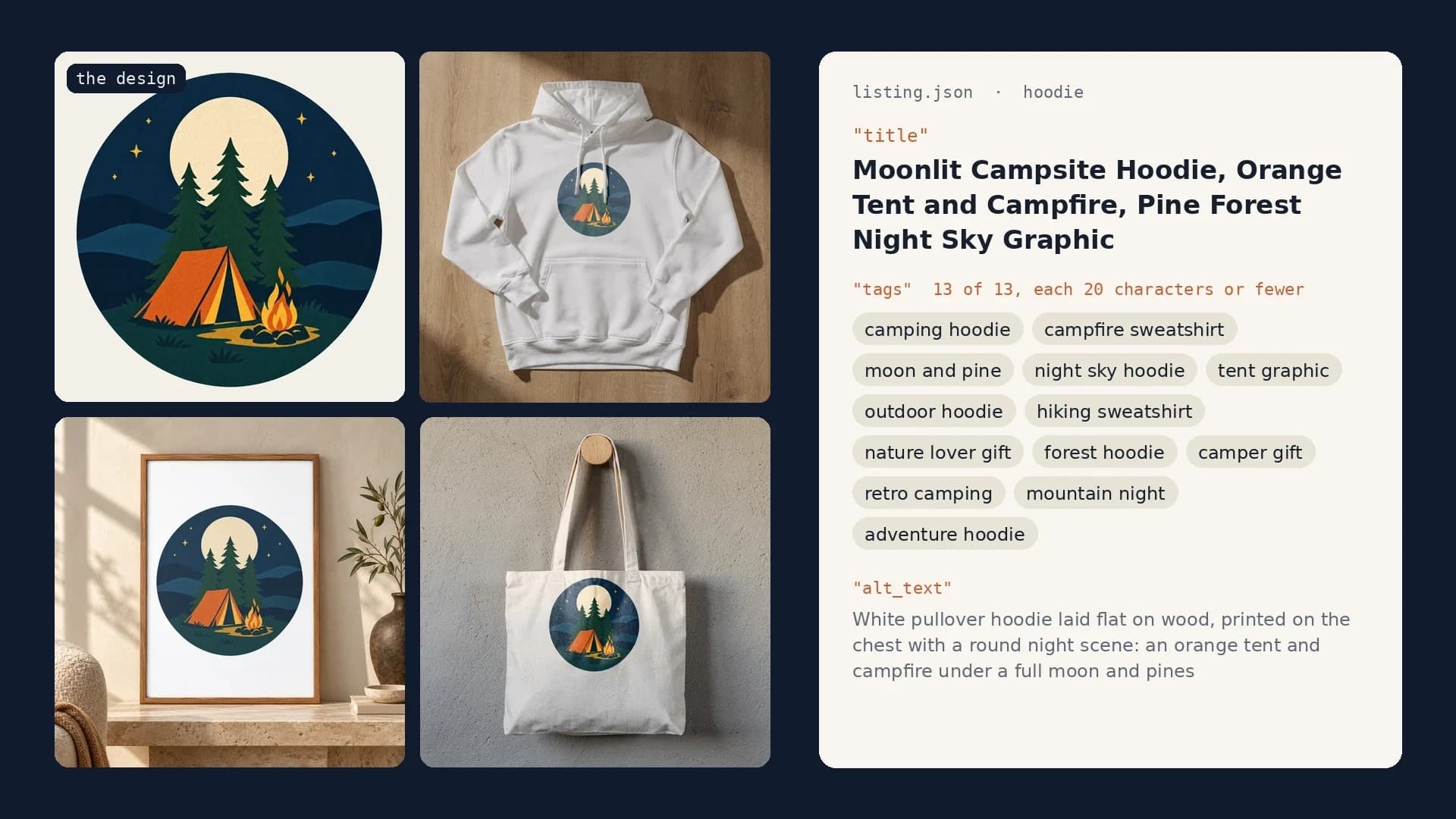
Etsy Listing Generator: Build Your Own With Claude and SudoMock
One design in, a full Etsy listing out: photos rendered on your own templates, then the title, tags and alt text Claude writes from them.
10 min read
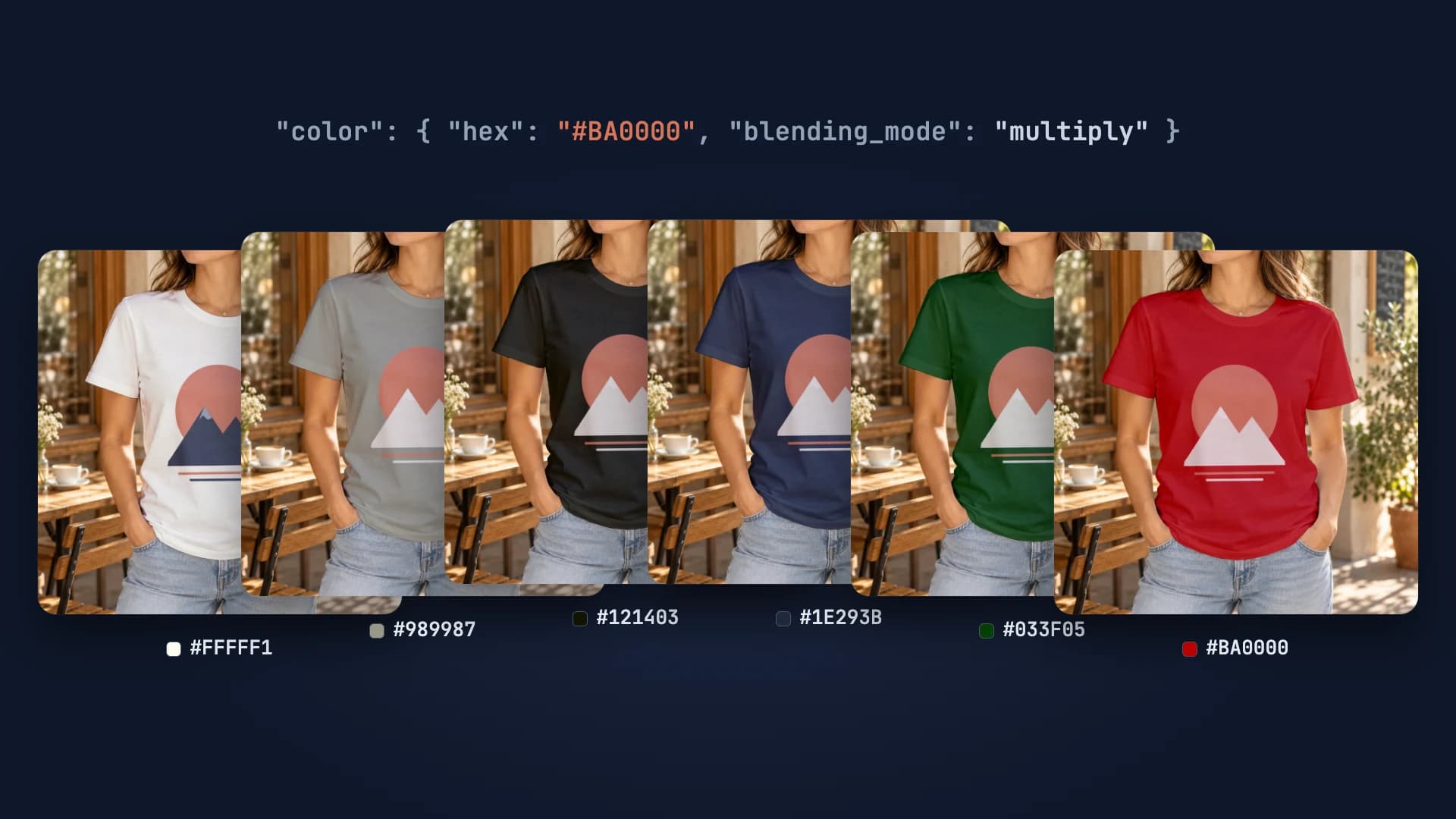
Every T-Shirt Color Variant Mockup from One PSD by API
One PSD with a color smart object renders every t-shirt colorway: one request per color, shown with six real renders.
4 min read
Explore by use case
See SudoMock in action for your specific product category
Your own PSD, rendered via API
Render your own PSD through the API. Start with 500 one-time credits, no card.