Shopify Product Image Size: 2048 px, the Real Limits and Files
Shopify recommends 2048 x 2048 px for square product images and takes product media up to 5000 x 5000 px or 25 megapixels under 20 MB, while its theme editor and developer pages state 20 megapixels. A SudoMock render at 2048 px measured 559,325 bytes as a JPG at quality 90 and 84,822 bytes as a WebP at quality 80.
Published 8 min readBeck
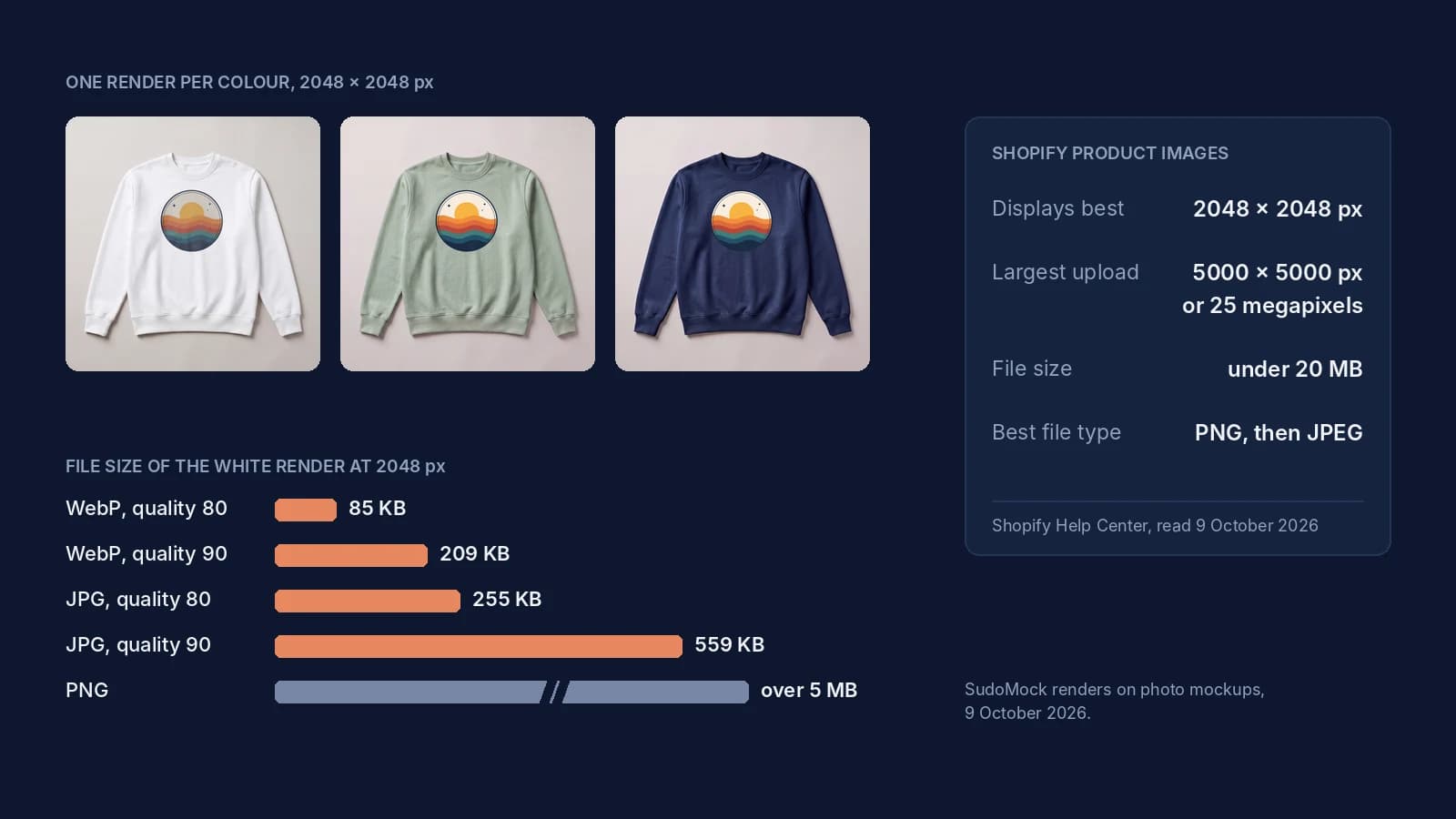
Key takeaways
- Guides that print 4472 px repeat a mid-2023 Shopify limit that its developer page still lists.
- Shopify never enlarges an image: the uploaded size is the largest any theme view can show.
- A square file of 4096 x 4096 px is 16.8 megapixels and passes every Shopify upload path.
What size Shopify product images should be
Shopify's product media page, read on 9 October 2026, answers with 2048 by 2048 pixels: "For square product images, a size of 2048 x 2048 px usually displays best." That is a recommendation.
Shopify sets no required shape. It asks for one shape across the main images of a catalog: "To make your images display to be the same size, you need to use a consistent aspect ratio." Square is the shape its recommendation names, and the files below are square.
Shopify's limits by upload path
Shopify states different limits on different pages, which is why guides disagree. Product media takes 25 megapixels, the theme editor page states 20, and the developer docs still print the older 4472 pixel figure.
These are the lines as they read on 9 October 2026:
| Where the image goes | Pixel limit | File size | Shopify page |
|---|---|---|---|
| Product and collection media | "up to 5000 x 5000 px, or 25 megapixels" | "smaller than 20 MB" | Product media types |
| Theme editor uploads | "20 megapixels" | "20 megabytes" | Uploading images |
| Content, Files | "Maximum of 25 MP (megapixels)" | "Maximum of 20 MB (megabytes)" | Uploading and managing files |
| Admin API, MediaImage | "Max 4472 x 4472 px (20 MP)" | "Max 20 MB" | Manage media for products and collections |
The 4472 pixel figure is the old product limit. The Help Center page read "up to 4472 x 4472 px, or 20 megapixels" in its Internet Archive copy of 5 June 2023, and "up to 5000 x 5000 px, or 25 megapixels" in the copy of 27 November 2023. Guides that still print 4472 px repeat the line Shopify still printed in mid-2023.
The theme editor page also disagrees with itself: on the same page as its 20 megapixel limit, it advises "Upload higher resolution images up to 5000px x 5000px or 25 megapixels".
The megapixel limit is the one that rejects large photos. Shopify's theme images page gives the formula, (pixel width x pixel height)/1,000,000, and explains the error "Your file 'filename' is too large" on a file under 20 MB: "the issue is related to the image's megapixel count, not the file size in megabytes."
When a file larger than 2048 pixels helps
Shopify makes the smaller sizes itself and never enlarges an image. Its Liquid image filter, read on 9 October 2026, lets a theme request up to 5760 pixels, but "an image can never be resized to be larger than its original dimensions." So the uploaded size is the largest size any theme view can show.
A file larger than 2048 pixels only adds detail where a theme asks for more pixels, such as a zoom view. When you want that headroom, pick a size that passes every upload path, with megapixels counted by Shopify's formula:
| Square size | Megapixels | Product media (25 MP) | Theme editor (20 MP) |
|---|---|---|---|
| 2048 x 2048 | 4.2 | Passes | Passes |
| 4096 x 4096 | 16.8 | Passes | Passes |
| 4472 x 4472 | 20.0 | Passes | Passes |
| 5000 x 5000 | 25.0 | Passes | Over the stated 20 MP |
Uploads are not compressed on the way in: "Images aren't compressed when you upload them to the Shopify admin." The same page says "Images don't need to be manually compressed prior to uploading", and it delivers WebP or AVIF to browsers that support them.
Render the files at 2048 pixels
A square template at image_size 2048 returns the file Shopify recommends, 2048 by 2048 pixels, in one request. The request below made the renders on this page, with the format, quality and width set per file and the IDs and the design URL as placeholders. In a photo mockup render, image_size sets the output width and the height follows the template shape:
curl -X POST https://api.sudomock.com/api/v1/photo-mockups/YOUR_PHOTO_MOCKUP_ID/render \-H "x-api-key: $SUDOMOCK_API_KEY" \-H "Content-Type: application/json" \-d '{"print_areas": [{ "uuid": "YOUR_PRINT_AREA_UUID","artwork_url": "https://example.com/designs/sunset-badge.png" }],"export_options": { "image_format": "jpg", "image_size": 1024, "quality": 90 }}'
const response = await fetch('https://api.sudomock.com/api/v1/photo-mockups/YOUR_PHOTO_MOCKUP_ID/render', {method: 'POST',headers: {'x-api-key': process.env.SUDOMOCK_API_KEY,'Content-Type': 'application/json',},body: JSON.stringify({"print_areas": [{"uuid": "YOUR_PRINT_AREA_UUID","artwork_url": "https://example.com/designs/sunset-badge.png"}],"export_options": {"image_format": "jpg","image_size": 1024,"quality": 90}}),});const data = await response.json();console.log(data);
import osimport requestsresponse = requests.post("https://api.sudomock.com/api/v1/photo-mockups/YOUR_PHOTO_MOCKUP_ID/render",headers={"x-api-key": os.environ["SUDOMOCK_API_KEY"],"Content-Type": "application/json",},json={"print_areas": [{"uuid": "YOUR_PRINT_AREA_UUID","artwork_url": "https://example.com/designs/sunset-badge.png",},],"export_options": {"image_format": "jpg","image_size": 1024,"quality": 90,},},)print(response.json())
package mainimport ("bytes""fmt""io""net/http""os")func main() {payload := []byte(`{"print_areas": [{"uuid": "YOUR_PRINT_AREA_UUID","artwork_url": "https://example.com/designs/sunset-badge.png"}],"export_options": {"image_format": "jpg","image_size": 1024,"quality": 90}}`)req, err := http.NewRequest("POST", "https://api.sudomock.com/api/v1/photo-mockups/YOUR_PHOTO_MOCKUP_ID/render", bytes.NewBuffer(payload))if err != nil {panic(err)}req.Header.Set("x-api-key", os.Getenv("SUDOMOCK_API_KEY"))req.Header.Set("Content-Type", "application/json")resp, err := http.DefaultClient.Do(req)if err != nil {panic(err)}defer resp.Body.Close()body, _ := io.ReadAll(resp.Body)fmt.Println(string(body))}
<?php$payload = <<<'JSON'{"print_areas": [{"uuid": "YOUR_PRINT_AREA_UUID","artwork_url": "https://example.com/designs/sunset-badge.png"}],"export_options": {"image_format": "jpg","image_size": 1024,"quality": 90}}JSON;$ch = curl_init('https://api.sudomock.com/api/v1/photo-mockups/YOUR_PHOTO_MOCKUP_ID/render');curl_setopt_array($ch, [CURLOPT_CUSTOMREQUEST => 'POST',CURLOPT_RETURNTRANSFER => true,CURLOPT_HTTPHEADER => ['x-api-key: ' . getenv('SUDOMOCK_API_KEY'),'Content-Type: application/json',],CURLOPT_POSTFIELDS => $payload,]);$response = curl_exec($ch);curl_close($ch);echo $response;
For the Shopify files, set image_size to 2048: every 2048 file below came back at exactly 2048 by 2048 pixels, and the 4096 file at 4096 by 4096. The image URL is in data.print_files[0].export_path. A PSD template takes the same export_options in Render a PSD mockup. A template that is not square returns a file of its own shape: the Etsy listing photo size post shows how to pick the width for a landscape template.
JPG, WebP or PNG: what the files measured
All three formats are on Shopify's list for product media. Shopify names PNG first, then JPEG, and accepts WebP. For a photographic mockup the JPG and WebP files measured a fraction of the PNG's size at the same 2048 pixels.
These are SudoMock renders made on 9 October 2026 from one photo mockup of a white crewneck sweatshirt, with the design in the front print area:
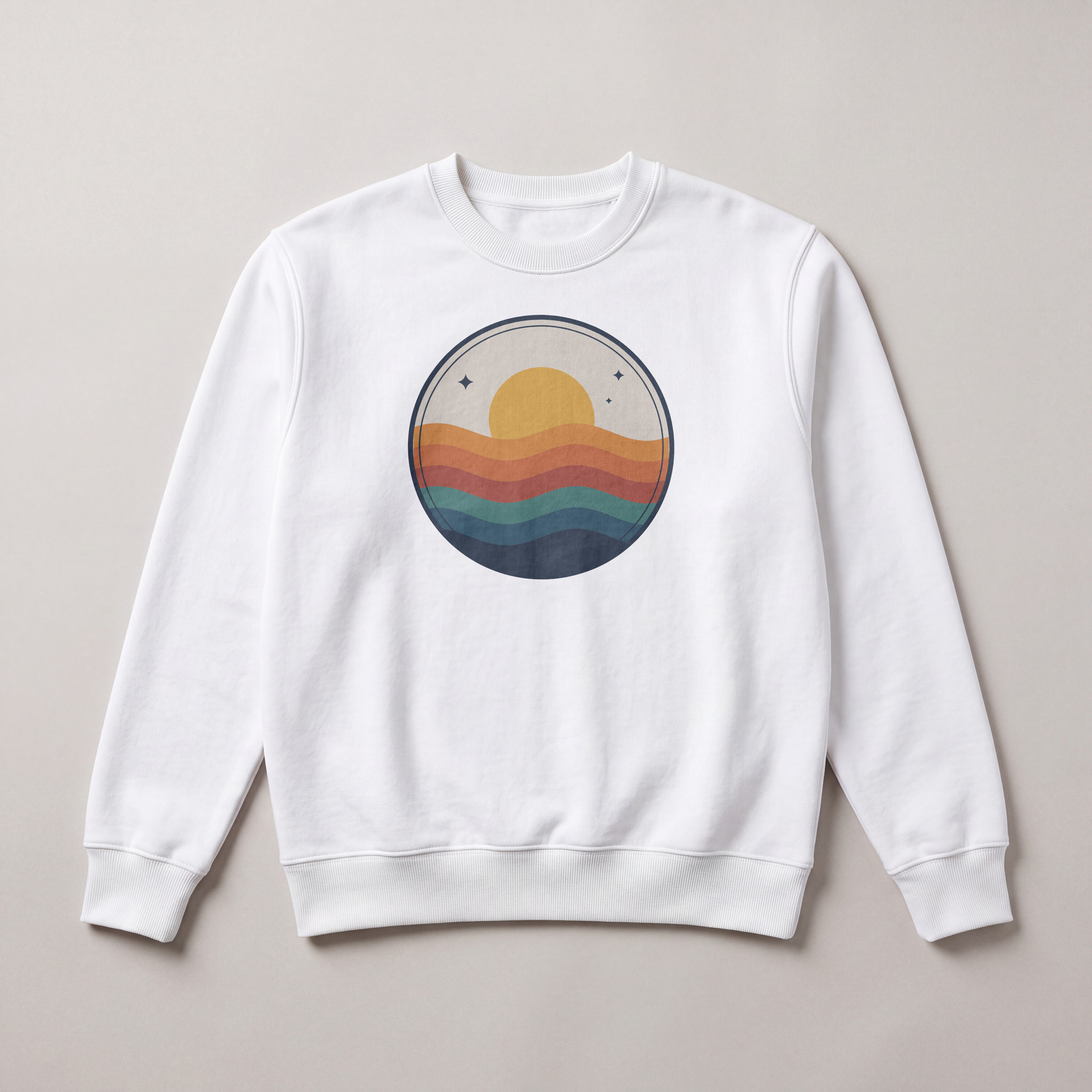 A SudoMock render on a photo mockup at 2048 by 2048 px, JPG quality 90. The product photo was made with an image model for this example.
| Format and quality | Pixels | File size | Full file |
|---|---|---|---|
| JPG, quality 90 | 2048 x 2048 | 559,325 bytes | JPG 90 |
| JPG, quality 80 | 2048 x 2048 | 254,941 bytes | JPG 80 |
| WebP, quality 90 | 2048 x 2048 | 209,350 bytes | WebP 90 |
| WebP, quality 80 | 2048 x 2048 | 84,822 bytes | WebP 80 |
| PNG | 2048 x 2048 | over 5 MB | |
| JPG, quality 90 | 4096 x 4096 | 2,697,864 bytes | JPG 90 at 4096 |
Every JPG and WebP file is far under the 20 MB limit, the 4096 pixel JPG included. The crop below shows the same 600 by 600 pixel area of the JPG at quality 90 and the WebP at quality 80 at 100 percent.
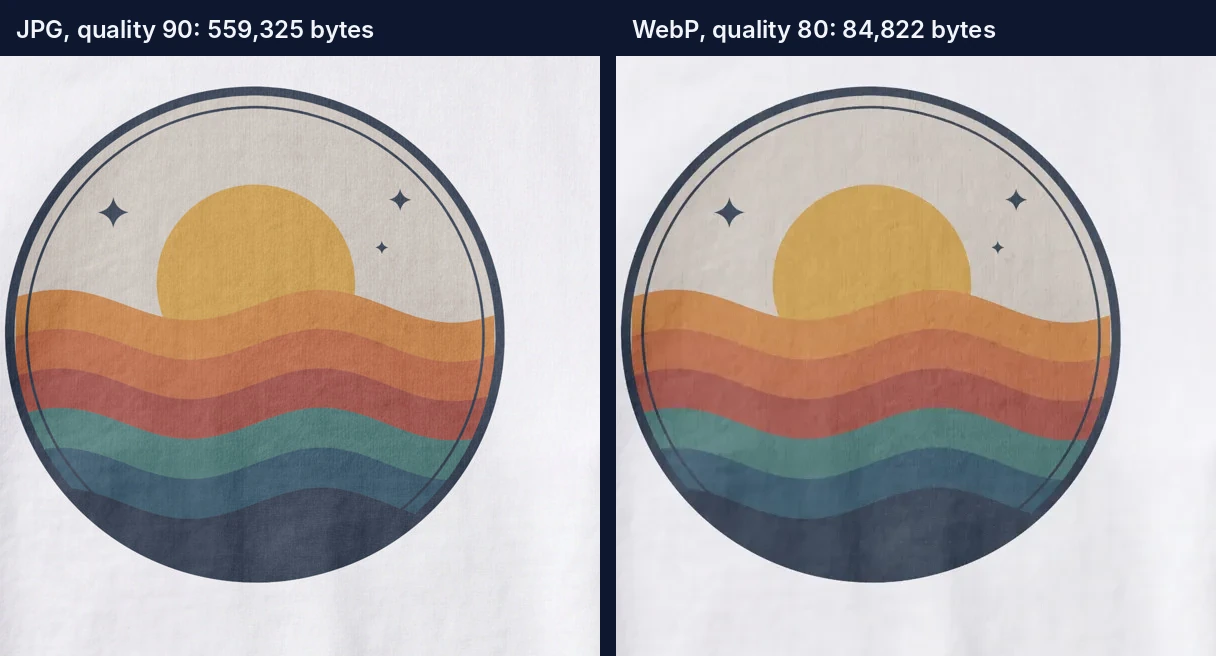 The same area of the JPG quality 90 and WebP quality 80 renders at 100 percent.
PNG stays the right export for a product on a transparent background. For a product photo with its own background, a JPG at quality 90 keeps the detail Shopify asks for at a small file size, and the store still delivers WebP or AVIF to browsers that support them.
One render per colour, one shape for the catalog
A product with colour options needs one image per colour, and every main image in the catalog should share one shape. Render each colour from templates of the same shape at the same image_size, and the collection grid shows them at one size.
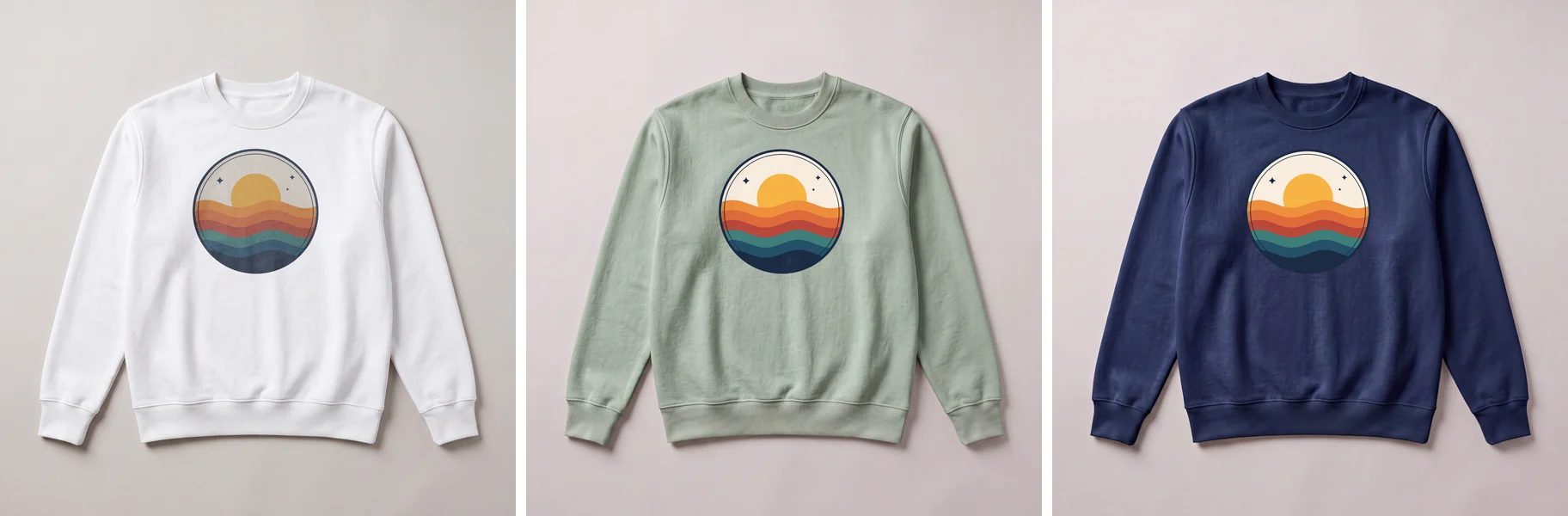 Three SudoMock renders at 2048 by 2048 px, one per colour. The product photos were made with an image model for this example.
The white, sage and navy files measured 559,325, 704,631 and 628,305 bytes as JPGs at quality 90.
- Pick square templates for every product in the collection, or one other shape used everywhere.
- Render each colour with
image_formatjpg,image_size2048 andquality90. Send the requests in parallel: the average SudoMock render finishes in under a second. When the colours of the design have to match the file exactly, setprint_areas[].adjustments.blend_modetonormal, as in the navy file above. - Name each file for its product and colour. Shopify's Files page says image file names "can't end with the following words - pico, icon, thumb, testing, small, compact, medium, large, or grande."
- Add the images to the product, up to the "maximum of 250 images, 3D models, or videos" on Shopify's product media help page, and link each colour image to its variant. By script, the Shopify media guide adds the image with productSet or productUpdate and links it to a variant with productVariantsBulkUpdate and its mediaId field.
For renders that start when a product is created, the Shopify API guide has a webhook receiver, and Shopify product images at scale walks through that trigger.
Next step
Create the photo mockup first with create a mockup from a product photo: its response carries data.mockup_id for the URL and data.quads[].print_area_id for uuid in the request above, and the print area is found automatically. Run the request as shown, check the pixels and bytes of the file, then render each colour at image_size 2048 for the store. With no product photo yet, start from the mockup templates for Shopify merchants, which take the same export_options in Render a PSD mockup. Without code, the SudoMock node in n8n renders the same JPG at 2048 pixels and quality 90 from a photo mockup (Photo Mockup: Render) or a PSD template (PSD Mockup: Render): see the n8n integration guide. For stores that let shoppers personalize products without code, the Shopify mockups use case covers the native Shopify app.
Frequently asked questions
What size should Shopify product images be?
Shopify says a square product image of 2048 x 2048 pixels usually displays best. That is a recommendation, and product media accepts files up to 5000 x 5000 pixels or 25 megapixels, smaller than 20 MB. Keep one aspect ratio across the main images so collection pages show them at one size.
What is the maximum image size Shopify allows?
Product and collection media take up to 5000 x 5000 pixels or 25 megapixels, with a file smaller than 20 MB. The theme editor page states 20 megapixels and 20 MB, and the Admin API developer page still lists 4472 x 4472 pixels, the product limit Shopify still printed in mid-2023. A square file of 4096 x 4096 pixels passes all of them.
Should I compress images before uploading to Shopify?
Shopify says images don't need to be manually compressed before upload and asks for the best quality you can provide. Uploads are not compressed in the admin, and the store delivers WebP or AVIF to browsers that support them. A SudoMock render at 2048 pixels measured 559,325 bytes as a JPG at quality 90.
Does Shopify accept WebP product images?
Yes. Shopify's product media page names PNG as the best file type for most product images, followed by JPEG, and lists WebP among the other accepted types. A SudoMock render at 2048 pixels measured 84,822 bytes as a WebP at quality 80.
Why does Shopify say my image is too large when it is under 20 MB?
The error comes from the megapixel limit, not the file size. Shopify counts megapixels as pixel width times pixel height divided by one million, so a 4900 x 6930 photo is 33.9 megapixels even when the file is small. Reduce the pixel dimensions until the image is within the limit of the page you upload to.
Sources
- Product media types (opens in new tab), Shopify Help Center
- Uploading images (opens in new tab), Shopify Help Center
- Uploading and managing files (opens in new tab), Shopify Help Center
- Adding product media (opens in new tab), Shopify Help Center
- Manage media for products and collections (opens in new tab), Shopify Dev Docs
- Liquid filters: image_url (opens in new tab), Shopify Dev Docs
- Product media types · Shopify Help Center (copy of 5 June 2023) (opens in new tab), Internet Archive
- Product media types · Shopify Help Center (copy of 27 November 2023) (opens in new tab), Internet Archive
- Render a photo mockup (opens in new tab)
- Render a PSD mockup (opens in new tab)
- Create a mockup from a product photo (opens in new tab)
Beck
CTO
Related articles
Shopify Product Images at Scale: API Approach
Automate Shopify product image generation with mockup APIs. Bulk create variants for your entire catalog.
2 min read
Etsy Listing Photo Size: Etsy's Rules and Files That Meet Them
Etsy's listing photo rules quoted with their dates, the render width for each template shape, and real files measured against the 1 MB line.
7 min read
How to Add a Product Customizer to Shopify With a Live Preview
Five setup steps, a live preview rendered from your own mockup, and the two hidden properties that tie each order to the approved design.
6 min read
Your own PSD, rendered via API
Render your own PSD through the API. Start with 500 one-time credits, no card.