Photoshop Variables and Data Sets for Mockups, Run by API
Each Photoshop variable has a field in a SudoMock render request: Text Replacement is text_layers, Pixel Replacement is the smart object's asset url, Visibility is hidden_layers. Upload the PSD once and send one request per CSV row, and each row comes back as a PNG, JPG or WebP named by its export_label.
Published 8 min readBeck
Key takeaways
- Any CSV column can fill any smart object or text layer, with no variables defined.
- Photoshop's Fit, Fill and Conform become asset.fit set to fit, crop and fill.
- An empty CSV cell hides its layer through hidden_layers, so no placeholder reaches the file.
What each Photoshop variable becomes in a render request
The three variable types, the data set name and the export step each have a field in the request, so a PSD you set up for Data Sets works with its smart object and text layers as they are. This table is the whole map.
| In Photoshop | What it does there | In the render request |
|---|---|---|
| Text Replacement variable | Replaces the text of a type layer | text_layers[].text, with fit: "shrink" for long values |
| Pixel Replacement variable | Replaces the pixels of a layer with an image file | smart_objects[].asset.url on the smart object that holds the design |
| Visibility variable | Shows or hides a layer | hidden_layers, the UUIDs of the layers to leave out |
| Data set name | Labels the row | export_label, which leads the output file name |
| File > Export > Data Sets as Files | Writes one PSD file per data set | export_options: png, jpg or webp, and image_size |
Adobe's Photoshop help (Help and tutorials, February 2013 edition, p. 638 to 641) defines the three types this way: "Visibility variables show or hide the content of a layer. Pixel Replacement variables replace the pixels in the layer with pixels from another image file. Text Replacement variables replace a string of text in a type layer." In a mockup PSD the design sits in a smart object, and the render puts each row's design into it with the warp, blend mode and effects the PSD gives that layer.
The scaling methods carry over too. The same help page describes Fit as scaling the image "so that it fits in the bounding box", Fill as scaling it "so that it fills the bounding box entirely" and Conform as scaling it "non-proportionally". In a render they are asset.fit set to fit, crop and fill: the whole design inside the area, the area covered with the overflow cut, and the design stretched to the area.
Where a Data Sets run spends the time
The time goes into the data set and into what the export gives back. On the Adobe community on 16 October 2025, a designer asked how to export 20 to 30 poster mockups, each with a different visual in the same scene. The accepted answer, from a Community Expert, uses Actions with Variables and says: "The only time consuming part may be the actual creation of the data set."
Adobe's help sets the rules of that file: the variable names fill the first line, each later line is one data set, and "An error is displayed if the number of variables in the text file does not match the number in the document." The export then writes PSD files: "You can output images as PSD files." For a JPG or PNG to list, an answer on the Adobe community of 1 May 2019 is to "save as PSDs and then batch convert them to a different format as needed".
Your script or workflow reads the CSV however you write it. The PSD needs no variables defined, the CSV can hold any columns your script maps, and each row comes back as a finished PNG, JPG or WebP with the row's own name at the front of the file.
Upload the PSD once and keep its layer IDs
The PSD goes up once, and every row after that renders against the same template. The file you built for Data Sets uploads with its smart object and text layers as they are, and the PSD template guide covers the smart object and layer names a template needs. Before upload, put the design in a smart object, and leave visible any smart object or image layer a row may show; a text layer hidden in the PSD still renders whenever a row sends its text. The upload response lists each smart object and text layer with its uuid, and those UUIDs are the keys of your map.
curl -X POST https://api.sudomock.com/api/v1/psd/upload \-H "x-api-key: $SUDOMOCK_API_KEY" \-H "Content-Type: application/json" \-d '{"psd_file_url": "https://cdn.example.com/poster-scene.psd"}'
const response = await fetch('https://api.sudomock.com/api/v1/psd/upload', {method: 'POST',headers: {'x-api-key': process.env.SUDOMOCK_API_KEY,'Content-Type': 'application/json',},body: JSON.stringify({"psd_file_url": "https://cdn.example.com/poster-scene.psd"}),});const data = await response.json();console.log(data);
import osimport requestsresponse = requests.post("https://api.sudomock.com/api/v1/psd/upload",headers={"x-api-key": os.environ["SUDOMOCK_API_KEY"],"Content-Type": "application/json",},json={"psd_file_url": "https://cdn.example.com/poster-scene.psd",},)print(response.json())
package mainimport ("bytes""fmt""io""net/http""os")func main() {payload := []byte(`{"psd_file_url": "https://cdn.example.com/poster-scene.psd"}`)req, err := http.NewRequest("POST", "https://api.sudomock.com/api/v1/psd/upload", bytes.NewBuffer(payload))if err != nil {panic(err)}req.Header.Set("x-api-key", os.Getenv("SUDOMOCK_API_KEY"))req.Header.Set("Content-Type", "application/json")resp, err := http.DefaultClient.Do(req)if err != nil {panic(err)}defer resp.Body.Close()body, _ := io.ReadAll(resp.Body)fmt.Println(string(body))}
<?php$payload = <<<'JSON'{"psd_file_url": "https://cdn.example.com/poster-scene.psd"}JSON;$ch = curl_init('https://api.sudomock.com/api/v1/psd/upload');curl_setopt_array($ch, [CURLOPT_CUSTOMREQUEST => 'POST',CURLOPT_RETURNTRANSFER => true,CURLOPT_HTTPHEADER => ['x-api-key: ' . getenv('SUDOMOCK_API_KEY'),'Content-Type: application/json',],CURLOPT_POSTFIELDS => $payload,]);$response = curl_exec($ch);curl_close($ch);echo $response;
Over the API the file is fetched from psd_file_url, so it needs a link that downloads without a sign-in; the dashboard takes it from your disk. Keep data.uuid (the mockup), the uuid of the smart object that holds the design, and the uuid of each text layer a column fills. In the dashboard, PSD uploads are capped at 300 MB. API uploads support files up to Adobe's official PSD file size limit.
A Visibility variable needs the UUID of the layer it hides. A text layer or a smart object uses the UUID from the upload response, and any other layer, such as a badge or a shadow, has its own UUID in GET /api/v1/psd-mockups/{uuid}/layers, as the hidden layer guide shows.
One CSV row, one render request
A row of the CSV fills one request body: the design URL goes to the smart object, the title to its text layer, and the row's label to export_label. The finished image comes back at data.print_files[0].export_path. Photoshop's data set file points each Pixel Replacement value at an image on disk, while a render fetches each design from a URL, so the design column holds a public link to each file, or the script sends the bytes as base64.
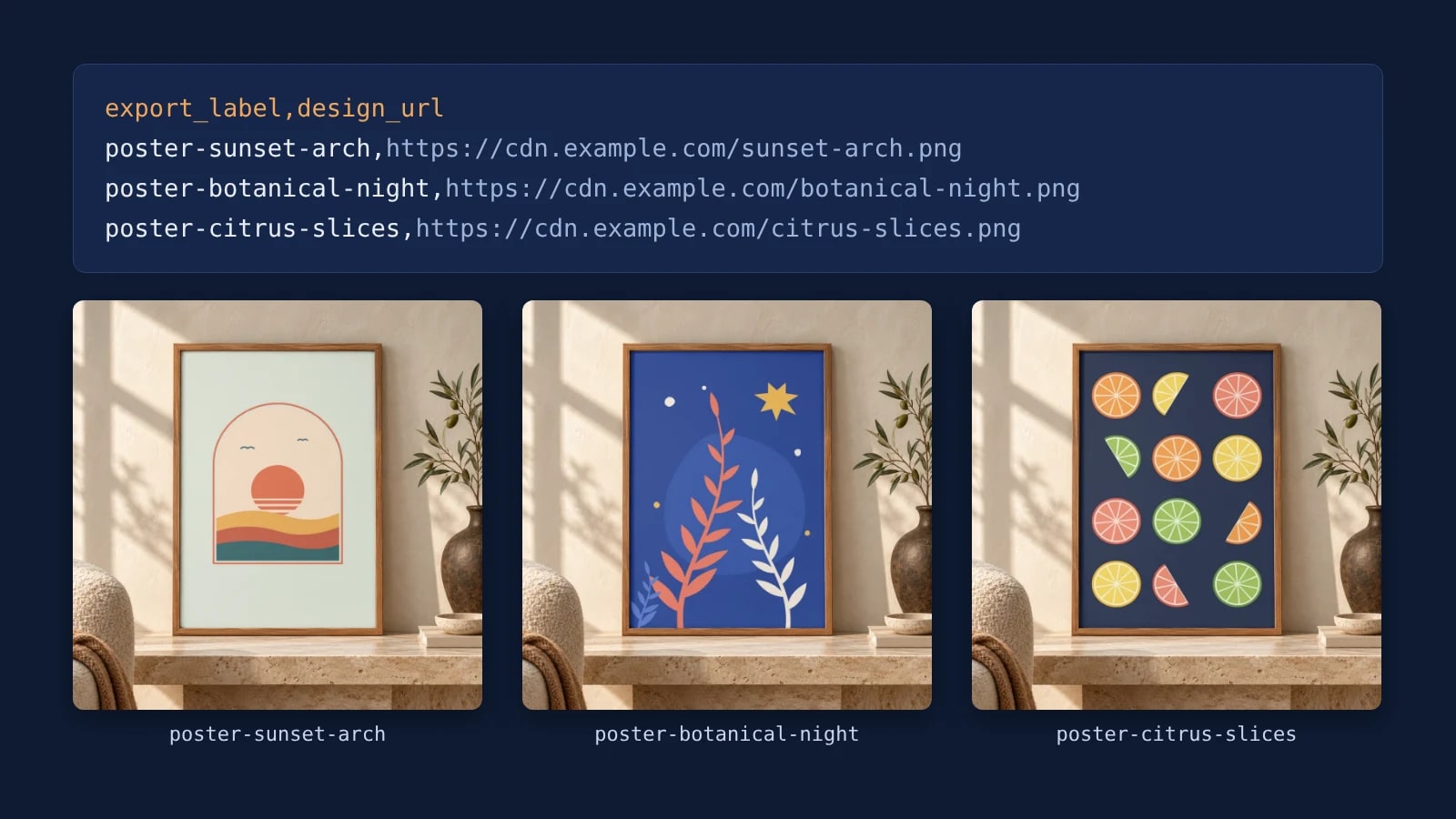
export_label,design_url,title,captionposter-sunset-arch,https://cdn.example.com/sunset-arch.png,Sunset Arch,Edition of 50poster-botanical-night,https://cdn.example.com/botanical-night.png,Botanical Night Limited Edition Print,poster-citrus-slices,https://cdn.example.com/citrus-slices.png,Citrus Slices,Kitchen print
This is the request for the second row, whose caption cell is empty:
curl -X POST https://api.sudomock.com/api/v1/renders \-H "x-api-key: $SUDOMOCK_API_KEY" \-H "Content-Type: application/json" \-d '{"mockup_uuid": "MOCKUP_UUID","smart_objects": [{"uuid": "DESIGN_SMART_OBJECT_UUID","asset": { "url": "https://cdn.example.com/botanical-night.png", "fit": "crop" }}],"text_layers": [{"uuid": "TITLE_TEXT_LAYER_UUID","text": "Botanical Night Limited Edition Print","font_size": 140,"fit": "shrink","vertical_align": "center"}],"hidden_layers": ["CAPTION_TEXT_LAYER_UUID"],"export_options": { "image_format": "webp", "image_size": 1024 },"export_label": "poster-botanical-night"}'
const response = await fetch('https://api.sudomock.com/api/v1/renders', {method: 'POST',headers: {'x-api-key': process.env.SUDOMOCK_API_KEY,'Content-Type': 'application/json',},body: JSON.stringify({"mockup_uuid": "MOCKUP_UUID","smart_objects": [{"uuid": "DESIGN_SMART_OBJECT_UUID","asset": {"url": "https://cdn.example.com/botanical-night.png","fit": "crop"}}],"text_layers": [{"uuid": "TITLE_TEXT_LAYER_UUID","text": "Botanical Night Limited Edition Print","font_size": 140,"fit": "shrink","vertical_align": "center"}],"hidden_layers": ["CAPTION_TEXT_LAYER_UUID"],"export_options": {"image_format": "webp","image_size": 1024},"export_label": "poster-botanical-night"}),});const data = await response.json();console.log(data);
import osimport requestsresponse = requests.post("https://api.sudomock.com/api/v1/renders",headers={"x-api-key": os.environ["SUDOMOCK_API_KEY"],"Content-Type": "application/json",},json={"mockup_uuid": "MOCKUP_UUID","smart_objects": [{"uuid": "DESIGN_SMART_OBJECT_UUID","asset": {"url": "https://cdn.example.com/botanical-night.png","fit": "crop",},},],"text_layers": [{"uuid": "TITLE_TEXT_LAYER_UUID","text": "Botanical Night Limited Edition Print","font_size": 140,"fit": "shrink","vertical_align": "center",},],"hidden_layers": ["CAPTION_TEXT_LAYER_UUID",],"export_options": {"image_format": "webp","image_size": 1024,},"export_label": "poster-botanical-night",},)print(response.json())
package mainimport ("bytes""fmt""io""net/http""os")func main() {payload := []byte(`{"mockup_uuid": "MOCKUP_UUID","smart_objects": [{"uuid": "DESIGN_SMART_OBJECT_UUID","asset": {"url": "https://cdn.example.com/botanical-night.png","fit": "crop"}}],"text_layers": [{"uuid": "TITLE_TEXT_LAYER_UUID","text": "Botanical Night Limited Edition Print","font_size": 140,"fit": "shrink","vertical_align": "center"}],"hidden_layers": ["CAPTION_TEXT_LAYER_UUID"],"export_options": {"image_format": "webp","image_size": 1024},"export_label": "poster-botanical-night"}`)req, err := http.NewRequest("POST", "https://api.sudomock.com/api/v1/renders", bytes.NewBuffer(payload))if err != nil {panic(err)}req.Header.Set("x-api-key", os.Getenv("SUDOMOCK_API_KEY"))req.Header.Set("Content-Type", "application/json")resp, err := http.DefaultClient.Do(req)if err != nil {panic(err)}defer resp.Body.Close()body, _ := io.ReadAll(resp.Body)fmt.Println(string(body))}
<?php$payload = <<<'JSON'{"mockup_uuid": "MOCKUP_UUID","smart_objects": [{"uuid": "DESIGN_SMART_OBJECT_UUID","asset": {"url": "https://cdn.example.com/botanical-night.png","fit": "crop"}}],"text_layers": [{"uuid": "TITLE_TEXT_LAYER_UUID","text": "Botanical Night Limited Edition Print","font_size": 140,"fit": "shrink","vertical_align": "center"}],"hidden_layers": ["CAPTION_TEXT_LAYER_UUID"],"export_options": {"image_format": "webp","image_size": 1024},"export_label": "poster-botanical-night"}JSON;$ch = curl_init('https://api.sudomock.com/api/v1/renders');curl_setopt_array($ch, [CURLOPT_CUSTOMREQUEST => 'POST',CURLOPT_RETURNTRANSFER => true,CURLOPT_HTTPHEADER => ['x-api-key: ' . getenv('SUDOMOCK_API_KEY'),'Content-Type: application/json',],CURLOPT_POSTFIELDS => $payload,]);$response = curl_exec($ch);curl_close($ch);echo $response;
export_label takes up to 100 letters, digits, hyphens and underscores. Rendered on 28 October 2026 as WebP against a framed poster template with the design column alone, each with its row's label, the three designs of this CSV came back as poster-sunset-arch_3673ad17-15c8-48fb-9994-4295fff69f80.webp, poster-botanical-night_f9cb86a0-600f-4957-9180-8fe3b583e683.webp and poster-citrus-slices_01cf89a4-a7b0-4ced-999f-d5fd4c2b15fe.webp: the label, then the render's own ID, so a row never overwrites another.
 The second row on a framed poster template: the design URL went to the smart object with fit set to crop, so the artwork covers the whole frame.
With a 2:3 design in a 2:3 frame, crop and fit give the same picture. For artwork in another shape, crop covers the frame and cuts the overflow, and fit keeps the whole design with space around it. Without a poster scene of your own, the API-ready framed print templates take the same smart object request.
Run every row from the CSV
A short script reads the CSV and sends one request per row, the job File > Export > Data Sets as Files does in Photoshop. Fill in the four UUIDs from your upload response, set SUDOMOCK_API_KEY, and run node rows.mjs rows.csv.
// rows.mjsimport { readFileSync } from "node:fs";const MOCKUP = "MOCKUP_UUID";const DESIGN = "DESIGN_SMART_OBJECT_UUID";const TITLE = "TITLE_TEXT_LAYER_UUID";const CAPTION = "CAPTION_TEXT_LAYER_UUID";const [header, ...lines] = readFileSync(process.argv[2], "utf8").trim().split(/\r?\n/);const columns = header.split(",");for (const line of lines) {const cells = line.split(",");const row = Object.fromEntries(columns.map((c, i) => [c, (cells[i] ?? "").trim()]));const body = {mockup_uuid: MOCKUP,smart_objects: [{ uuid: DESIGN, asset: { url: row.design_url, fit: "crop" } }],text_layers: [{ uuid: TITLE, text: row.title, font_size: 140, fit: "shrink", vertical_align: "center" }],export_options: { image_format: "webp", image_size: 1024 },export_label: row.export_label,};if (row.caption) body.text_layers.push({ uuid: CAPTION, text: row.caption });else body.hidden_layers = [CAPTION];const res = await fetch("https://api.sudomock.com/api/v1/renders", {method: "POST",headers: { "x-api-key": process.env.SUDOMOCK_API_KEY, "Content-Type": "application/json" },body: JSON.stringify(body),});const json = await res.json();console.log(row.export_label, res.ok ? json.data.print_files[0].export_path : json, (json.warnings ?? []).map((w) => w.code).join(" "));}
The split on commas suits a CSV whose cells hold no commas. For titles like "Botanical Night, Limited Edition" read the file with a CSV parser such as csv-parse. A layer is either filled or hidden in one request, which is why the script hides the caption only when its cell is empty. For listing photos on a marketplace such as Etsy, set image_format to jpg.
Without code, the PSD Mockup: Render operation of the SudoMock n8n node carries Text Layers and Hidden Layers fields beside the artwork, so a Google Sheets node can feed it one row at a time in place of the CSV.
Long titles and empty cells
Set fit to shrink on a text layer and a long value scales down until it fits the box, while a short one keeps the size you set. An empty cell hides its layer through hidden_layers, so no placeholder text reaches the file.
 Two rows on one title template: the first fills both text layers, the second shrinks a long title to fit its box and leaves the empty caption out.
Photoshop's help describes what a type layer does with more text than it holds: in a paragraph box "the overflow icon appears on the bounding box", and point text "doesn't wrap to the next line" (p. 458). Rendered on 28 October 2026 with font_size 140, the title "Botanical Night Limited Edition Print" came back whole on two lines with TEXT_FIT_SHRUNK in the response, and the empty caption cell left that layer out. The script prints each warning code next to its file.
| Row value | Render fields | What comes back |
|---|---|---|
| A short title | text, fit: "shrink" | The title at the size you set |
| A long title | text, fit: "shrink", vertical_align: "center" | The whole title, scaled to its box and centered, with TEXT_FIT_SHRUNK |
| An empty caption cell | the caption UUID in hidden_layers | The file without that layer |
| A new design URL | smart_objects[].asset.url | The design in the smart object, with the PSD's warp, blend mode and effects |
Next step
Upload the PSD you already built for Data Sets, copy its UUIDs into rows.mjs, and run it against a CSV of three rows before the full list. The render reference lists every field above, and text layers covers fonts, sizes and fit.
For posters, the poster mockup use case shows the same run across frames and rooms. When the rows come from orders, Etsy personalization orders maps each buyer's answers to text layers the same way.
Frequently asked questions
Can Photoshop Data Sets export JPG or PNG files?
Adobe's help describes File > Export > Data Sets as Files as output in PSD format, so a JPG or PNG takes a second step, a batch conversion or a script. A SudoMock render returns the finished image directly as PNG, JPG or WebP, set by export_options.image_format.
How do I name each exported mockup after a CSV column?
Send the column's value as export_label in the render request. The output file is named with that label first and the render's own ID after it, so two rows never share a file name. The label takes up to 100 letters, digits, hyphens and underscores.
What happens when a title is too long for its text layer?
With fit set to shrink, the title scales down until it fits its text box, and a short title keeps the size you set. The response then carries a TEXT_FIT_SHRUNK warning that names the layer and the scale, so you know which files to check. Add vertical_align set to center to keep the smaller title centered in the box.
Can one render change the design and the text at the same time?
Yes. A render request takes smart_objects, text_layers and hidden_layers together, so one row's design, title and hidden caption come back as one finished file. Each smart object and text layer is addressed by the uuid the upload response lists for it.
Do I need Photoshop to run the data set?
No. The PSD is uploaded once, and every row renders from it by API, from an n8n workflow or from a script on any machine. Photoshop stays where you edit the template.
Sources
- Adobe Photoshop Help and tutorials (February 2013) (opens in new tab), Adobe
- Efficient ways to batch-export poster mockups in Photoshop? (opens in new tab), Adobe Community
- Data Sets to JPG (opens in new tab), Adobe Community
- Render a PSD mockup (opens in new tab), SudoMock docs
- Text layers (opens in new tab), SudoMock docs
- Why did my hidden layer not render (opens in new tab), SudoMock docs
- Render mockups with n8n and SudoMock (opens in new tab), SudoMock docs
- What is the PSD file size limit (opens in new tab), SudoMock docs
Beck
CTO
Related articles
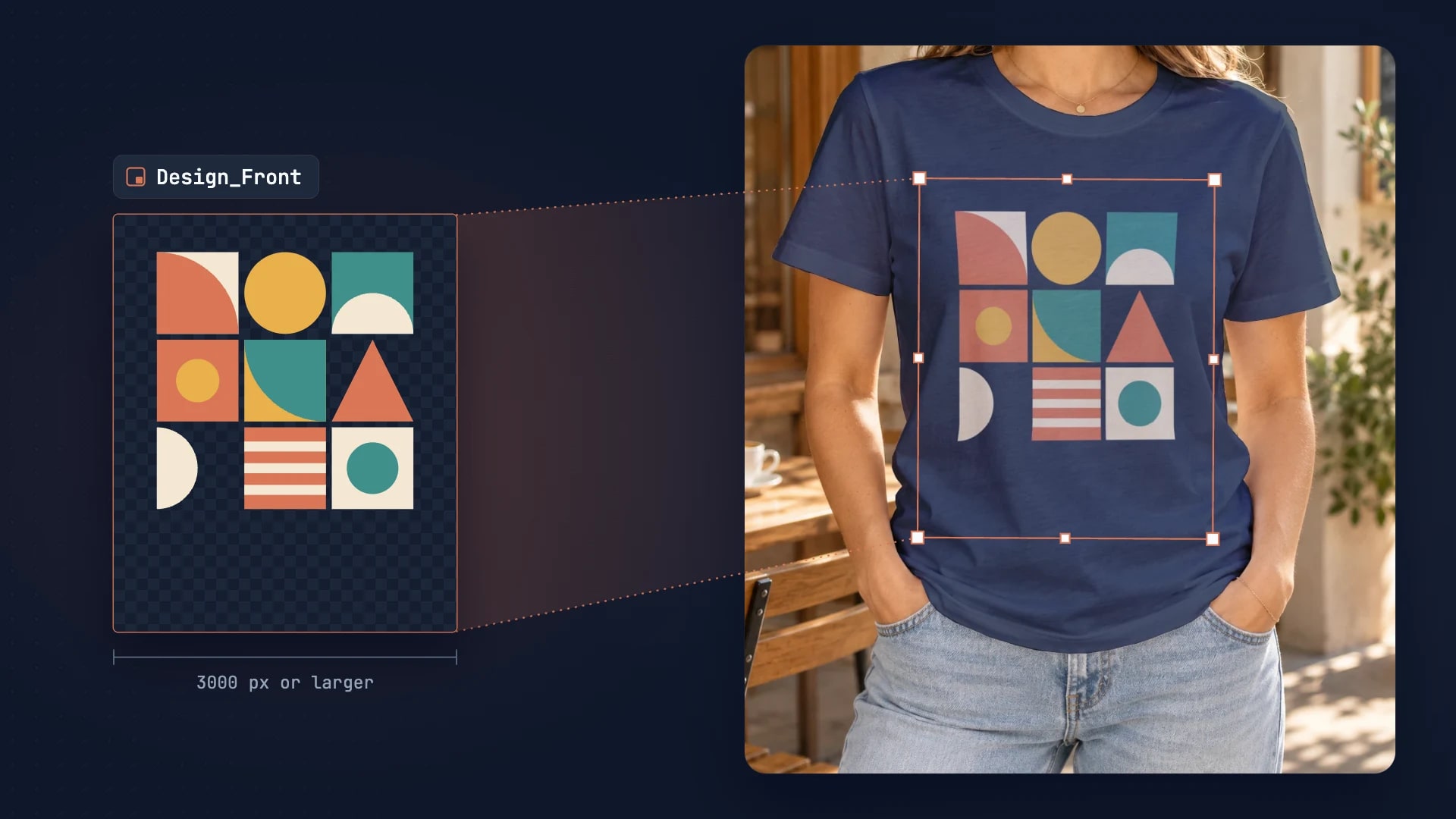
PSD Mockup Template Guide: Best Practices for Automation
Learn how to create API-ready PSD mockup templates. Complete guide covering dimensions, Smart Object setup, layer naming, blend modes, and optimization for automation.
7 min read
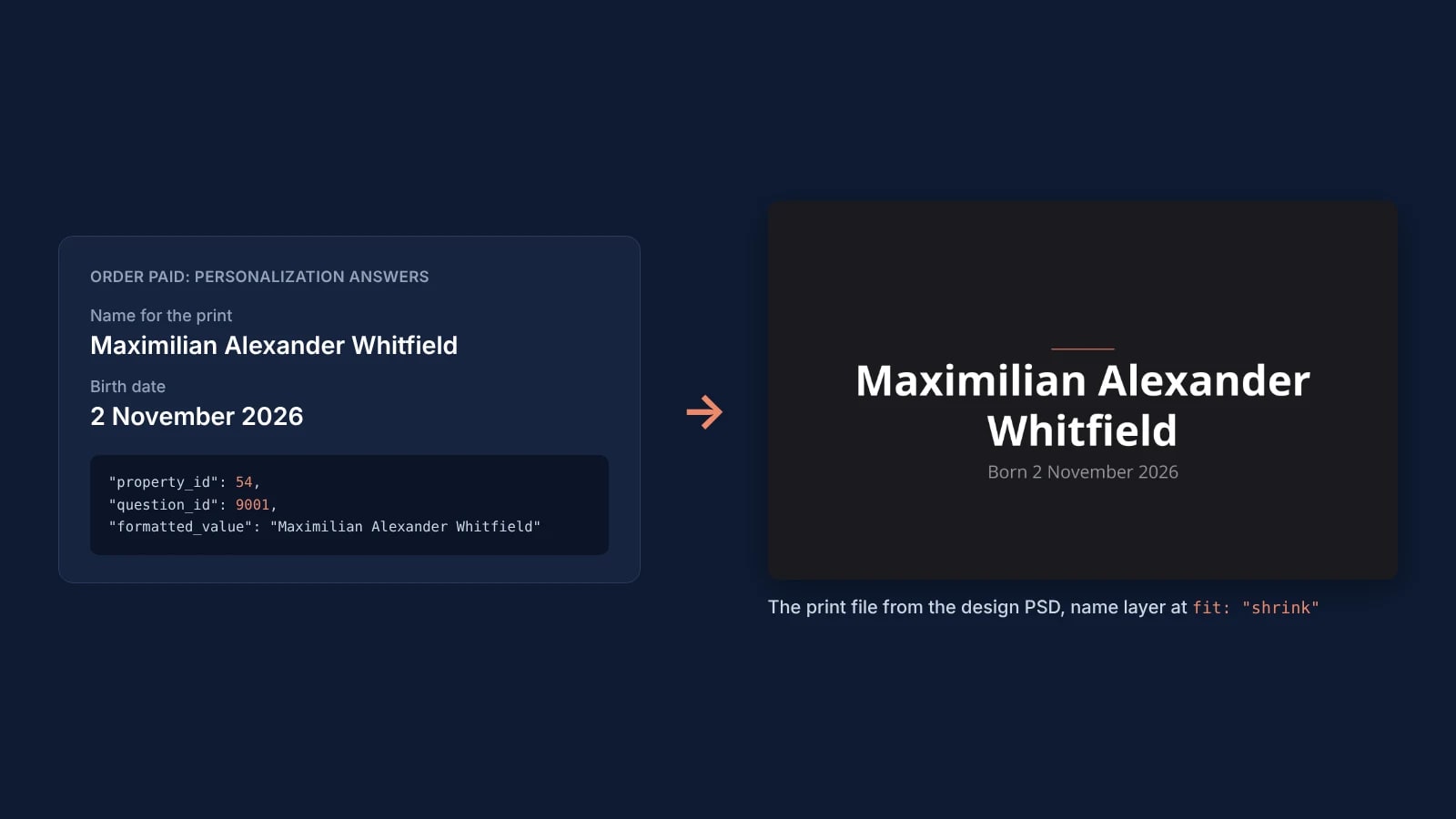
Etsy Personalization Orders: Render Each Buyer's Name on Your Own PSD
When an Etsy order is paid, render each buyer's personalization answers on your own PSD, with long names fitted to the box the designer drew.
7 min read
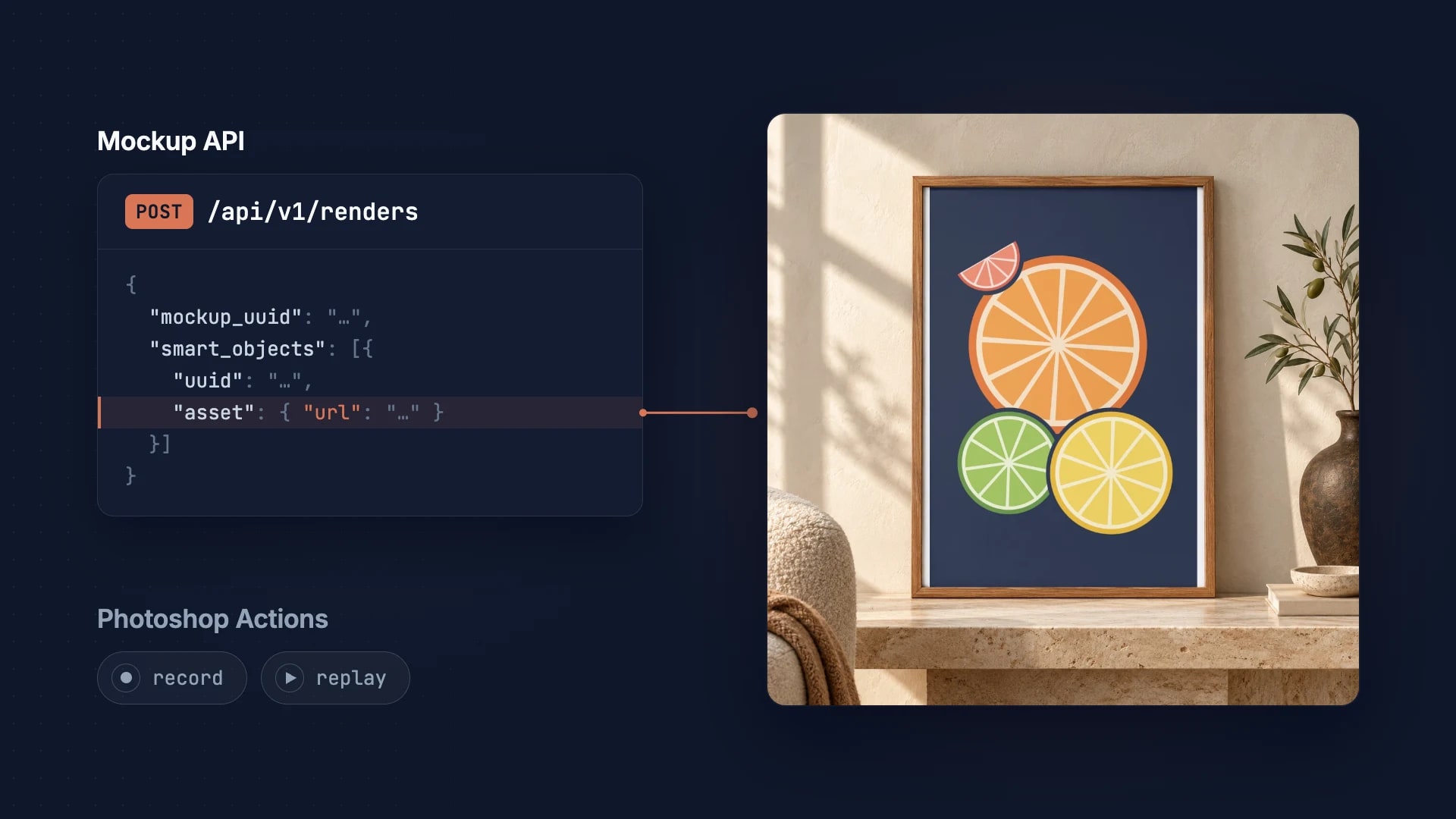
PSD Mockup API vs Photoshop Actions: Complete Guide
When to use a mockup API vs Photoshop actions. Pros, cons, and use cases for each approach.
2 min read
Explore by use case
See SudoMock in action for your specific product category
Your own PSD, rendered via API
Render your own PSD through the API. Start with 500 one-time credits, no card.