Shopify Bulk Product Upload: One Mockup per Color in the CSV
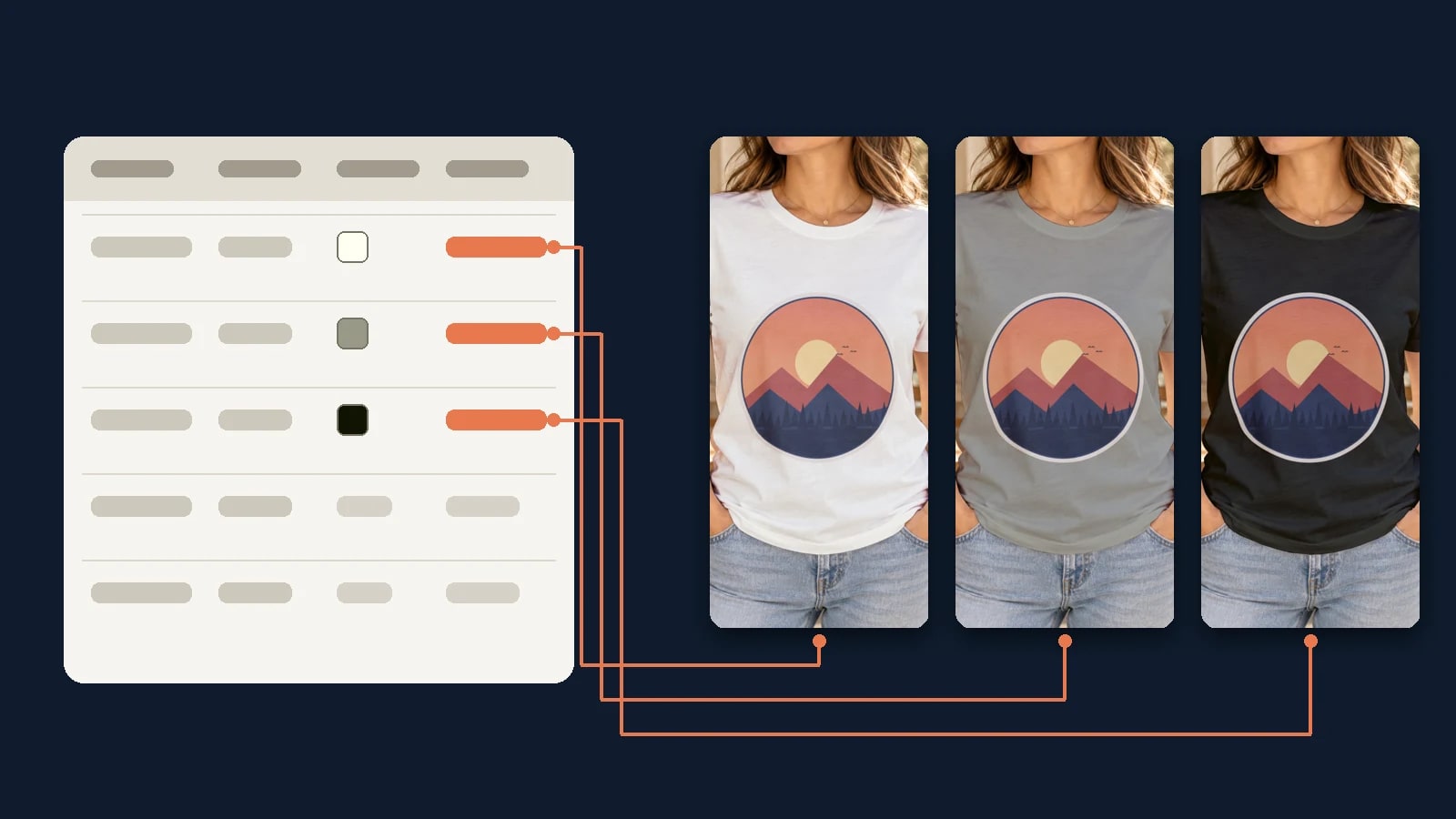
Shopify's product CSV takes images as public URLs: Variant image URL for the image each color shows, Product image URL for images of the whole product. Render one mockup per color from your template, write each URL into its variant row, and one import brings the collection in with its images.
Published 7 min readBeck
Key takeaways
- Keep Option1 name and Option1 value in the file, or Shopify deletes the existing variants.
- Give every image its own row and a unique file name; repeated names come back as copies.
- Import new products as draft and check one product's colors before the collection goes live.
How images get into a Shopify product CSV
Shopify downloads every image URL in the file during the import and re-uploads it to your store, so a URL only has to answer while the import runs. The column a URL sits in decides whether the image belongs to the whole product or to one variant.
Shopify's CSV guide (read 6 November 2026) is explicit that the product column "isn't specific to variants. Use the variant image column to add variant images." The same page allows up to 250 images on a product and asks for one row per image. These are the columns that carry images in the current template:
| Column | What it takes | Shopify's rule |
|---|---|---|
Product image URL | An image of the whole product, such as a size chart or a back print | File name is final and has no _thumb, _small or _medium suffix |
Image position | The order on the product page, starting at 1 | Ascending, 1 shows first |
Image alt text | A description of the image in Product image URL on that row | Up to 512 characters, 125 or fewer suggested |
Variant image URL | The image a variant shows when a shopper picks it | A working image URL |
These are the names in Shopify's sample file today. A file made with the older template, where the columns were Image Src and Variant Image (Shopify's guide as archived in January 2024), still imports: Shopify keeps "backward compatibility with older column names".
One mockup per color from one template
Render each color once from the same PSD template, with the design on the print area and the color on the shirt's color layer. Every render returns its own image URL, and that URL is what the variant row takes.
This is the request for one color. The design, the template and the color are the only inputs, and export_label names the file:
curl -X POST https://api.sudomock.com/api/v1/renders \-H "x-api-key: $SUDOMOCK_API_KEY" \-H "Content-Type: application/json" \-d '{"mockup_uuid": "your-mockup-uuid","smart_objects": [{ "uuid": "print-area-smart-object-uuid","asset": { "url": "https://example.com/designs/ridge-sunset.png", "fit": "fit" } },{ "uuid": "color-smart-object-uuid","color": { "hex": "#121403", "blending_mode": "multiply" } }],"export_options": { "image_format": "jpg", "image_size": 1024 },"export_label": "ridge-tee-black"}'
const response = await fetch('https://api.sudomock.com/api/v1/renders', {method: 'POST',headers: {'x-api-key': process.env.SUDOMOCK_API_KEY,'Content-Type': 'application/json',},body: JSON.stringify({"mockup_uuid": "your-mockup-uuid","smart_objects": [{"uuid": "print-area-smart-object-uuid","asset": {"url": "https://example.com/designs/ridge-sunset.png","fit": "fit"}},{"uuid": "color-smart-object-uuid","color": {"hex": "#121403","blending_mode": "multiply"}}],"export_options": {"image_format": "jpg","image_size": 1024},"export_label": "ridge-tee-black"}),});const data = await response.json();console.log(data);
import osimport requestsresponse = requests.post("https://api.sudomock.com/api/v1/renders",headers={"x-api-key": os.environ["SUDOMOCK_API_KEY"],"Content-Type": "application/json",},json={"mockup_uuid": "your-mockup-uuid","smart_objects": [{"uuid": "print-area-smart-object-uuid","asset": {"url": "https://example.com/designs/ridge-sunset.png","fit": "fit",},},{"uuid": "color-smart-object-uuid","color": {"hex": "#121403","blending_mode": "multiply",},},],"export_options": {"image_format": "jpg","image_size": 1024,},"export_label": "ridge-tee-black",},)print(response.json())
package mainimport ("bytes""fmt""io""net/http""os")func main() {payload := []byte(`{"mockup_uuid": "your-mockup-uuid","smart_objects": [{"uuid": "print-area-smart-object-uuid","asset": {"url": "https://example.com/designs/ridge-sunset.png","fit": "fit"}},{"uuid": "color-smart-object-uuid","color": {"hex": "#121403","blending_mode": "multiply"}}],"export_options": {"image_format": "jpg","image_size": 1024},"export_label": "ridge-tee-black"}`)req, err := http.NewRequest("POST", "https://api.sudomock.com/api/v1/renders", bytes.NewBuffer(payload))if err != nil {panic(err)}req.Header.Set("x-api-key", os.Getenv("SUDOMOCK_API_KEY"))req.Header.Set("Content-Type", "application/json")resp, err := http.DefaultClient.Do(req)if err != nil {panic(err)}defer resp.Body.Close()body, _ := io.ReadAll(resp.Body)fmt.Println(string(body))}
<?php$payload = <<<'JSON'{"mockup_uuid": "your-mockup-uuid","smart_objects": [{"uuid": "print-area-smart-object-uuid","asset": {"url": "https://example.com/designs/ridge-sunset.png","fit": "fit"}},{"uuid": "color-smart-object-uuid","color": {"hex": "#121403","blending_mode": "multiply"}}],"export_options": {"image_format": "jpg","image_size": 1024},"export_label": "ridge-tee-black"}JSON;$ch = curl_init('https://api.sudomock.com/api/v1/renders');curl_setopt_array($ch, [CURLOPT_CUSTOMREQUEST => 'POST',CURLOPT_RETURNTRANSFER => true,CURLOPT_HTTPHEADER => ['x-api-key: ' . getenv('SUDOMOCK_API_KEY'),'Content-Type: application/json',],CURLOPT_POSTFIELDS => $payload,]);$response = curl_exec($ch);curl_close($ch);echo $response;
The image URL comes back in data.print_files[0].export_path, as the render reference documents. The UUIDs come from your own template: upload your PSD once (up to 300 MB a file in the dashboard, with no file size limit over the API). With no PSD yet, a shirt from the t-shirt mockup library opens as a photo mockup, rendered through the photo mockup render request instead of the one above. T-shirt color variant mockups from one PSD covers the color layer, light and dark blanks and hex values in detail.
On 6 November 2026 we rendered one design on three colors of the same t-shirt template, at 1024 pixels as JPG:
| White #FFFFF1 | Heather Gray #989987 | Black #121403 |
|---|---|---|
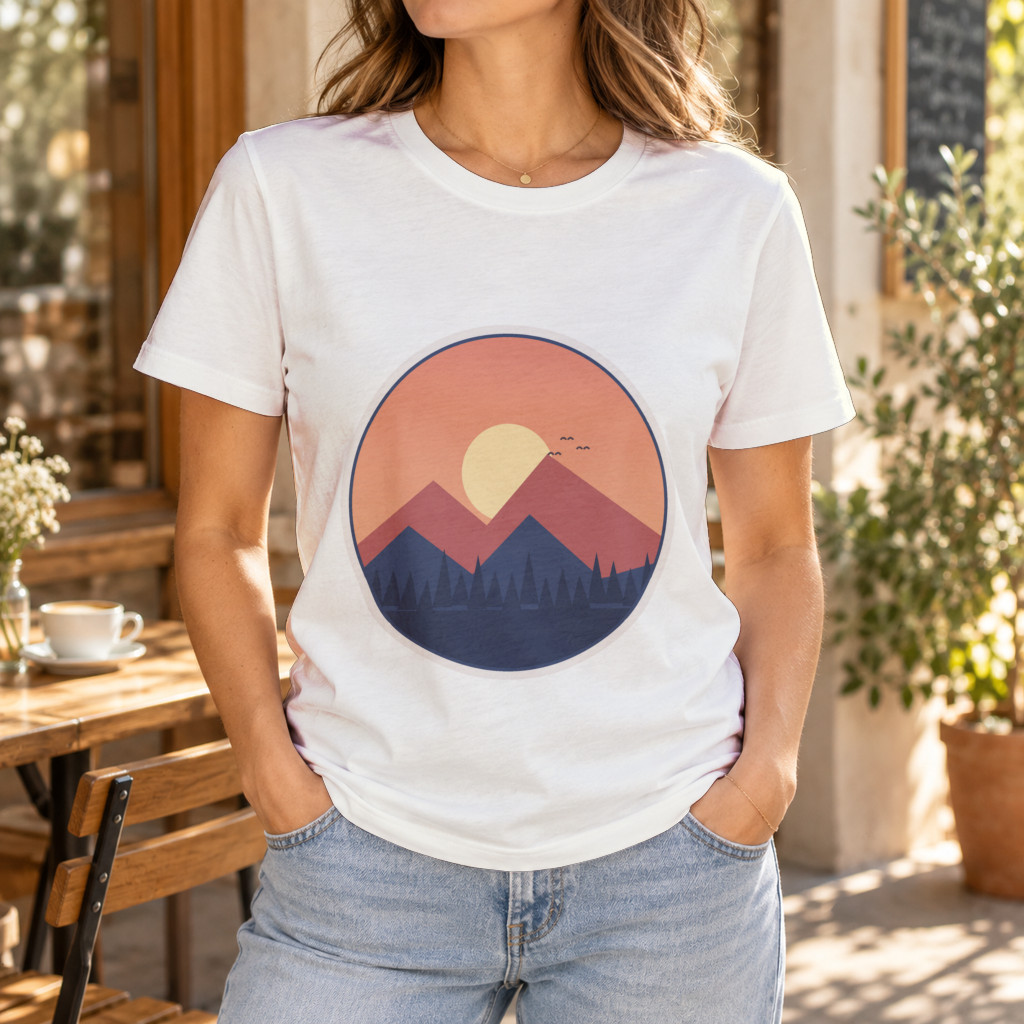 White variant, rendered 6 November 2026 | 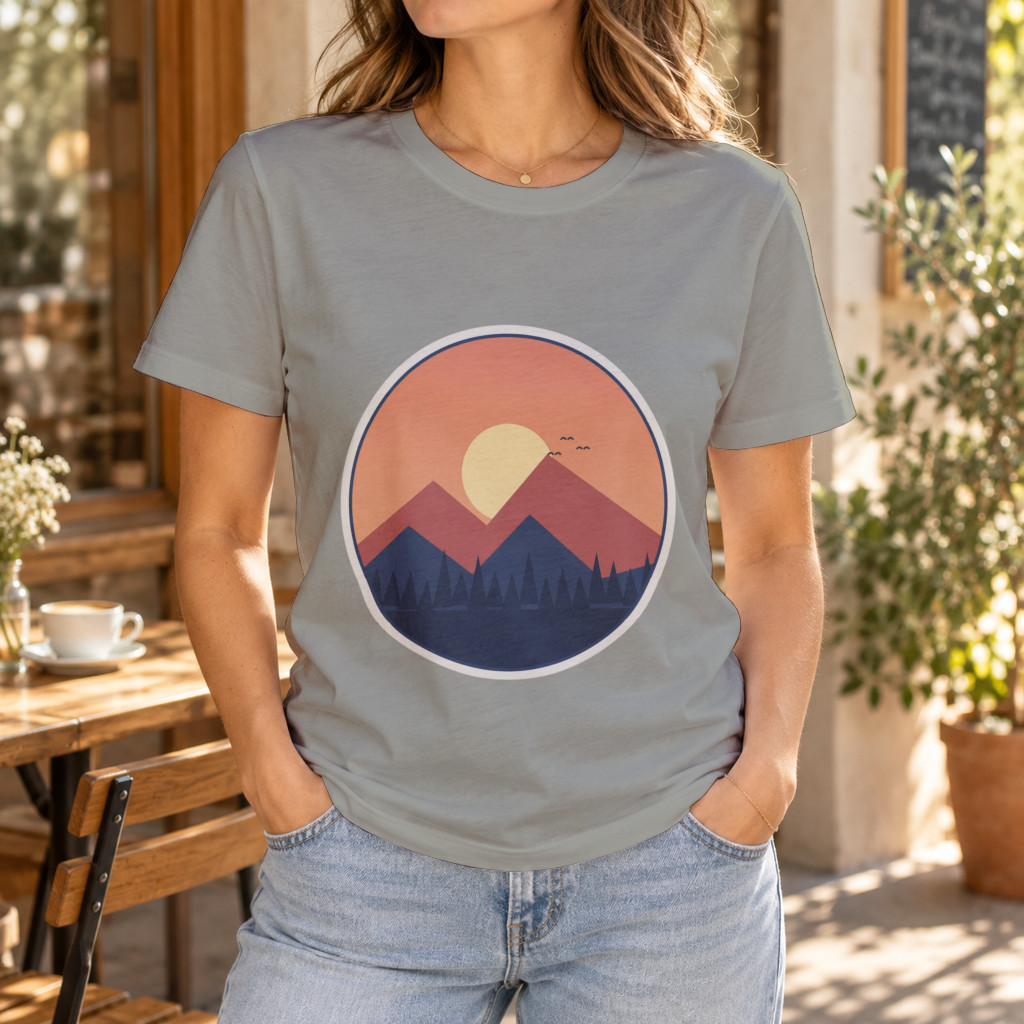 Heather Gray variant, rendered 6 November 2026 | 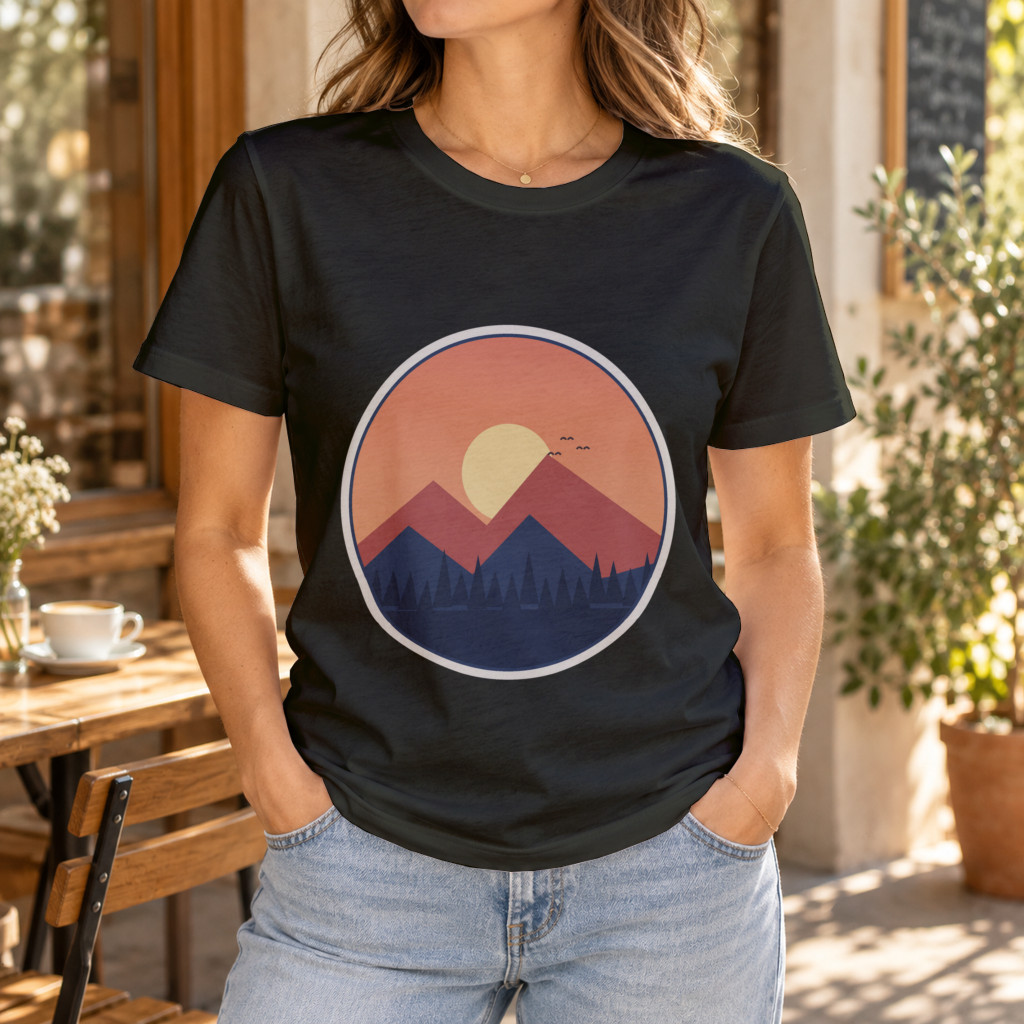 Black variant, rendered 6 November 2026 |
Only color.hex and export_label changed between the three requests. The badge sits in the same place on every shirt, which is what a shopper expects when switching colors on the product page. image_size takes any width from 100 to 10,000 px; Shopify product image size covers the size each upload path keeps.
The rows Shopify expects for one product
A product with three colors is three rows that share one URL handle. The first row carries the Title, the Option1 name and the first variant; the next rows repeat the handle and carry only their own variant fields.
This is the file for the three renders above, in the shape the script below writes:
Title,URL handle,Status,SKU,Option1 name,Option1 value,Price,Variant image URLRidge Sunset Tee,ridge-tee,draft,ridge-tee-white,Color,White,24.00,https://auth.sudomock.com/storage/v1/object/public/blog-images/shopify-bulk-product-upload/ridge-tee-white.jpg,ridge-tee,,ridge-tee-heather-gray,,Heather Gray,24.00,https://auth.sudomock.com/storage/v1/object/public/blog-images/shopify-bulk-product-upload/ridge-tee-heather-gray.jpg,ridge-tee,,ridge-tee-black,,Black,24.00,https://auth.sudomock.com/storage/v1/object/public/blog-images/shopify-bulk-product-upload/ridge-tee-black.jpg
Three details in it matter more than the rest:
Option1 nameandOption1 valuestay in the file. Shopify warns that without them "a new default variant is created and existing variants are deleted".Statusisdraft, one of the three values Shopify accepts withactiveandarchived, so each product waits for a look before it goes on sale.- In a product whose only option is color, each render URL appears once, in its variant's row. An image that belongs to every color, such as a size chart, goes in its own row with the handle and
Product image URL.
A script that renders and writes the CSV
The script renders one mockup per color for each product and writes the rows in the order above. It needs your API key, your template's three UUIDs and a design URL per product. The average SudoMock render finishes in under a second.
import csvimport osimport requestsAPI = "https://api.sudomock.com/api/v1/renders"KEY = os.environ["SUDOMOCK_API_KEY"]MOCKUP = "your-mockup-uuid"PRINT_AREA = "print-area-smart-object-uuid"COLOR_LAYER = "color-smart-object-uuid"products = [{"title": "Ridge Sunset Tee", "handle": "ridge-tee", "price": "24.00","design": "https://example.com/designs/ridge-sunset.png"},]colors = [("White", "#FFFFF1"), ("Heather Gray", "#989987"), ("Black", "#121403")]def slug(text):return text.lower().replace(" ", "-")def render(product, color, hex_code):response = requests.post(API, headers={"x-api-key": KEY}, timeout=60, json={"mockup_uuid": MOCKUP,"smart_objects": [{"uuid": PRINT_AREA, "asset": {"url": product["design"], "fit": "fit"}},{"uuid": COLOR_LAYER, "color": {"hex": hex_code, "blending_mode": "multiply"}},],"export_options": {"image_format": "jpg", "image_size": 1024},"export_label": f"{product['handle']}-{slug(color)}",})response.raise_for_status()return response.json()["data"]["print_files"][0]["export_path"]columns = ["Title", "URL handle", "Status", "SKU", "Option1 name","Option1 value", "Price", "Variant image URL"]with open("products.csv", "w", newline="", encoding="utf-8") as f:writer = csv.DictWriter(f, fieldnames=columns, lineterminator="\n")writer.writeheader()for product in products:for i, (color, hex_code) in enumerate(colors):row = {"URL handle": product["handle"],"SKU": f"{product['handle']}-{slug(color)}","Option1 value": color,"Price": product["price"],"Variant image URL": render(product, color, hex_code),}if i == 0:row.update({"Title": product["title"], "Status": "draft", "Option1 name": "Color"})writer.writerow(row)
Add products to the list and the file grows by one row per color. Run the script right before the import. Keep the rows of a product together and leave the file unsorted: Shopify's import guide warns that a CSV sorted in a spreadsheet editor can separate products from their image links. A file larger than 15 MB is split into several files, each imported on its own.
Why images fail to import
Shopify imports only what it can download as an image file. The failures listed in a Shopify Community thread (thread of 11 August 2026, last reply 2 November 2026) come down to the URL: it is not public, it expires, or its file name ends in _thumb, _small or _medium.
| The URL in the cell | What happens |
|---|---|
An http:// link | Shopify asks for https:// with no password |
| A signed link that expires before the import runs | The file is gone when Shopify fetches it |
| A link behind a login or a password | Shopify cannot reach the file |
| The same file name in several rows | Shopify adds random characters and stores copies, as a reply explains to a merchant importing about 2,000 products in this thread (June 2024) |
A public https URL to a .jpg with a final, unique name | Shopify downloads it and stores it in the store |
A render URL is the last row. It is public https, it ends in .jpg, and its file name is your export_label plus the render's own id, so no two renders share a name.
Import the file and check one product
From the Shopify admin, open Products, select Import, add the CSV, select Upload and continue, review the details and select Import products. Shopify sends an email when the upload is done, and an import cannot be canceled once it starts, as the import guide (read 6 November 2026) notes.
Leave Overwrite products with matching handles off for a new collection: with it on, existing values are replaced for every column in the CSV. When the import finishes, open one draft product, pick each color, and each size of one color, in the preview and check that the image follows the color. That one product tells you whether the handles, the options and the image columns lined up, before the collection goes live.
Next step
Render one color first with the render reference, then the rest of the list with the script. To use your own template, upload a PSD; with no PSD, open a shirt in the t-shirt mockup library and render it with the photo mockup render. Once the store is live, Shopify product images at scale adds renders to products as they are created.
Frequently asked questions
Can you bulk upload product images to Shopify with a CSV?
Yes. Each image is a public https URL in the Product image URL or Variant image URL column, with one image per row. Shopify downloads every file during the import and stores it in your store, and a product can hold up to 250 images.
How do I add variant images in a Shopify CSV?
Put the image URL in the Variant image URL column of that variant's row. The first row of the product carries the title and the option name, and each following row repeats the URL handle with its own option value and image. Shopify's guide says the Product image URL column is not specific to variants.
Why are my images not importing to Shopify?
Shopify can only import a file it can download as an image. An http link, a signed link that has expired or a file behind a login fails. A public https URL that ends in an image file and has a final, unique file name imports.
Do I need an app to bulk upload products to Shopify?
No. The product import in the Shopify admin takes a CSV file of up to 15 MB, and a larger catalog is split into several files. The images only need public URLs, which every render returns.
What happens if I leave the option columns out of a Shopify CSV?
Shopify creates a new default variant and deletes the existing variants of that product. Keep Option1 name and Option1 value in the file whenever it carries variant fields such as SKU or weight.
Sources
- Using CSV files to import and export products (opens in new tab), Shopify Help Center
- Importing products with a CSV file (opens in new tab), Shopify Help Center
- Sample product CSV file (opens in new tab), Shopify Help Center
- Using CSV files to import and export products (archived 4 January 2024) (opens in new tab), Internet Archive
- Free Shopify CSV checker, catches the import that silently deletes your variants (opens in new tab), Shopify Community
- Bulk product and image upload (opens in new tab), Shopify Community
- Render a PSD mockup (opens in new tab), SudoMock docs
Beck
CTO
Related articles
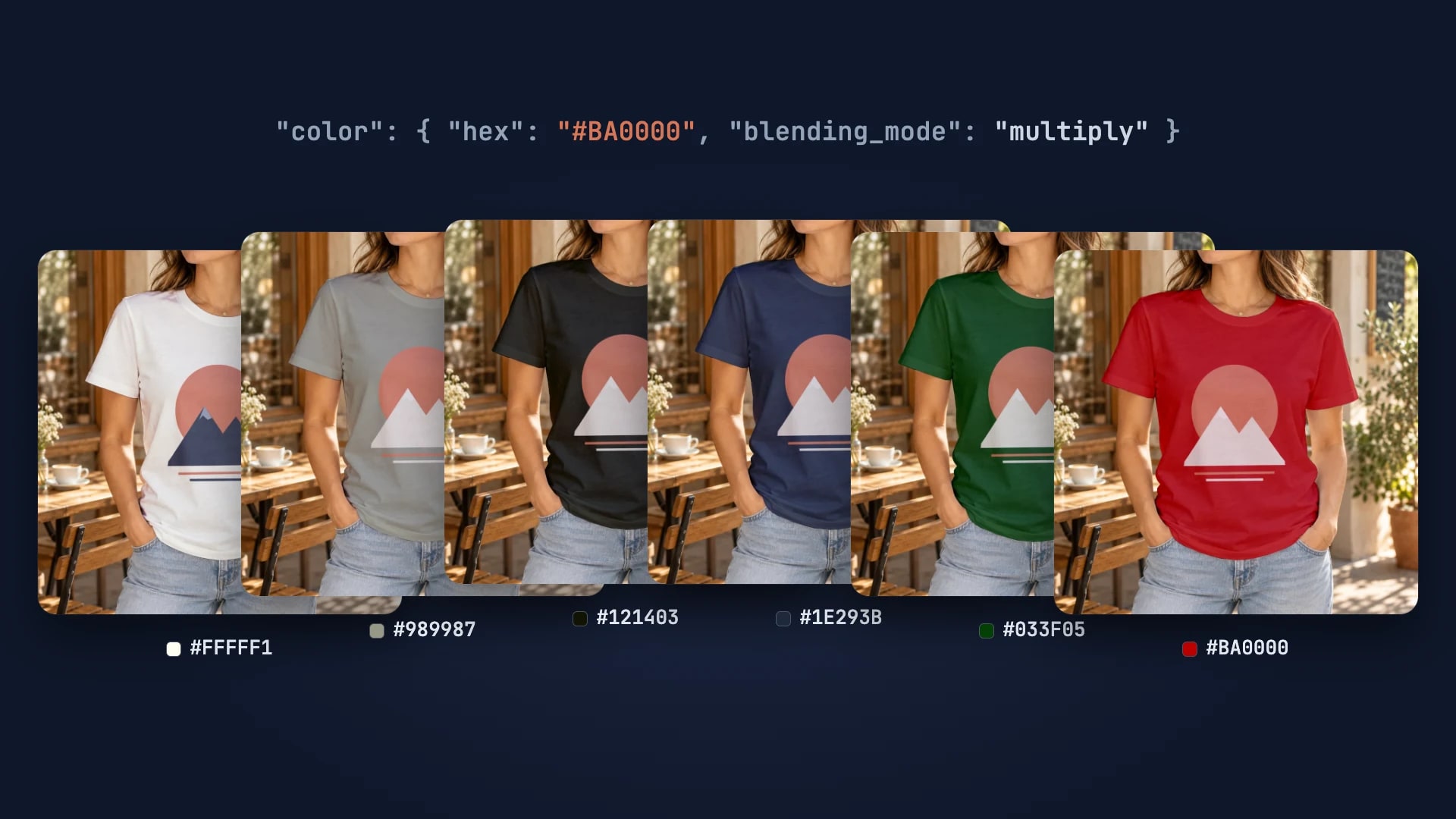
Every T-Shirt Color Variant Mockup from One PSD by API
One PSD with a color smart object renders every t-shirt colorway: one request per color, shown with six real renders.
4 min read
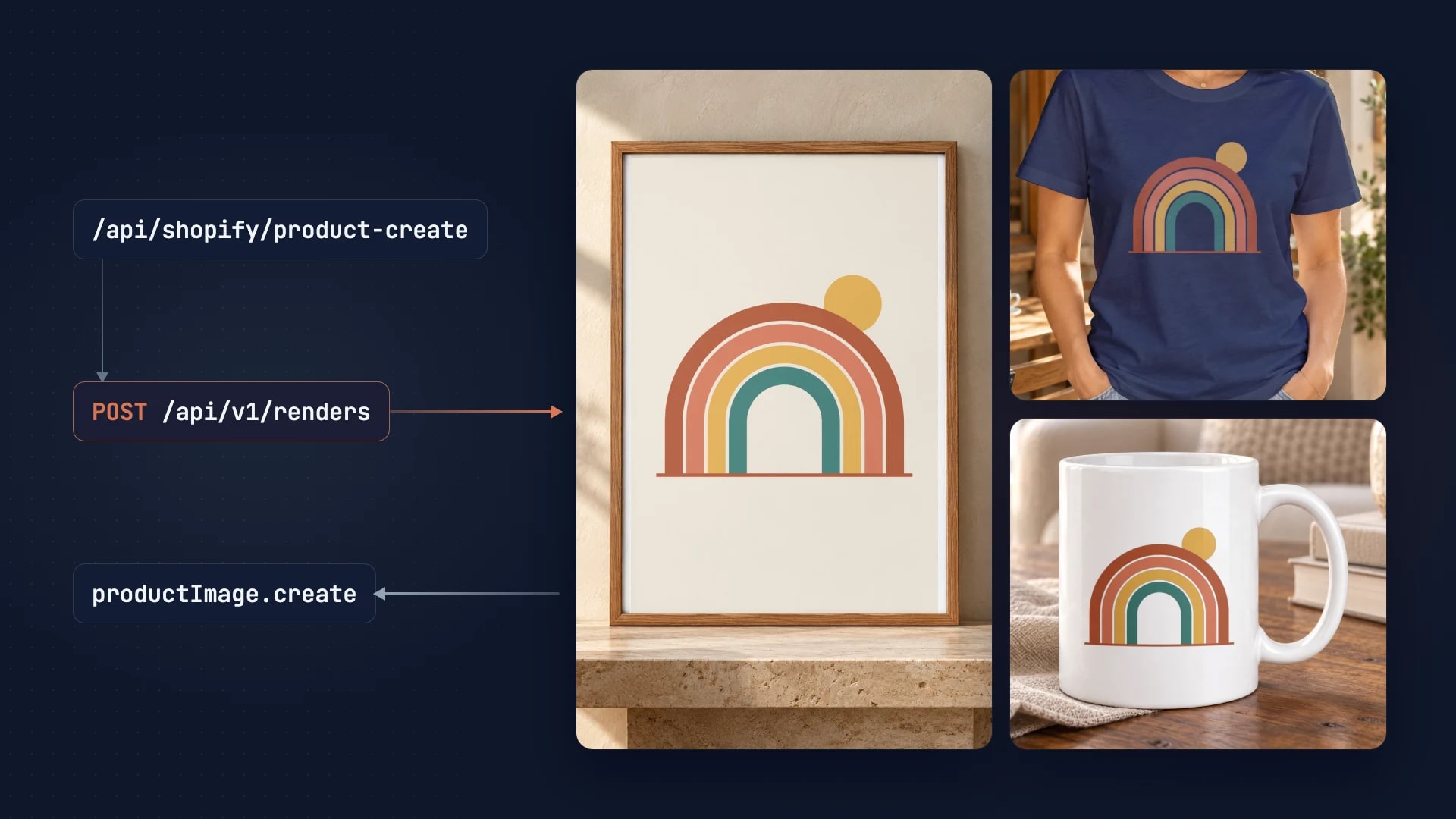
Shopify Product Images at Scale: API Approach
Automate Shopify product image generation with mockup APIs. Bulk create variants for your entire catalog.
2 min read
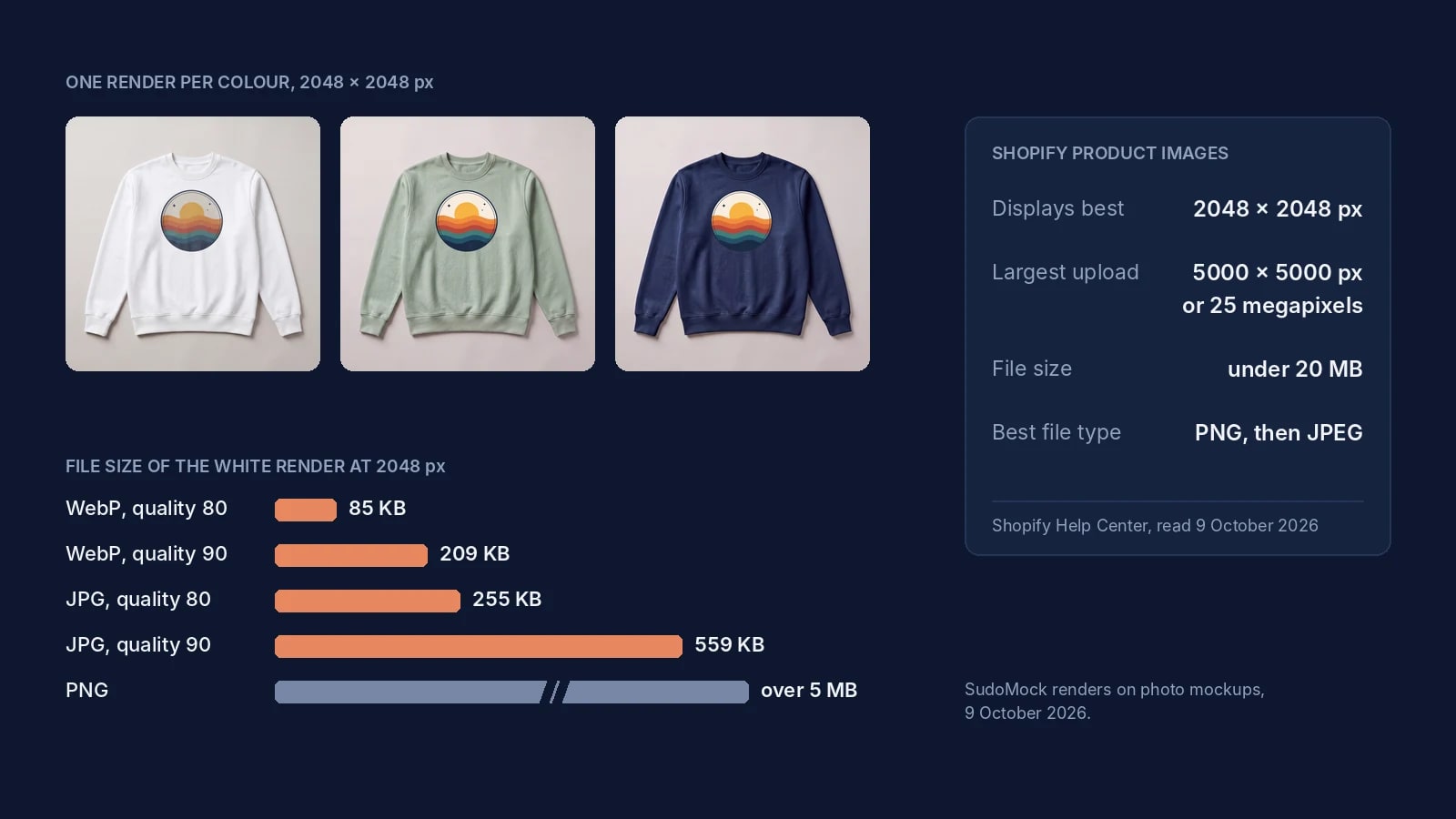
Shopify Product Image Size: 2048 px, the Real Limits and Files
Shopify's image limits quoted page by page, the old 4472 px figure explained, and 2048 px renders measured by format.
8 min read
Explore by use case
See SudoMock in action for your specific product category
Your own PSD, rendered via API
Render your own PSD through the API. Start with 500 one-time credits, no card.