WooCommerce Product Placeholder Image: Change It, Then Replace It
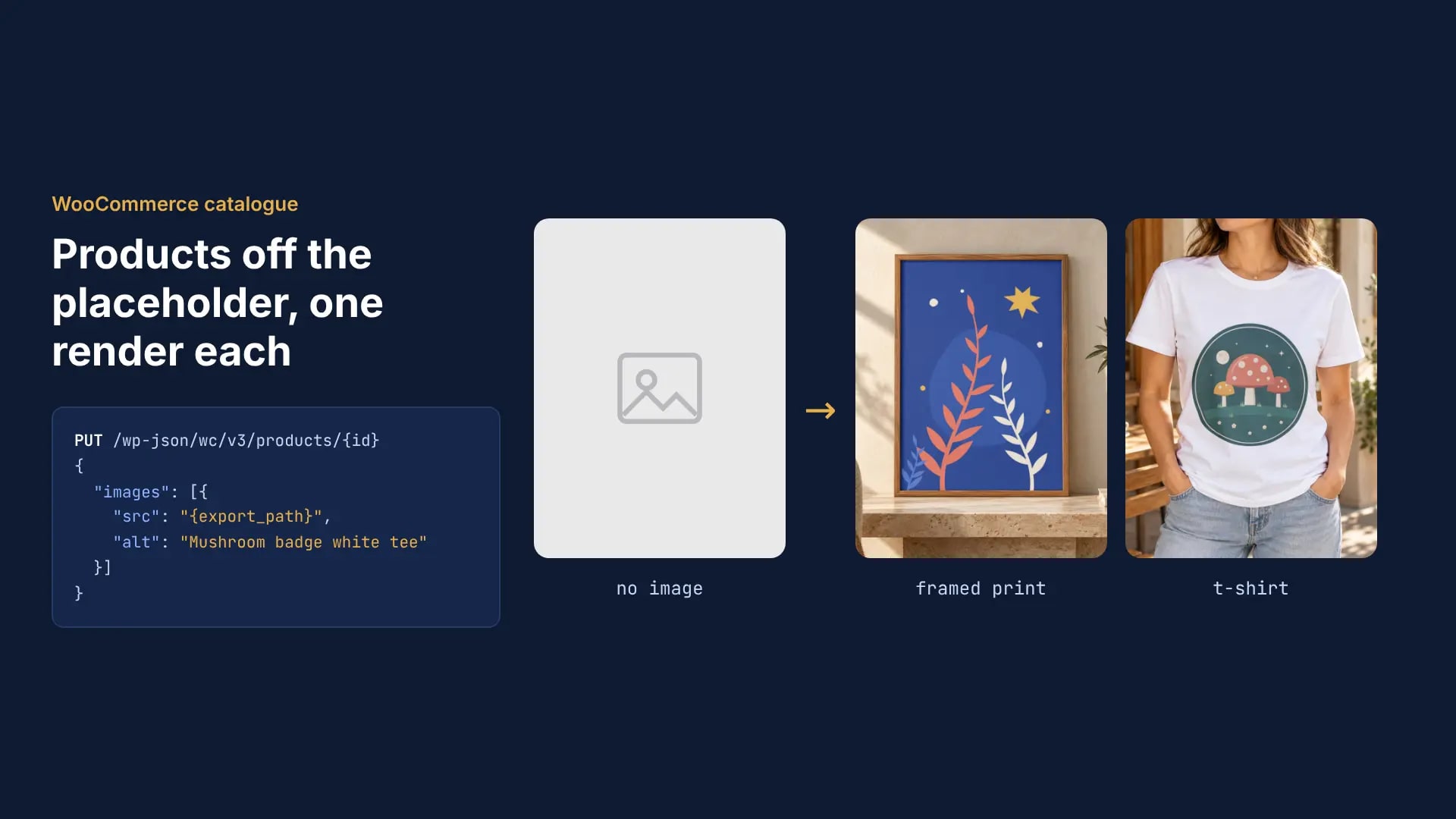
Change WooCommerce's placeholder under WooCommerce > Settings > Products, where the Placeholder image field takes an attachment ID or an image URL. To take a product off the placeholder, give it a main image: render one from your template and send its URL as the first entry of images in one REST update.
Published 6 min readBeck
Key takeaways
- A product with gallery images but no main image still shows the placeholder in the shop grid.
- WooCommerce names a downloaded image after its URL and rejects one without an image extension.
- export_label names the render file, so the media library gets a readable file name.
Change the placeholder image in WooCommerce settings
Open WooCommerce > Settings > Products and stay on the General tab. The Placeholder image field sits in the Shop pages section.
The field's help text in the WooCommerce 11.2.1 settings source (read November 3, 2026) says what it does: "This is the attachment ID, or image URL, used for placeholder images in the product catalog. Products with no image will use this." Leave it empty and WooCommerce falls back to its own grey placeholder.webp.
A theme or a small plugin can set the same thing in code. wc_placeholder_img_src() passes the final URL through the woocommerce_placeholder_img_src filter:
add_filter( 'woocommerce_placeholder_img_src', function () {return 'https://example.com/wp-content/uploads/brand-placeholder.jpg';} );
Make the placeholder the same shape as your product images. At WooCommerce's defaults the shop grid uses a 300 px wide thumbnail cropped 1:1 and the product page shows the main image 600 px wide, uncropped, so a square image of at least 600 px covers both. A theme can fix these sizes; otherwise they are set under Appearance > Customize > WooCommerce > Product Images.
Find every product that shows the placeholder
A product shows the placeholder when it has no main image. Through the REST API that is a product whose images array comes back empty, so read the catalog 100 products a page and keep those.
WooCommerce's get_image() reads only the main image, then the parent product's image for a variation, then the placeholder (abstract-wc-product.php, 11.2.1). The shop grid and the admin product list draw thumbnails through it. This is the request for one page:
curl -X GET "https://example.com/wp-json/wc/v3/products?per_page=100&page=1" \-u "$WC_CONSUMER_KEY:$WC_CONSUMER_SECRET"
The response headers carry X-WP-TotalPages, so a script knows when to stop (WooCommerce REST API docs, pagination). Products listed before their photos exist, or imported from CSV rows with an empty Images column, come back this way.
One case hides from that check. A product with gallery images and no main image lists the gallery in images and still shows the placeholder in the shop grid, while its product page opens on the first gallery image (product-image.php, 11.2.1). In the admin product list its thumbnail is the grey placeholder, which is the quickest way to spot it.
Render a main image for each product
Give each product type one template and send one render request per product, with that product's own design in the template's smart object. The render comes back as a file URL you can pass straight to WooCommerce.
On November 3, 2026 we ran this for two example products: a framed botanical print and a white t-shirt with a mushroom badge. Each came from its own PSD template, with the design file in the template's print area, rendered at 1024 px as JPG. This is the t-shirt request, with a second smart object that sets the shirt color:
curl -X POST https://api.sudomock.com/api/v1/renders \-H "x-api-key: $SUDOMOCK_API_KEY" \-H "Content-Type: application/json" \-d '{"mockup_uuid": "e532c503-fe20-4653-a301-af9f7a934609","smart_objects": [{ "uuid": "39865245-8d99-42e9-b1fc-3713fa4dbc94","asset": { "url": "https://example.com/designs/mushroom-badge.png", "fit": "fit" } },{ "uuid": "ea565e8a-2b2b-46a1-b181-ff19d0e18eac","color": { "hex": "#FFFFFF", "blending_mode": "multiply" } }],"export_options": { "image_format": "jpg", "image_size": 1024 },"export_label": "mushroom-badge-tee-white"}'
const response = await fetch('https://api.sudomock.com/api/v1/renders', {method: 'POST',headers: {'x-api-key': process.env.SUDOMOCK_API_KEY,'Content-Type': 'application/json',},body: JSON.stringify({"mockup_uuid": "e532c503-fe20-4653-a301-af9f7a934609","smart_objects": [{"uuid": "39865245-8d99-42e9-b1fc-3713fa4dbc94","asset": {"url": "https://example.com/designs/mushroom-badge.png","fit": "fit"}},{"uuid": "ea565e8a-2b2b-46a1-b181-ff19d0e18eac","color": {"hex": "#FFFFFF","blending_mode": "multiply"}}],"export_options": {"image_format": "jpg","image_size": 1024},"export_label": "mushroom-badge-tee-white"}),});const data = await response.json();console.log(data);
import osimport requestsresponse = requests.post("https://api.sudomock.com/api/v1/renders",headers={"x-api-key": os.environ["SUDOMOCK_API_KEY"],"Content-Type": "application/json",},json={"mockup_uuid": "e532c503-fe20-4653-a301-af9f7a934609","smart_objects": [{"uuid": "39865245-8d99-42e9-b1fc-3713fa4dbc94","asset": {"url": "https://example.com/designs/mushroom-badge.png","fit": "fit",},},{"uuid": "ea565e8a-2b2b-46a1-b181-ff19d0e18eac","color": {"hex": "#FFFFFF","blending_mode": "multiply",},},],"export_options": {"image_format": "jpg","image_size": 1024,},"export_label": "mushroom-badge-tee-white",},)print(response.json())
package mainimport ("bytes""fmt""io""net/http""os")func main() {payload := []byte(`{"mockup_uuid": "e532c503-fe20-4653-a301-af9f7a934609","smart_objects": [{"uuid": "39865245-8d99-42e9-b1fc-3713fa4dbc94","asset": {"url": "https://example.com/designs/mushroom-badge.png","fit": "fit"}},{"uuid": "ea565e8a-2b2b-46a1-b181-ff19d0e18eac","color": {"hex": "#FFFFFF","blending_mode": "multiply"}}],"export_options": {"image_format": "jpg","image_size": 1024},"export_label": "mushroom-badge-tee-white"}`)req, err := http.NewRequest("POST", "https://api.sudomock.com/api/v1/renders", bytes.NewBuffer(payload))if err != nil {panic(err)}req.Header.Set("x-api-key", os.Getenv("SUDOMOCK_API_KEY"))req.Header.Set("Content-Type", "application/json")resp, err := http.DefaultClient.Do(req)if err != nil {panic(err)}defer resp.Body.Close()body, _ := io.ReadAll(resp.Body)fmt.Println(string(body))}
<?php$payload = <<<'JSON'{"mockup_uuid": "e532c503-fe20-4653-a301-af9f7a934609","smart_objects": [{"uuid": "39865245-8d99-42e9-b1fc-3713fa4dbc94","asset": {"url": "https://example.com/designs/mushroom-badge.png","fit": "fit"}},{"uuid": "ea565e8a-2b2b-46a1-b181-ff19d0e18eac","color": {"hex": "#FFFFFF","blending_mode": "multiply"}}],"export_options": {"image_format": "jpg","image_size": 1024},"export_label": "mushroom-badge-tee-white"}JSON;$ch = curl_init('https://api.sudomock.com/api/v1/renders');curl_setopt_array($ch, [CURLOPT_CUSTOMREQUEST => 'POST',CURLOPT_RETURNTRANSFER => true,CURLOPT_HTTPHEADER => ['x-api-key: ' . getenv('SUDOMOCK_API_KEY'),'Content-Type: application/json',],CURLOPT_POSTFIELDS => $payload,]);$response = curl_exec($ch);curl_close($ch);echo $response;
The file URL is in data.print_files[0].export_path. Ours ended in mushroom-badge-tee-white_bb9b264c-4610-49d1-8687-32337a20e4db.jpg: the export_label you send (letters, digits, hyphens and underscores, up to 100 characters) starts the file name, and the format sets the extension. Use the mockup_uuid and smart object uuid values of your own template in place of ours: the upload response returns them, and GET /api/v1/psd-mockups lists every template on your account. The framed print is one smart object on a poster template with "fit": "crop", so the artwork fills the frame edge to edge.
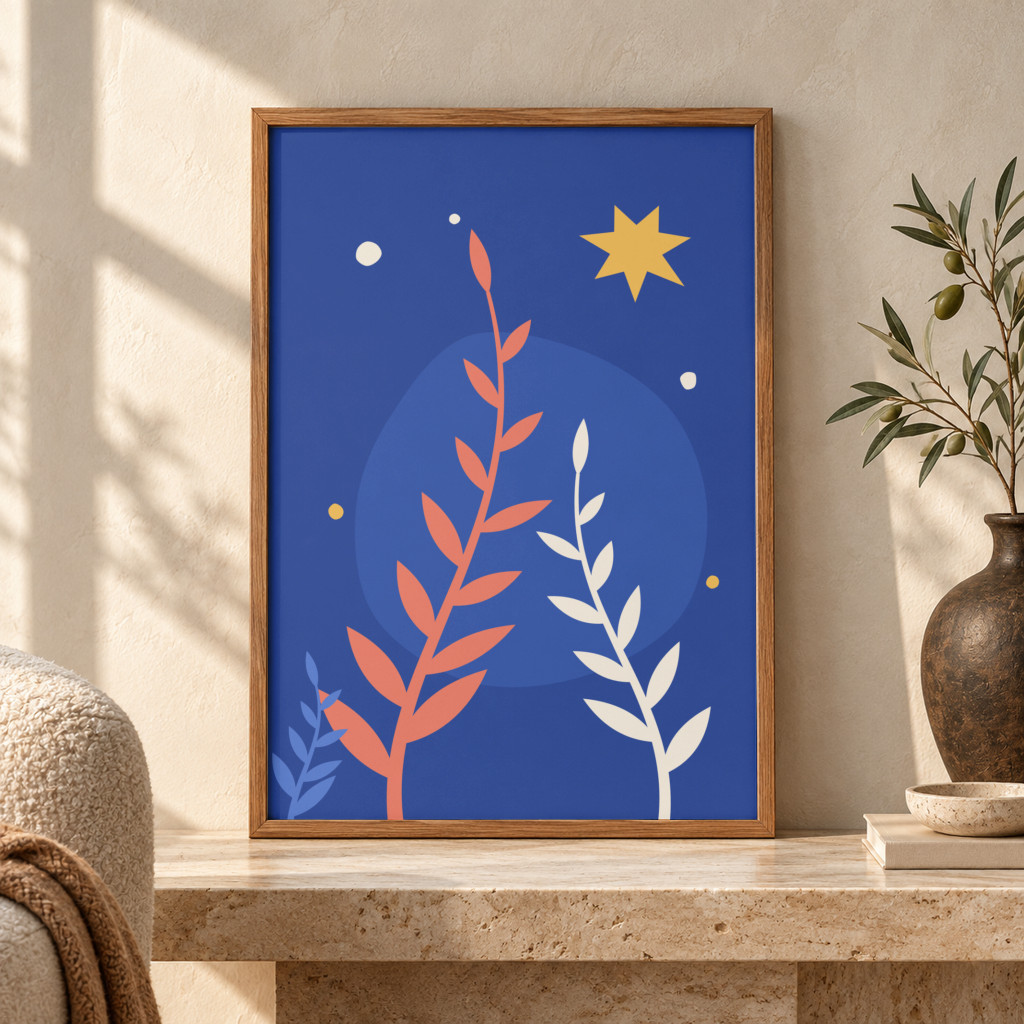 Framed print, rendered November 3, 2026 at 1024 px
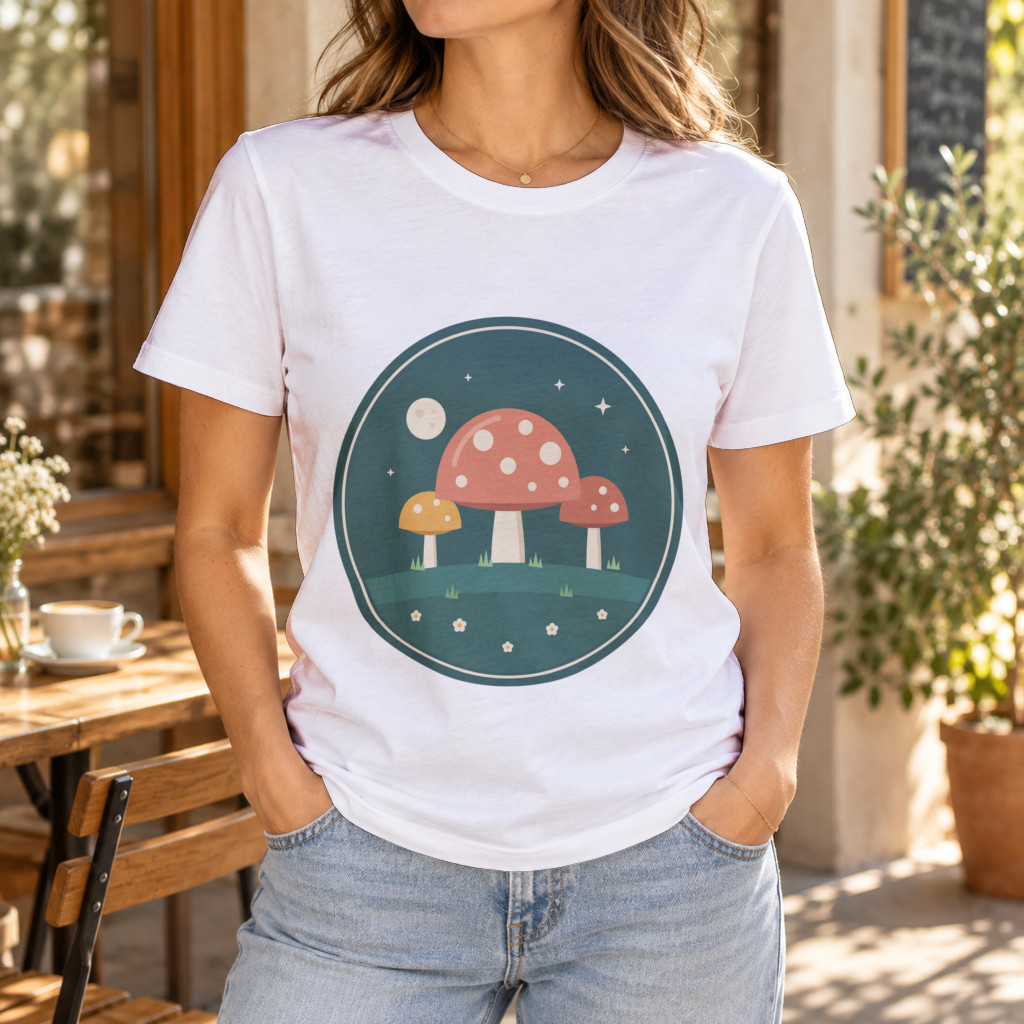 T-shirt, rendered November 3, 2026 at 1024 px
The designs were made for this example. With no PSD of your own, the template library has crew neck t-shirts and a framed print ready to render. A store that photographs its own blanks can save one product photo as a mockup and render each design on it instead.
Set the render as the product's main image
Send the render URL as the first entry of images in one PUT to the product. WooCommerce downloads the file into the media library and makes the first entry the main image.
curl -X PUT https://example.com/wp-json/wc/v3/products/412 \-u "$WC_CONSUMER_KEY:$WC_CONSUMER_SECRET" \-H "Content-Type: application/json" \-d '{"images": [{ "src": "https://cdn.sudomock.com/mockup-assets/renders/e532c503-fe20-4653-a301-af9f7a934609/mushroom-badge-tee-white_bb9b264c-4610-49d1-8687-32337a20e4db.jpg","alt": "Mushroom badge print on a white crew neck t-shirt" }]}'
The products controller in 11.2.1 makes entry 0 the main image and every later entry the gallery, and it writes alt to the attachment. The list replaces what the product had. For a product that already has gallery images, send the render first and the existing gallery IDs after it: [{ "src": "..." }, { "id": 812 }, { "id": 813 }].
Where this step usually fails is the URL. wc_rest_upload_image_from_url() names the file after the last part of the URL, query string removed, and accepts it only with an image extension: jpg, jpeg, jpe, gif, png, bmp, tif, tiff, ico or webp. WooCommerce's CSV importer downloads the Images column through the same function, so the rule holds there too, and a failed download stops that row.
src you send | What WooCommerce does |
|---|---|
https://example.com/images/render?id=8812 | Names the file render, finds no image extension and answers 400 woocommerce_product_image_upload_error, message starting "Invalid image" |
https://cdn.sudomock.com/.../mushroom-badge-tee-white_bb9b264c-....jpg | Saves mushroom-badge-tee-white_bb9b264c-....jpg in the media library and sets it as the main image |
A render URL always ends in its format's extension, so it passes. Set the image in the same run as the render, as the script below does.
Run the whole catalog
A script joins the three calls: it lists the products with no image, renders each from its template and sets the result. Map products to templates by SKU prefix or category, and keep each product's design file URL in a list keyed by SKU. Save it as fill-images.mjs and run it with Node 18 or newer.
import { readFile } from "node:fs/promises";const STORE = "https://example.com/wp-json/wc/v3";const WC_AUTH = "Basic " + Buffer.from(`${process.env.WC_CONSUMER_KEY}:${process.env.WC_CONSUMER_SECRET}`).toString("base64");const designs = JSON.parse(await readFile("designs.json", "utf8")); // { "TEE-MUSHROOM": "https://.../mushroom-badge.png" }// One PSD template per product type, keyed by SKU prefix, with your own UUIDsconst templates = {TEE: { mockup: "e532c503-fe20-4653-a301-af9f7a934609", area: "39865245-8d99-42e9-b1fc-3713fa4dbc94", fit: "fit", what: "white crew neck t-shirt",color: { uuid: "ea565e8a-2b2b-46a1-b181-ff19d0e18eac", hex: "#FFFFFF" } },PRINT: { mockup: "091de3df-148d-4946-bbfb-ff62603a7e6a", area: "44f6a757-e4c7-410e-b2b6-59a00dc9c87f", fit: "crop", what: "framed art print" },};async function productsWithoutImage() {const found = [];for (let page = 1; ; page++) {const res = await fetch(`${STORE}/products?per_page=100&page=${page}`, { headers: { Authorization: WC_AUTH } });found.push(...(await res.json()).filter((p) => p.images.length === 0));if (page >= Number(res.headers.get("x-wp-totalpages"))) return found;}}async function render(product, t) {const res = await fetch("https://api.sudomock.com/api/v1/renders", {method: "POST",headers: { "x-api-key": process.env.SUDOMOCK_API_KEY, "Content-Type": "application/json" },body: JSON.stringify({mockup_uuid: t.mockup,smart_objects: [{ uuid: t.area, asset: { url: designs[product.sku], fit: t.fit } },...(t.color ? [{ uuid: t.color.uuid, color: { hex: t.color.hex, blending_mode: "multiply" } }] : []),],export_options: { image_format: "jpg", image_size: 1024 },export_label: product.sku.toLowerCase().replace(/[^a-z0-9_-]+/g, "-").slice(0, 100),}),});if (res.status === 429) {await new Promise((r) => setTimeout(r, Number(res.headers.get("retry-after") || 5) * 1000));return render(product, t);}const body = await res.json();if (!res.ok) throw new Error(`${product.sku}: ${res.status} ${JSON.stringify(body)}`);return body.data.print_files[0].export_path;}for (const product of await productsWithoutImage()) {const t = templates[product.sku.split("-")[0]];if (!t || !designs[product.sku]) continue; // no template or design for this SKU yettry {const src = await render(product, t);const res = await fetch(`${STORE}/products/${product.id}`, {method: "PUT",headers: { Authorization: WC_AUTH, "Content-Type": "application/json" },body: JSON.stringify({ images: [{ src, alt: `${product.name}, ${t.what}` }] }),});console.log(product.id, product.sku, res.status);} catch (err) {console.error(product.id, product.sku, err.message); // logged, the run moves on}}
Each product gets its own PUT because WooCommerce downloads the file inside that request. A 429 from the render API carries Retry-After, and the script waits that long before it asks again (rate limits). The SKU, cleaned to letters, digits, hyphens and underscores, becomes the export label, and a product that fails is logged and skipped. Variations without an image of their own show the parent's image, so filling the parent takes the placeholder off them too; to give each color its own picture, the variation gallery walkthrough covers the variation endpoint.
The average SudoMock render finishes in under a second. Plans start at $25/month. Subscriptions from $0.002 per render.
Without code, an n8n workflow or a Make scenario on a schedule runs the same chain: an HTTP step lists the products, the SudoMock step renders and a second HTTP step sends the PUT.
Next step
Start with Upload a PSD: the dashboard takes PSD files up to 300 MB and the API has no file size limit. Run the GET on your store and count the empty images arrays. Then render one product with the request above, PUT it, and check the shop grid before you run the script on the rest. The render reference lists every field. For a shopper who designs their own product on the product page, the WooCommerce integration adds a customizer with a live preview.
Frequently asked questions
Where is the placeholder image setting in WooCommerce?
It is under WooCommerce > Settings > Products, on the General tab, in the Shop pages section. The Placeholder image field takes an attachment ID from the media library or a full image URL. With the field empty, WooCommerce shows its own grey placeholder.
Why does my WooCommerce product still show the placeholder image?
The shop grid and the admin product list show the product's main image, and gallery images do not stand in for it there. A product with gallery images but no main image keeps the placeholder in the grid, while its product page opens on the first gallery image. Set a main image, or send the image you want first in the images list of a REST update.
Why did WooCommerce reject my product image URL?
WooCommerce downloads the file and names it after the last part of the URL, then accepts it only with an image extension such as jpg, png or webp. A URL that ends without an extension fails with an Invalid image error. Use a direct file URL that ends in the image's extension.
What size should a WooCommerce product image be?
At WooCommerce's default settings the shop grid shows thumbnails 300 pixels wide, cropped square, and the product page shows the main image 600 pixels wide, uncropped. A square image of at least 600 pixels covers both. A theme can set its own sizes.
Do product variations need their own image?
A variation without its own image shows the parent product's image, so giving the parent a main image takes the placeholder off its variations too. Give each color its own image when shoppers should see the color they pick.
Sources
- woocommerce/plugins/woocommerce/includes/admin/settings/class-wc-settings-products.php at 11.2.1 · woocommerce/woocommerce (opens in new tab), GitHub
- woocommerce/plugins/woocommerce/includes/wc-product-functions.php at 11.2.1 · woocommerce/woocommerce (opens in new tab), GitHub
- woocommerce/plugins/woocommerce/includes/abstracts/abstract-wc-product.php at 11.2.1 · woocommerce/woocommerce (opens in new tab), GitHub
- woocommerce/plugins/woocommerce/includes/rest-api/Controllers/Version3/class-wc-rest-products-controller.php at 11.2.1 · woocommerce/woocommerce (opens in new tab), GitHub
- woocommerce/plugins/woocommerce/includes/wc-rest-functions.php at 11.2.1 · woocommerce/woocommerce (opens in new tab), GitHub
- WooCommerce REST API Documentation - WP REST API v3 (opens in new tab)
- Render a PSD mockup (opens in new tab), SudoMock Docs
- Rate limits and concurrency limits (opens in new tab), SudoMock Docs
- Create a mockup from a product photo (opens in new tab), SudoMock Docs
- Upload a PSD (opens in new tab), SudoMock Docs
- woocommerce/plugins/woocommerce/includes/customizer/class-wc-shop-customizer.php at 11.2.1 · woocommerce/woocommerce (opens in new tab), GitHub
- woocommerce/plugins/woocommerce/templates/single-product/product-image.php at 11.2.1 · woocommerce/woocommerce (opens in new tab), GitHub
- woocommerce/plugins/woocommerce/includes/import/abstract-wc-product-importer.php at 11.2.1 · woocommerce/woocommerce (opens in new tab), GitHub
Beck
CTO
Related articles
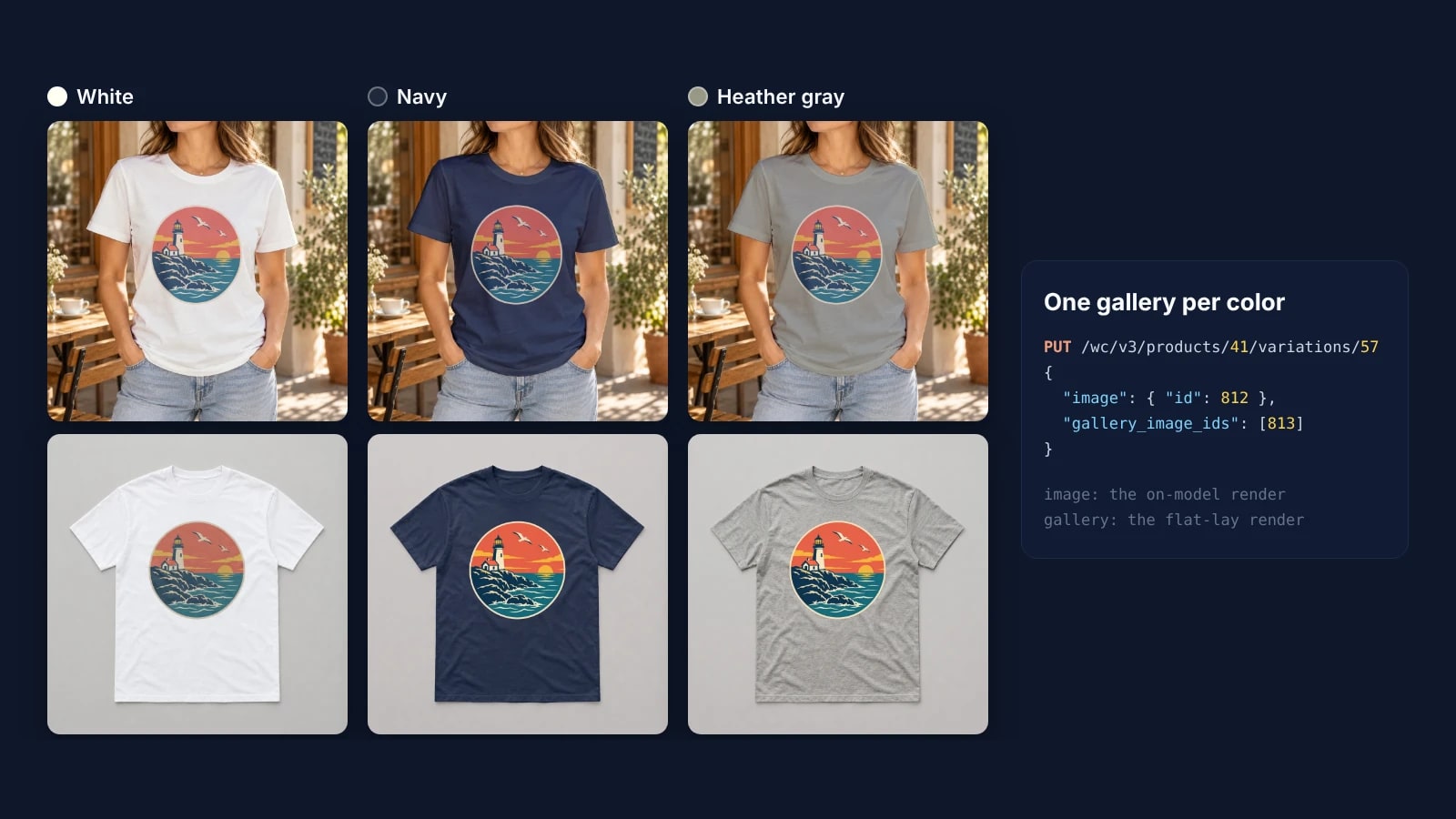
WooCommerce Variation Image Galleries: Fill Each Color by API
Fill the native WooCommerce variation galleries by API: render each color from a PSD and a product photo, upload, then set gallery_image_ids.
5 min read
WooCommerce MCP: Create Products With Images From Your Own Template
The WooCommerce abilities behind the MCP Adapter create products without images. Render each color from your PSD with SudoMock and attach it by REST.
7 min read
How to Make Your Own Mockup from Any Product Photo
One photo of your own product becomes a reusable mockup: the create call, the render call and real renders of four designs on a canvas tote.
7 min read
Your own PSD, rendered via API
Render your own PSD through the API. Start with 500 one-time credits, no card.