Amazon Product Image Requirements: The Rules and Where a Mockup Fits
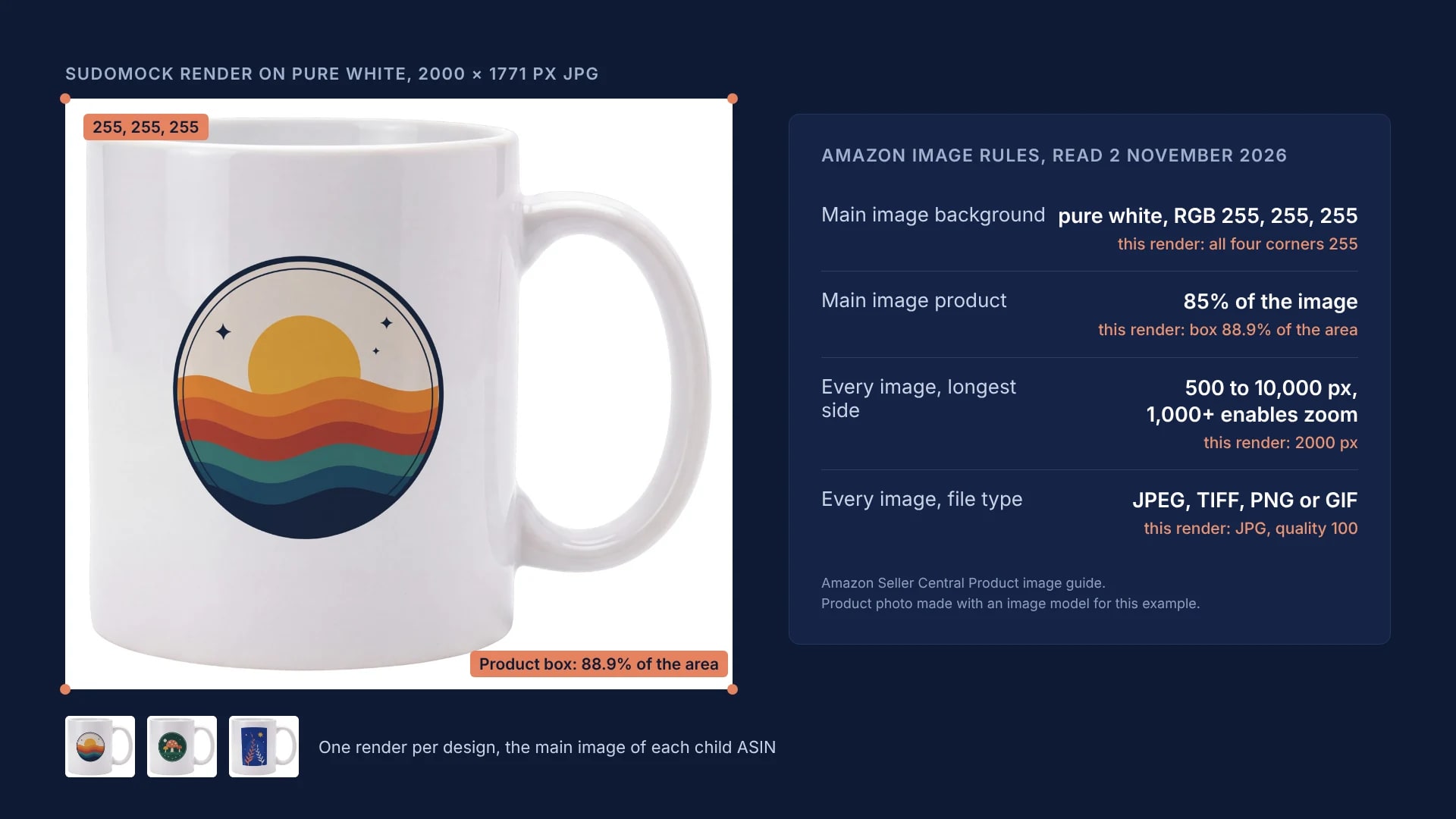
Amazon's Product image guide, read on 2 November 2026, asks for a main image on pure white (RGB 255, 255, 255) with the product at 85% of the image, and for every image 500 to 10,000 pixels on the longest side, 1,000 or more for zoom. It no longer names mockups, and clothing main images must be photos.
Published 12 min readBeck
Key takeaways
- Shadows that reach the frame edge count as a non-white background on the main image.
- Only beds, bed frames, mattresses, rugs, rug pads and sofas may use a lifestyle main image.
- Files named like B000123456.MAIN.jpg land on their ASIN automatically, up to 1,000 per zip.
What Amazon requires of a product image
Amazon's Product image guide, read on 2 November 2026, splits its rules in two: a specification table that every image must meet and a list for the main image. The main image rules are the strict ones: a pure white background, the product at 85% of the image and a realistic image of the real product.
| Rule | Applies to | Amazon's wording |
|---|---|---|
| Background | Main image | "Have a pure white background (RGB color values: 255, 255, 255)" |
| Product in the frame | Main image | "Show the product as 85% of the image." |
| Smallest file | Every image | "Images below 500 pixels on the longest side cannot be uploaded." |
| Zoom | Every image | "Images with 1,000+ pixels on the longest side enable the zoom function." |
| Largest file | Every image | 10,000 pixels on the longest side |
| File types | Every image | "JPEG (.jpg or .jpeg), TIFF (.tif or .tiff), PNG (.png), non-animated GIF (.gif)" |
| Resolution | Every image | "At least 72 dpi" |
| Number of images | The listing | "We recommend that you upload at least six additional images and one video" |
The guide states no megabyte limit, does not list WebP, and gives no 1,600 pixel size. The 1,600 pixel zoom figure that some guides print is in Amazon's older text, the Internet Archive copy of 7 July 2022: "The optimal zoom experience for detail pages requires files to be 1600px or larger on the longest side." The current guide also says "Do not artificially enlarge small images."
A main image that misses these rules has a cost, in Amazon's words: "If there is no main image that meets the requirements, we may temporarily remove the product listing from search until a compliant main image is provided."
Can a mockup be the main image on Amazon?
For products other than clothing, the main image can be a render of your design on a photo of the real product, on pure white. Amazon's current guide does not name mockups, and it asks for exactly that kind of image: "Accurately represent the product as a realistic, professional-quality image. The image should accurately represent the real scale, quantity, and color of the product."
The older text named them. The same page in July 2022 read: "MAIN images must be professional photographs of the actual product (graphics, illustrations, mockups, or placeholders are not allowed)." On 2 November 2026 the words mockup, illustration, render and graphic appear nowhere on the live guide.
Amazon's page on text, logo, graphics and watermarks speaks to synthetic images: "Synthetic images that represent the product realistically and are indistinguishable from a good product photo are not text, logo, graphics, and watermarks." The same page rejects "Images that contain graphics that extend outside the product area as though pasted into the photo", so the design sits inside the product's outline, the way it prints.
Clothing keeps a stricter rule. Amazon's image guidelines for clothing list among main images that are not allowed: "Sketches, drawing, or graphical representations. Only photos are allowed." The Product image guide adds for adult clothing: "Show on a model if the product is clothing in adult sizes. The model must be standing, not sitting, kneeling, leaning, or lying down."
Which image goes in which slot
The main image carries the strict rules, and the other slots take angles, the product in use and details. Amazon's own pages decide where each image belongs:
| Slot | What Amazon asks | What to upload |
|---|---|---|
| Main, products other than clothing (mugs, drinkware, wall art, home goods) | Pure white, the product at 85%, a realistic image of the real product, and no person: "Main images that show products on human models are not allowed, except for adult apparel." (Human models) | A render of the design on a photo of the real product on 255 white, one per design |
| Main, clothing | "Only photos are allowed", adult sizes on a standing model. Amazon's fashion imaging guide (Spring 2021) adds: "All kids, baby, accessories, multipacks & sets should be off-model." | A photo of the printed garment. The same guide recommends an off-figure alternate for on-model products, named FL01. |
| Other images (PT01 to PT99) | "Used for additional angles, product in use, screenshots, accessories, or product details." | Renders: lifestyle scenes, close-ups of the print |
| Lifestyle scene as the main image | "We allow for a lifestyle image to be the main image in limited product types. These are: BED, BED_FRAME, MATTRESS, RUG, RUG_PAD, SOFA." (Product page style guides) | Not for mugs, apparel or prints |
Prepare the product photo once, framed to the product
The main image has to sit on 255, 255, 255 and fill the frame, and one prepared photo of the blank product does both for every design. A backdrop that looks white often measures less: the generated studio shot on the left below, a white mug on a white sweep, measured 234 to 247 in its four corners, and a check for the product's edges found it everywhere, because no pixel was 255.
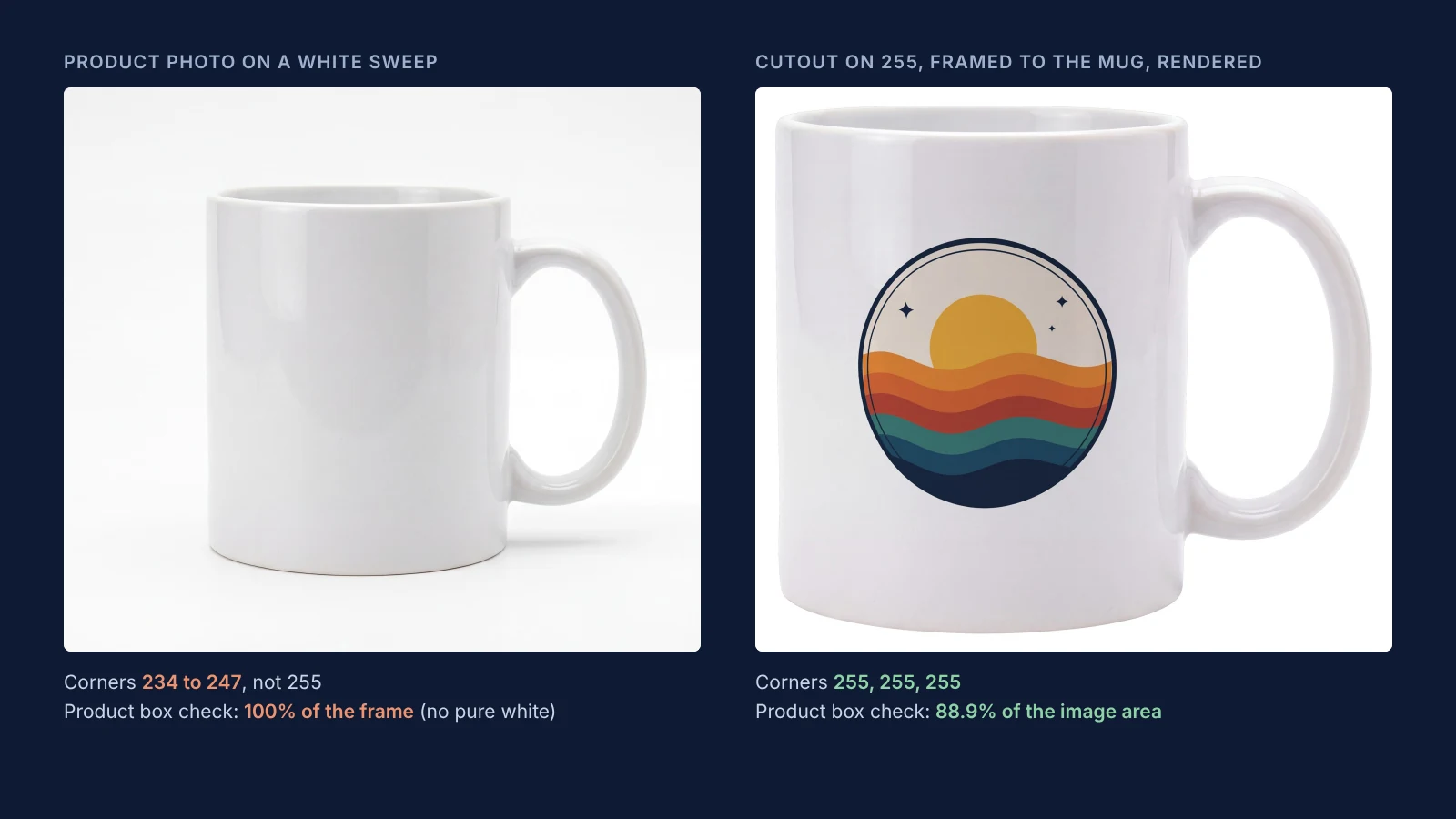 Left: a generated studio shot on a white sweep. Right: the same mug cut out, placed on 255 white, framed to the mug and rendered with SudoMock. Both product images were made with an image model for this example.
- Cut the product out: SudoMock's background remover returns it as a transparent PNG.
- Place it on a canvas filled with exactly 255, 255, 255, with no shadow reaching the edge. Amazon's non-white background page rejects "Shadows that run to the edge of the image frame or that the product or human models cast against a backdrop". The same page rejects what a background edit leaves behind: "When you use an image that's edited to remove background elements, any background areas that remain, such as off-white or gray backdrops, artifacts, objects, or outlines that are added around the border of the image, are not allowed." Look at the cutout's edge at 100 percent before you place it.
- Cut the canvas to the product's shape. Amazon's Product Too Small page says: "All product images must properly frame the product without excessive whitespace. The product must occupy at least 85% of the image area, making use of as much of the image space as possible without cropping the product or letting shadows run to the edge of the image." A mug with its handle is wider than it is tall, so the photo here is 3881 by 3438 pixels with a small even margin on every side.
- Turn the prepared photo into a photo mockup with create a mockup from a product photo. Send the print area in the same request as
print_areas[].points, its four [x, y] corners in the photo's pixels: for an 11 oz mug, the side facing the camera, clear of the rim and the handle. Leaveprint_areasout and the print area is found automatically. The response carriesdata.mockup_idfor the render URL anddata.quads[].print_area_idforuuidin the render request.
The render keeps the background and the framing of the photo it starts from, so every design rendered on this mockup comes back on 255, framed the same way.
Render the main image of each design and check it
One request renders a design onto the mockup at a size and format Amazon accepts. Here is the photo mockup render for one design:
curl -X POST https://api.sudomock.com/api/v1/photo-mockups/YOUR_PHOTO_MOCKUP_ID/render \-H "x-api-key: $SUDOMOCK_API_KEY" \-H "Content-Type: application/json" \-d '{"print_areas": [{ "uuid": "YOUR_PRINT_AREA_UUID","artwork_url": "https://example.com/designs/mushroom-mug-badge.png" }],"export_options": { "image_format": "jpg", "image_size": 1024, "quality": 100, "dpi": 300 }}'
const response = await fetch('https://api.sudomock.com/api/v1/photo-mockups/YOUR_PHOTO_MOCKUP_ID/render', {method: 'POST',headers: {'x-api-key': process.env.SUDOMOCK_API_KEY,'Content-Type': 'application/json',},body: JSON.stringify({"print_areas": [{"uuid": "YOUR_PRINT_AREA_UUID","artwork_url": "https://example.com/designs/mushroom-mug-badge.png"}],"export_options": {"image_format": "jpg","image_size": 1024,"quality": 100,"dpi": 300}}),});const data = await response.json();console.log(data);
import osimport requestsresponse = requests.post("https://api.sudomock.com/api/v1/photo-mockups/YOUR_PHOTO_MOCKUP_ID/render",headers={"x-api-key": os.environ["SUDOMOCK_API_KEY"],"Content-Type": "application/json",},json={"print_areas": [{"uuid": "YOUR_PRINT_AREA_UUID","artwork_url": "https://example.com/designs/mushroom-mug-badge.png",},],"export_options": {"image_format": "jpg","image_size": 1024,"quality": 100,"dpi": 300,},},)print(response.json())
package mainimport ("bytes""fmt""io""net/http""os")func main() {payload := []byte(`{"print_areas": [{"uuid": "YOUR_PRINT_AREA_UUID","artwork_url": "https://example.com/designs/mushroom-mug-badge.png"}],"export_options": {"image_format": "jpg","image_size": 1024,"quality": 100,"dpi": 300}}`)req, err := http.NewRequest("POST", "https://api.sudomock.com/api/v1/photo-mockups/YOUR_PHOTO_MOCKUP_ID/render", bytes.NewBuffer(payload))if err != nil {panic(err)}req.Header.Set("x-api-key", os.Getenv("SUDOMOCK_API_KEY"))req.Header.Set("Content-Type", "application/json")resp, err := http.DefaultClient.Do(req)if err != nil {panic(err)}defer resp.Body.Close()body, _ := io.ReadAll(resp.Body)fmt.Println(string(body))}
<?php$payload = <<<'JSON'{"print_areas": [{"uuid": "YOUR_PRINT_AREA_UUID","artwork_url": "https://example.com/designs/mushroom-mug-badge.png"}],"export_options": {"image_format": "jpg","image_size": 1024,"quality": 100,"dpi": 300}}JSON;$ch = curl_init('https://api.sudomock.com/api/v1/photo-mockups/YOUR_PHOTO_MOCKUP_ID/render');curl_setopt_array($ch, [CURLOPT_CUSTOMREQUEST => 'POST',CURLOPT_RETURNTRANSFER => true,CURLOPT_HTTPHEADER => ['x-api-key: ' . getenv('SUDOMOCK_API_KEY'),'Content-Type: application/json',],CURLOPT_POSTFIELDS => $payload,]);$response = curl_exec($ch);curl_close($ch);echo $response;
On this landscape photo the request returns a file 1024 by 907 pixels, above Amazon's 1,000 pixel zoom line. The file's URL is in data.print_files[0].export_path. Set image_format to jpg in every request: left out, the render returns WebP, which Amazon does not list. Amazon's technical file page says "For JPEG files, save at the highest possible quality level", so the request sets quality to 100. dpi writes the resolution into the file for Amazon's "At least 72 dpi" line and changes no pixels. The file comes back flat and in RGB, as the same page asks: "Remove all layers from images before you submit."
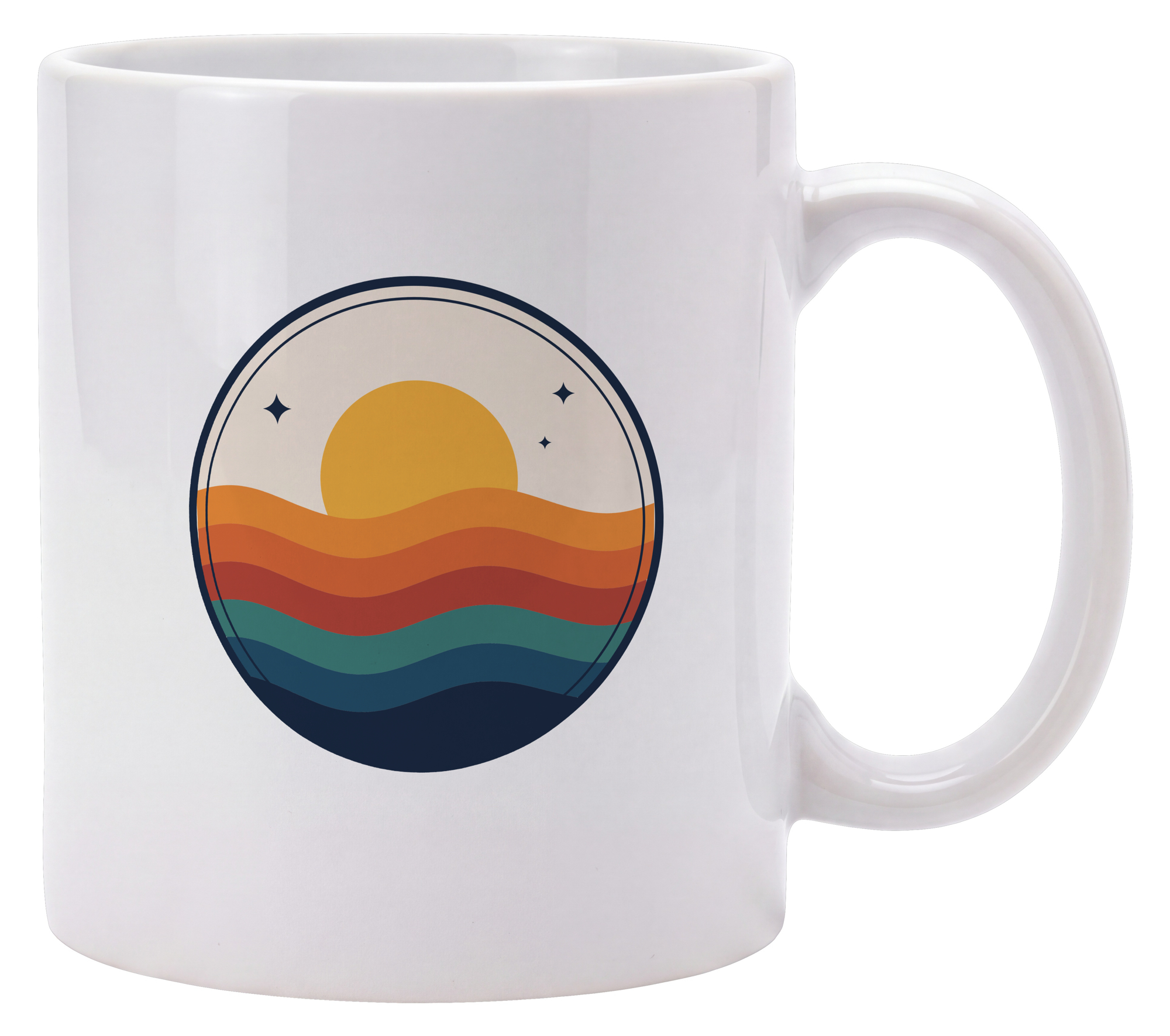 A SudoMock render on a photo mockup at 2000 by 1771 px, JPG quality 100, as returned. The product photo was made with an image model for this example.
Check every file before it goes to Amazon: the format, the resolution tag and the longest side for every image, and the corners and the product box for every main image. This script prints all of them:
import sysfrom PIL import Image, ImageChopsim = Image.open(sys.argv[1])print("format:", im.format, "mode:", im.mode, "dpi:", im.info.get("dpi"))im = im.convert("RGB")w, h = im.sizeprint("longest side:", max(w, h))print("corners:", [im.getpixel(p) for p in [(0, 0), (w - 1, 0), (0, h - 1), (w - 1, h - 1)]])white = Image.new("RGB", im.size, (255, 255, 255))x0, y0, x1, y1 = ImageChops.difference(im, white).getbbox()print(f"box area: {100 * (x1 - x0) * (y1 - y0) / (w * h):.1f}% of the image")
Run on the 2000 pixel sunset render, it printed:
format: JPEG mode: RGB dpi: (300.0, 300.0)longest side: 2000corners: [(255, 255, 255), (255, 255, 255), (255, 255, 255), (255, 255, 255)]box area: 88.9% of the image
These SudoMock renders were made on 2 November 2026, all from the same photo mockup, as JPG at quality 100:
Design and image_size | Pixels | Corners | Product box | File size |
|---|---|---|---|---|
| Mushroom, 1024 | 1024 x 907 | 255, 255, 255 | 88.5% of the area | 428,534 bytes |
| Sunset, 2000 | 2000 x 1771 | 255, 255, 255 | 88.9% of the area | 1,434,931 bytes |
| Mushroom, 2000 | 2000 x 1771 | 255, 255, 255 | 88.9% of the area | 1,423,868 bytes |
| Botanical, 2000 | 2000 x 1771 | 255, 255, 255 | 88.9% of the area | 1,410,088 bytes |
One image set per child ASIN, named for bulk upload
Each child ASIN, one per design or colour, needs its own image set, and its main image is the render of that design. Amazon's upload tool can place every file on its ASIN by the file name, so name the renders as they come back.
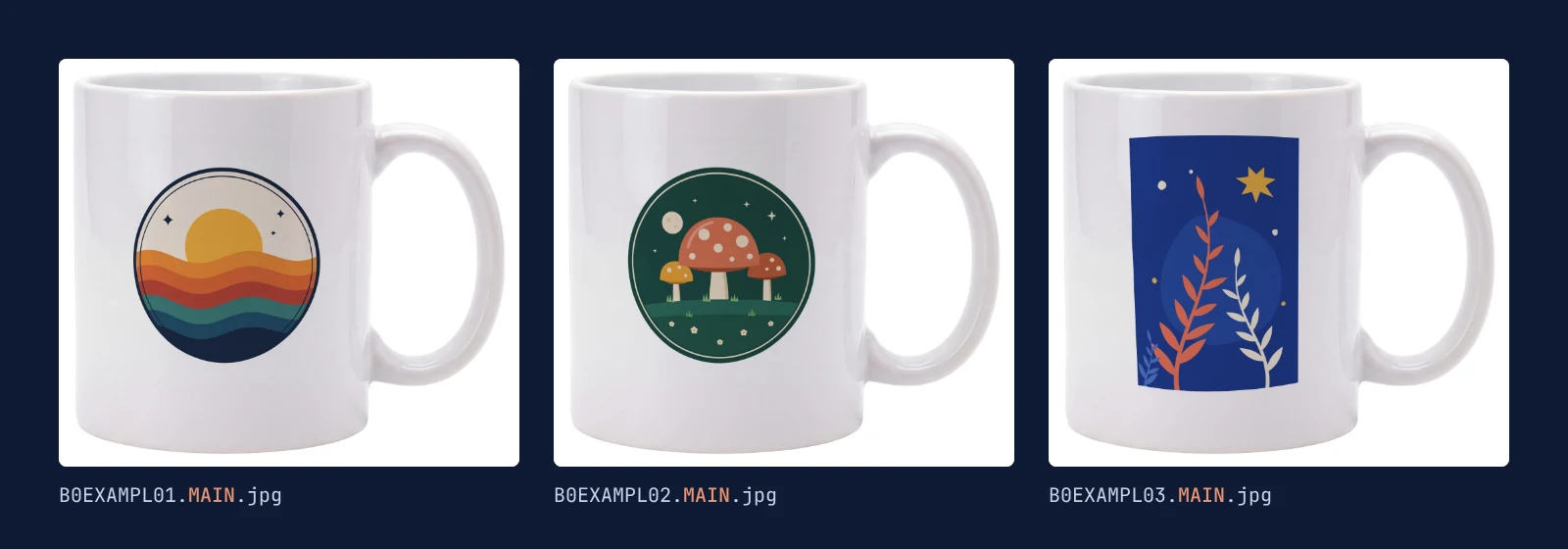 Three SudoMock renders from one photo mockup, one main image per design child, with example file names. The product photo was made with an image model for this example.
- Render each design from the same photo mockup with the same
export_options, one request per design. Send them in parallel: the average SudoMock render finishes in under a second. - Render the other slots from the Amazon mockup templates and the mug templates, whose angles open as ready photo mockups: lifestyle scenes and close-ups of the same design, through the same photo mockup render and
export_options. - Name each file for its ASIN and slot. Amazon's Upload images page keeps this under legacy file naming: "Name your files as Product ID + variant code + extension (for example, B000123456.MAIN.jpg). Images are assigned to products automatically based on file name." The main image render takes MAIN and the lifestyle renders take PT01, PT02 and on. The same page warns: "Images with a product ID in the file name but no variant code will be treated as a main image." Its other option, flexible file naming, lets you assign files to products after upload.
- Zip the files: "You can upload up to 1,000 images and 1 GB per zip file."
- For colour children of one product, the same page says: "Upload one set of images per color or style variation. You can copy the media set to sibling products later in Assign Images."
Images with AI-generated people need a tag
Amazon requires a metadata tag on images and videos that show photorealistic AI-generated people. The guide says: "If your image includes photorealistic AI-generated people, you must tag that image with the appropriate metadata before uploading it to Amazon." The tag is the keyword contains-synthetic-performer in the file's XMP dc:subject field.
Amazon announced the rule in its seller forums on 27 July 2026. The Product image guide needs no tag when "Your image only features real people (even if they have been altered with AI-powered tools)", and none for an image with no people, like the mug renders here. Amazon's tagging page gives steps for macOS Preview and Windows File Explorer, and this exiftool command for images and videos:
exiftool -XMP-dc:Subject+=contains-synthetic-performer image1.png image2.jpg video.mp4
Next step
Prepare one product photo on 255, framed to the product, and run the check on it. Then create the photo mockup with create a mockup from a product photo, render one design at image_size 1024, run the check again, and render every design at the size you upload. In n8n, the Photo Mockup: Render operation returns the same files: set Image Format to JPG, Image Size to 1024, Quality to 100 and DPI to 300 under Export Options, and build each file name from the ASIN and the slot before the zip (n8n integration guide). The Etsy listing photo size and Shopify product image size posts give the image rules of those stores.
Frequently asked questions
Can I use a mockup as my Amazon main image?
Amazon's current Product image guide does not mention mockups. It asks for a realistic, professional-quality image that accurately represents the real scale, quantity and color of the product, while its 2022 version barred mockups from main images by name. For products other than clothing, a render of the design on a photo of the real product, on pure white, is that kind of image. For clothing, Amazon's clothing page says only photos are allowed on the main image.
What size should Amazon product images be?
Amazon's Product image guide asks for at least 500 pixels and at most 10,000 pixels on the longest side. Images with 1,000 pixels or more on the longest side enable the zoom function. The guide sets no megabyte limit per image.
Does Amazon accept PNG or WebP product images?
Amazon's guide lists JPEG, TIFF, PNG and non-animated GIF, and WebP is not on the list. Layered files such as PSD are not accepted and have to be flattened and saved in one of those formats. CMYK files should be converted to RGB before upload.
What does RGB 255, 255, 255 mean for an Amazon main image?
It is pure white, the background Amazon asks for on every main image. A backdrop that looks white often measures below 255, so check the corner pixels of the final file before upload.
Do I need to tag AI-generated images on Amazon?
Only images and videos that show photorealistic AI-generated people need a tag, the keyword contains-synthetic-performer in the file's XMP dc:subject field. Images with only real people, even retouched with AI tools, and images with no people need no tag. Amazon announced the rule in its seller forums on 27 July 2026.
Sources
- Product image guide (opens in new tab), Amazon Seller Central
- Product image requirements (Internet Archive copy of 7 July 2022) (opens in new tab), Internet Archive
- Text, logo, graphics, and watermarks (opens in new tab), Amazon Seller Central
- Image guidelines for clothing (opens in new tab), Amazon Seller Central
- Human models (opens in new tab), Amazon Seller Central
- Seller Imaging Guidelines: Clothing & Accessories (Spring 2021) (opens in new tab), Amazon Fashion
- Product page style guides (opens in new tab), Amazon Seller Central
- Non-white background (opens in new tab), Amazon Seller Central
- Product Too Small (opens in new tab), Amazon Seller Central
- Technical image file requirements (opens in new tab), Amazon Seller Central
- Upload images (opens in new tab), Amazon Seller Central
- You must now tag AI-generated people in listings and A+ content (opens in new tab), Amazon Seller Forums
- How to tag media that contains an AI-generated person (opens in new tab), Amazon Seller Central
- Render a photo mockup (opens in new tab)
- Create a mockup from a product photo (opens in new tab)
- Remove the background from an image (opens in new tab)
- n8n integration (opens in new tab)
Beck
CTO
Related articles
Google Merchant Center Image Requirements: 500 x 500 From 2027 and Renders That Meet It
Google's Merchant Center image sizes quoted with their dates, the mockup line, and renders measured at the 500 and 1500 pixel lines.
9 min read
How to Make Your Own Mockup from Any Product Photo
One photo of your own product becomes a reusable mockup: the create call, the render call and real renders of four designs on a canvas tote.
7 min read
Etsy Listing Photo Size: Etsy's Rules and Files That Meet Them
Etsy's listing photo rules quoted with their dates, the render width for each template shape, and real files measured against the 1 MB line.
7 min read
Explore by use case
See SudoMock in action for your specific product category
Your own PSD, rendered via API
Render your own PSD through the API. Start with 500 one-time credits, no card.